
MessageGears
Use GrowthLoop audiences for table exports MessageGears can read.
Connect this destination to export audience membership as rows in a BigQuery or Snowflake table MessageGears can read, for use in MessageGears campaigns.
This destination writes to your warehouse for MessageGears and is a good fit when you want to:
- Have MessageGears read audiences from your BigQuery or Snowflake warehouse
- Match contacts on the identifier fields MessageGears expects
This maps to GrowthLoop Audiences and Journeys:
| Use it for | Audiences | Journeys |
|---|---|---|
| Writing audience membership to a table MessageGears can ingest | ✓ | ✓ |
Do not use a generic Google BigQuery or Snowflake destination for this.
Prerequisites
Make sure you have:
- Access to your MessageGears environment.
- The warehouse MessageGears reads from, either BigQuery or Snowflake.
- Credentials for that warehouse. For Snowflake setup details, see Snowflake. For BigQuery service account keys, see Google BigQuery.
Set up MessageGears as a destination
- In GrowthLoop, click the Destinations tab on the left sidebar.
- Click New Destination in the top right corner.
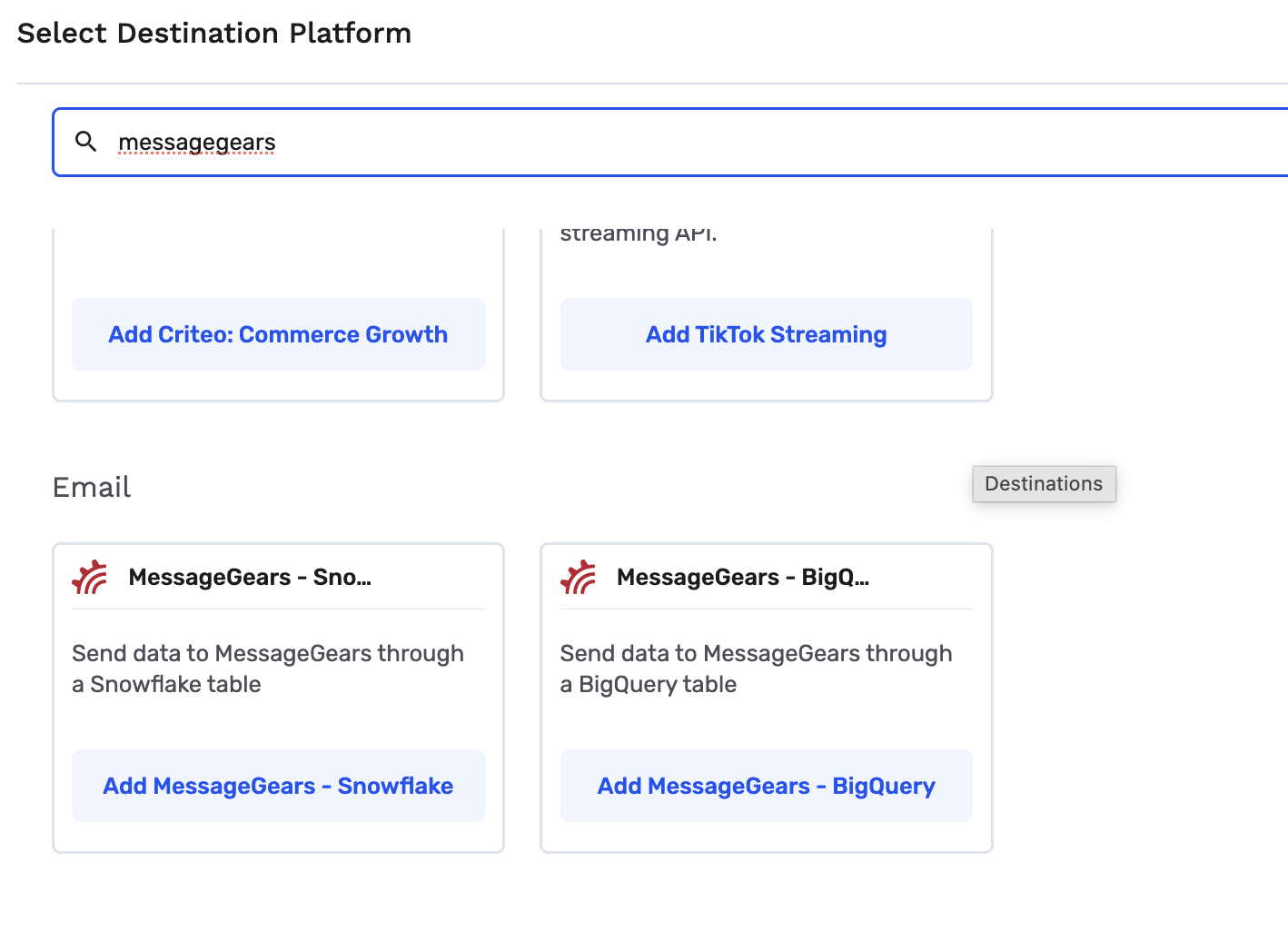
- Search for MessageGears and click Add MessageGears - BigQuery or Add MessageGears - Snowflake, depending on the warehouse MessageGears reads from.
- Enter the required information, then click Create.
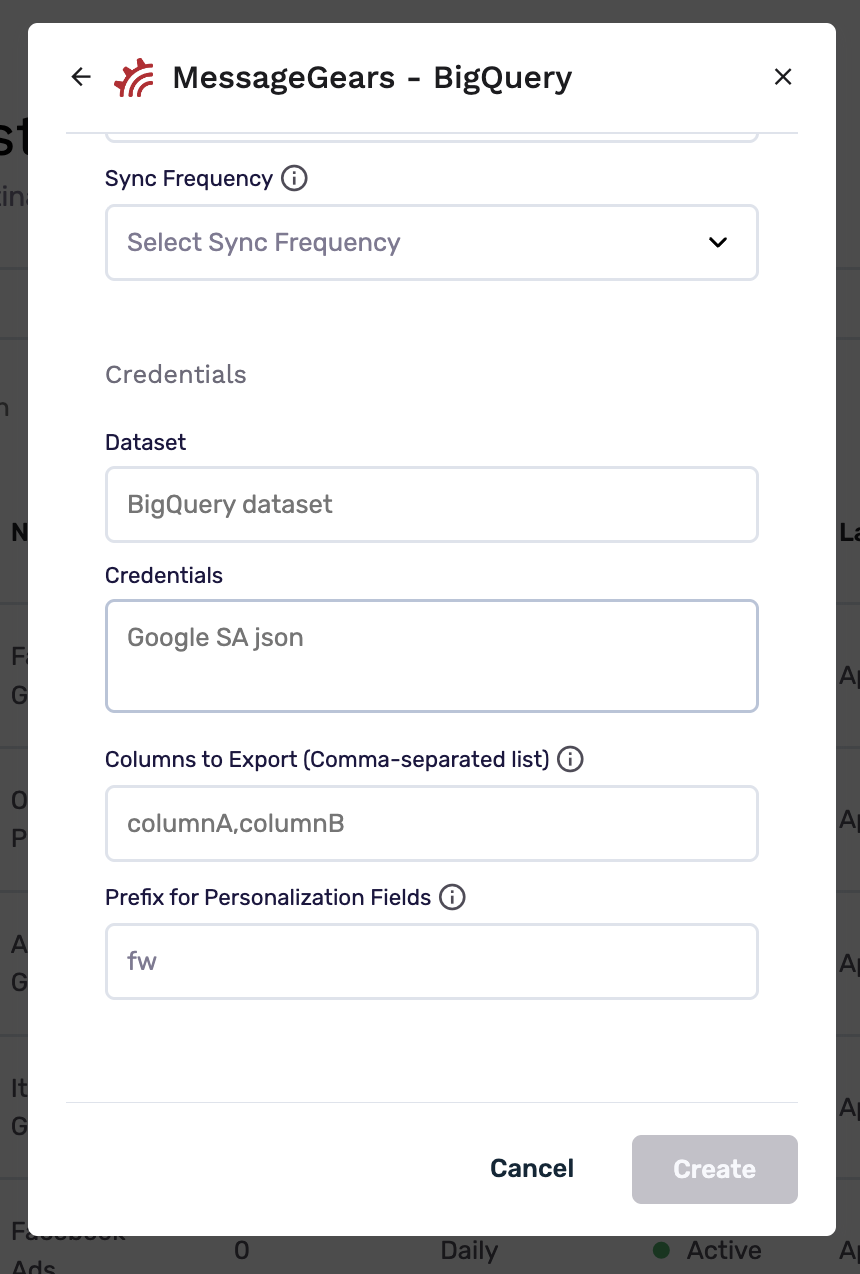
| Field | Destination | Description |
|---|---|---|
| Destination Name | Both | Name this destination in GrowthLoop. Use a name so your team recognizes its purpose, like "MessageGears Email". |
| Sync Frequency | Both | Set the default export frequency (for example, daily or weekly). You can override this setting for individual exports. |
| Dataset | BigQuery | BigQuery dataset where GrowthLoop should create the table. |
| Credentials | BigQuery | The entire contents of your service account JSON key file. |
| Schema | Snowflake | Snowflake schema where GrowthLoop should create the table. |
| Database | Snowflake | Snowflake database that contains that schema. |
| Warehouse | Snowflake | Snowflake warehouse that runs the load. |
| Account | Snowflake | Your Snowflake account ID. |
| Username | Snowflake | Snowflake username. |
| Role | Snowflake | Snowflake role for the load. |
| Passphrase (optional) | Snowflake | Passphrase for the private key, if it has one. |
| Private Key | Snowflake | Snowflake private key. |
| Columns to Export (optional) | Both | Comma-separated warehouse column names. If you leave this blank, GrowthLoop exports all columns. |
| Prefix for Personalization Fields (optional) | Both | Prefix GrowthLoop adds to personalization fields. The default value is fw. Leave this blank for no prefix. If you set one, it must start with a letter and use up to 5 letters or numbers. |
You set the warehouse connection here. You choose the Table Name later, when you export.
GrowthLoop validates the connection. The MessageGears destination then appears in your list of connected destinations.
Export to MessageGears
From within GrowthLoop, export from an audience or from a journey Destination Node. See Export an audience or Build a journey if you need more information on these steps.
After building or selecting an audience, click Export, then search for your MessageGears destination. In a journey, add a Destination Node under Email and select your MessageGears destination.
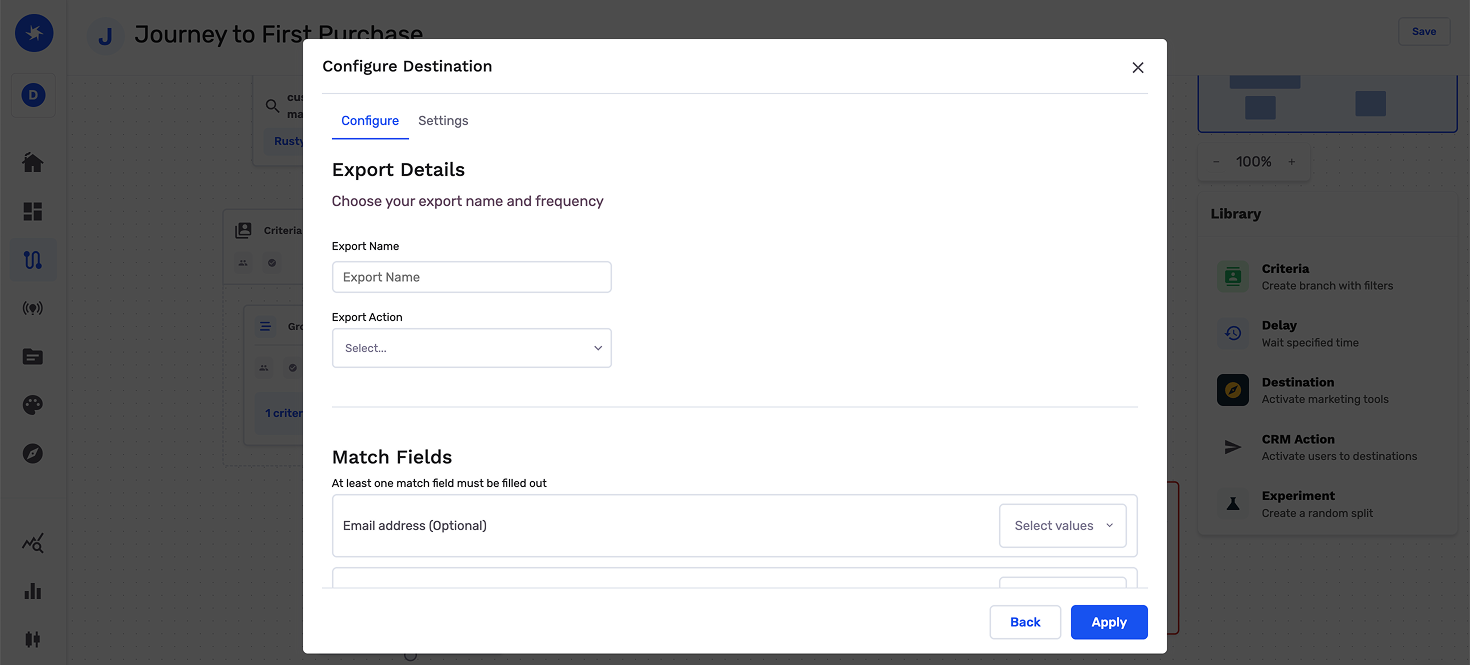
Map identifiers
On an audience or in a journey Destination Node, map the identifier fields MessageGears expects for your account.
| Match field | Required |
|---|---|
| Client Customer ID | No |
| No | |
| Recipient ID | No |
| Advertiser ID | No |
| Lead ID | No |
| Encrypted ID | No |
| Region | No |
You can also map custom attributes from the audience or from the journey as additional fields.
Configure the export
This is where you set the campaign type and schedule for audience exports. On a journey Destination Node, you set timing on the journey canvas.
| Setting | Audience export | Journey Destination Node |
|---|---|---|
| Export Name | Defaults to the audience name. | Required. Enter a name so you can find the export in GrowthLoop. |
| Table Name | Required. Letters, numbers, and underscores only. | Required. Letters, numbers, and underscores only. |
| Campaign type | Choose a one-time or ongoing export. | The journey schedule controls when the journey runs and contacts are sent to MessageGears. |
| Export Inclusion Criteria | All audience members for a full refresh, or Newly added audience members for additions and removals since the last export. | The journey sends contacts who reach this node. |
| Schedule | Set frequency, start date, end date, and days of the week for ongoing exports. | Users reach this node when the journey runs. Add a Delay Node or set Criteria Evaluation to control timing. |
| Personalization Fields | Extra columns for this export. By default, GrowthLoop sends the destination Columns to Export. | Extra columns for this export. |
Export behavior
This is what GrowthLoop writes when you export an audience.
| Behavior | What happens |
|---|---|
| What GrowthLoop writes | Rows in the BigQuery or Snowflake table you named. Direction is GrowthLoop → that warehouse. MessageGears reads the table from there. |
| When it runs | GrowthLoop sends the export as a batch on the next successful run. An export that starts Now runs within about 15 minutes. Journeys send exports on demand when users reach the Destination Node. |
| Table | GrowthLoop creates the table if it does not exist, using the Table Name on the export. BigQuery tables go in the Dataset from setup. Snowflake tables go in the Database and Schema from setup. |
| Match fields | MessageGears identifier fields. None are required in GrowthLoop. Map the columns MessageGears expects. |
| Columns to Export | If you set this on the destination, GrowthLoop limits the table to those columns unless you add personalization fields. |
| Personalization prefix | Personalization field names use the prefix you set on the destination, or fw if you left the default. |
| One-time exports | GrowthLoop sends current membership once. |
| Ongoing exports | GrowthLoop sends updated membership on each scheduled run. |
| Deletes | GrowthLoop does not drop the warehouse table. |
Confirm the export was successful
When the run finishes, confirm you can use the data in MessageGears.
- Audience export: Open the BigQuery dataset or Snowflake schema you set on the destination and look up the Table Name from the export.
- Journey Destination Node: Open that dataset or schema and look up the table named after the export.
In GrowthLoop, review counts on the audience Exports tab, or open the Activity tab on the journey Destination Node. See Export an audience or Monitor a journey for more information.
Congrats on successfully exporting to MessageGears!
Troubleshooting
These are the issues we see most often. You can always email us at [email protected] for help.
| Problem | Cause | Resolution |
|---|---|---|
| Connection fails to validate | Warehouse credentials are incomplete or cannot write to the dataset or schema | Confirm the BigQuery JSON key or the Snowflake account, role, and private key. The service account or role must be able to create tables |
| You cannot find MessageGears | You added a generic BigQuery or Snowflake destination | Search MessageGears and add MessageGears - BigQuery or MessageGears - Snowflake |
| Table Name is rejected | The name uses characters other than letters, numbers, or underscores, or it is already in use | Use only letters, numbers, and underscores, and choose a unique table name |
| The table is missing | You are looking in the wrong dataset or schema, or Table Name does not match the export | Open the Dataset or Database / Schema from destination setup and look for the export Table Name |
| Expected columns are missing | Columns to Export or Personalization Fields omit those columns | Add the columns on the destination or on the export |
| MessageGears does not ingest the table | The mapped identifiers are not the fields MessageGears expects | Map the identifier columns your MessageGears environment uses |
Updated 21 days ago