
Magnite ID Graph S3
Use GrowthLoop audiences for hashed-email membership and taxonomy files in Magnite.
Connect this destination to export audience membership as hashed-email membership and taxonomy files in the S3 bucket Magnite provides, for use in Magnite Streaming.
This destination writes to your Magnite S3 bucket and is a good fit when you want to:
- Make GrowthLoop audiences available in Magnite Streaming
- Match contacts on email
This maps to GrowthLoop Audiences:
| Use it for | Audiences |
|---|---|
| Sending hashed-email membership and taxonomy files to Magnite | ✓ |
Prerequisites
Make sure you have:
- A Magnite account and a Magnite representative who can share the Bucket, Source, and Role ARN: Magnite values.
- The Role ARN: GrowthLoop value from your GrowthLoop CSM.
- An IAM access key and secret that can write to that Magnite bucket. Use yours or GrowthLoop's, depending on how Magnite set up the connection.
- The AWS Region for that access key.
Set up Magnite ID Graph S3 as a destination
- In GrowthLoop, click the Destinations tab on the left sidebar.
- Click New Destination in the top right corner.
- Search for Magnite: ID Graph S3 and click Add Magnite: ID Graph S3.
NoteDon't see Magnite: ID Graph S3 when you try to add a destination? Reach out to [email protected] and we'll enable it.
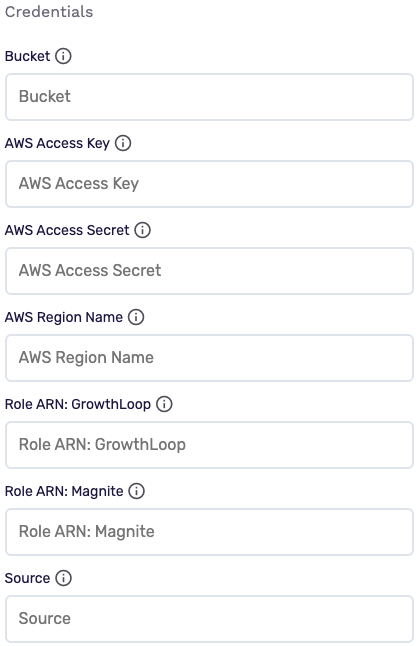
- Enter the required information, then click Create.
| Field | Description |
|---|---|
| Destination Name | Name this destination in GrowthLoop. Use a name so your team recognizes its purpose, like "Magnite ID Graph". |
| Sync Frequency | Set the default export frequency (for example, daily or weekly). You can override this setting for individual exports. |
| Bucket | Magnite S3 bucket name from your Magnite representative. |
| AWS Access Key | Access key for the IAM user that can write to that bucket. |
| AWS Access Secret | Secret access key for that IAM user. |
| AWS Region Name | AWS region for the access key. |
| Role ARN: GrowthLoop | Role ARN from your GrowthLoop CSM. |
| Role ARN: Magnite | Role ARN from your Magnite representative. |
| Source | Source name from your Magnite representative. GrowthLoop uses this in the S3 path. |
GrowthLoop validates the connection by writing a test object to the bucket. Magnite: ID Graph S3 then appears in your list of connected destinations.
Export to Magnite ID Graph S3
From within GrowthLoop, export from an audience. See Export an audience if you need more information on these steps.
After building or selecting an audience, click Export, then search for Magnite: ID Graph S3.
Map contact identifiers
Map Email. This field is required.
GrowthLoop hashes each email as SHA-256 (hem_sha256) after trimming and lowercasing it. If the value is already a 64-character hex hash, GrowthLoop leaves it as-is.
This destination does not send additional personalization fields.
Configure the export
| Setting | Audience export |
|---|---|
| Export Name | Defaults to {audience name}_GL_Audience_{audience ID}. |
| Campaign type | Choose a one-time or ongoing export. |
| Schedule | Set frequency, start date, end date, and days of the week for ongoing exports. |
Each run is a full refresh of current audience members. GrowthLoop does not send Magnite a delta file.
Export behavior
This is what GrowthLoop writes when you export an audience.
| Behavior | What happens |
|---|---|
| What GrowthLoop writes | A membership CSV and a taxonomy CSV in the Magnite S3 bucket. Direction is GrowthLoop → Magnite. |
| When it runs | GrowthLoop sends the export as a batch on the next successful run. An export that starts Now runs within about 15 minutes. |
| Match field | Email, hashed as SHA-256. |
| Membership file | Columns are SegmentId, Id (hashed email), IdType (hem_sha256), IsActive, and AddedAt. Path: pii-onboarding/ingress/provider=growthloop/source={source}/memberships/date={YYYYMMDD}/hour={HH}/delivery_type=full/membership_{audience ID}_{salt}_{segment ID}.csv. |
| Taxonomy file | Describes the segment (SegmentId, SegmentName, Platform Magnite Streaming). Path: pii-onboarding/ingress/provider=growthloop/source={source}/taxonomies/date={YYYYMMDD}/hour={HH}/taxonomy_{audience ID}.csv. |
| One-time exports | GrowthLoop writes one full membership file and one taxonomy file. |
| Ongoing adds and removals | Each run writes a full membership file of current members. Contacts who left are not in that file. GrowthLoop does not upload a separate removal file. |
| Deletes | GrowthLoop does not delete Magnite segments or the files already in the bucket. |
Confirm the export was successful
When the run finishes, confirm you can use the data in Magnite.
- Audience export: Open the Magnite bucket and look under
pii-onboarding/ingress/provider=growthloop/source={your source}/for the latestmembershipsandtaxonomiesfolders.
In GrowthLoop, review counts on the audience Exports tab. See Export an audience for more information.
Congrats on successfully exporting to Magnite ID Graph S3!
Troubleshooting
These are the issues we see most often. You can always email us at [email protected] for help.
| Problem | Cause | Resolution |
|---|---|---|
| Connection fails to validate | The IAM user or Role ARNs cannot write to the bucket, or Bucket, Source, or AWS Region Name is wrong | Confirm the values from Magnite and your CSM. GrowthLoop must be able to write under pii-onboarding/ingress/provider=growthloop/source={source}/ |
| Export type cannot be deltas | Magnite ID Graph S3 accepts a full refresh only | Export all audience members. Do not send additions and removals only |
| Export is too late for Magnite to process | The run finished after Magnite's delivery window for that date | Start the export again so it completes the same day, or reach out to [email protected] |
| Rows fail to export | Email is not mapped | Map Email |
| You cannot find the files | You are looking in the bucket root, or Source does not match the path Magnite expects | Search pii-onboarding/ingress/provider=growthloop/source={source}/ for the export date |
Updated about 1 month ago