
Manage Metrics
View, edit, and organize your metrics.
Once you've created your metrics, you can find, edit, and organize them from the Metrics page. Navigate to Metrics in the left sidebar to get started.
Viewing your metrics
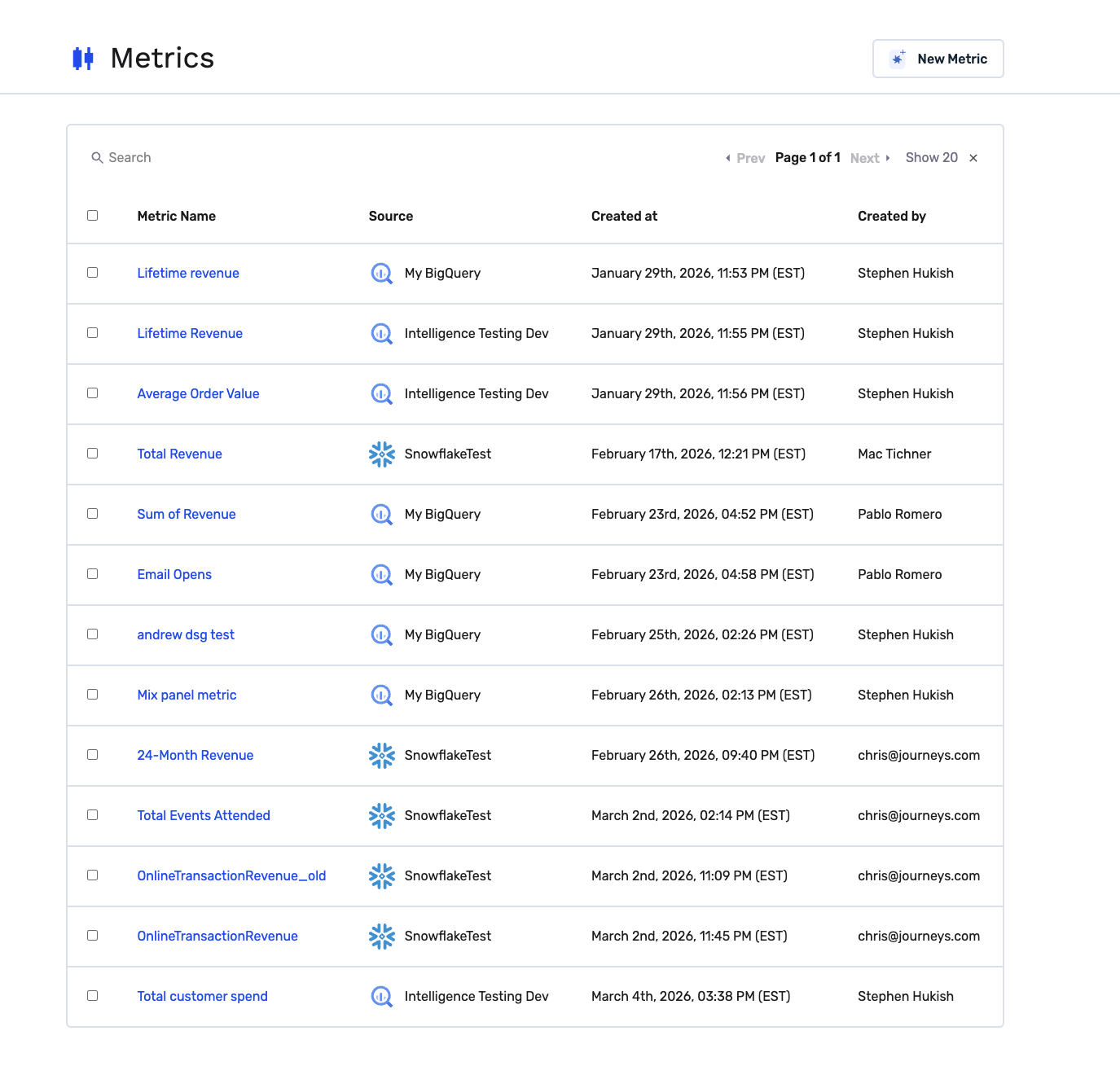
The Metrics page shows all metrics for your organization in a searchable table. Each row displays:
- Metric name -- the name you assigned when creating the metric
- Source -- which data cloud and connection the metric points to
- Created at -- when the metric was created
- Created by -- who created it
Use the search bar to filter by name, or use the status and type filters to narrow your results.
Editing a metric
Click on any metric in the table to open it for editing. You can update the name, description, and configuration.
WarningChanging a metric's configuration affects future tracking only. Past results will not be recalculated. If you need to preserve historical comparisons, create a new metric instead.
Deleting metrics
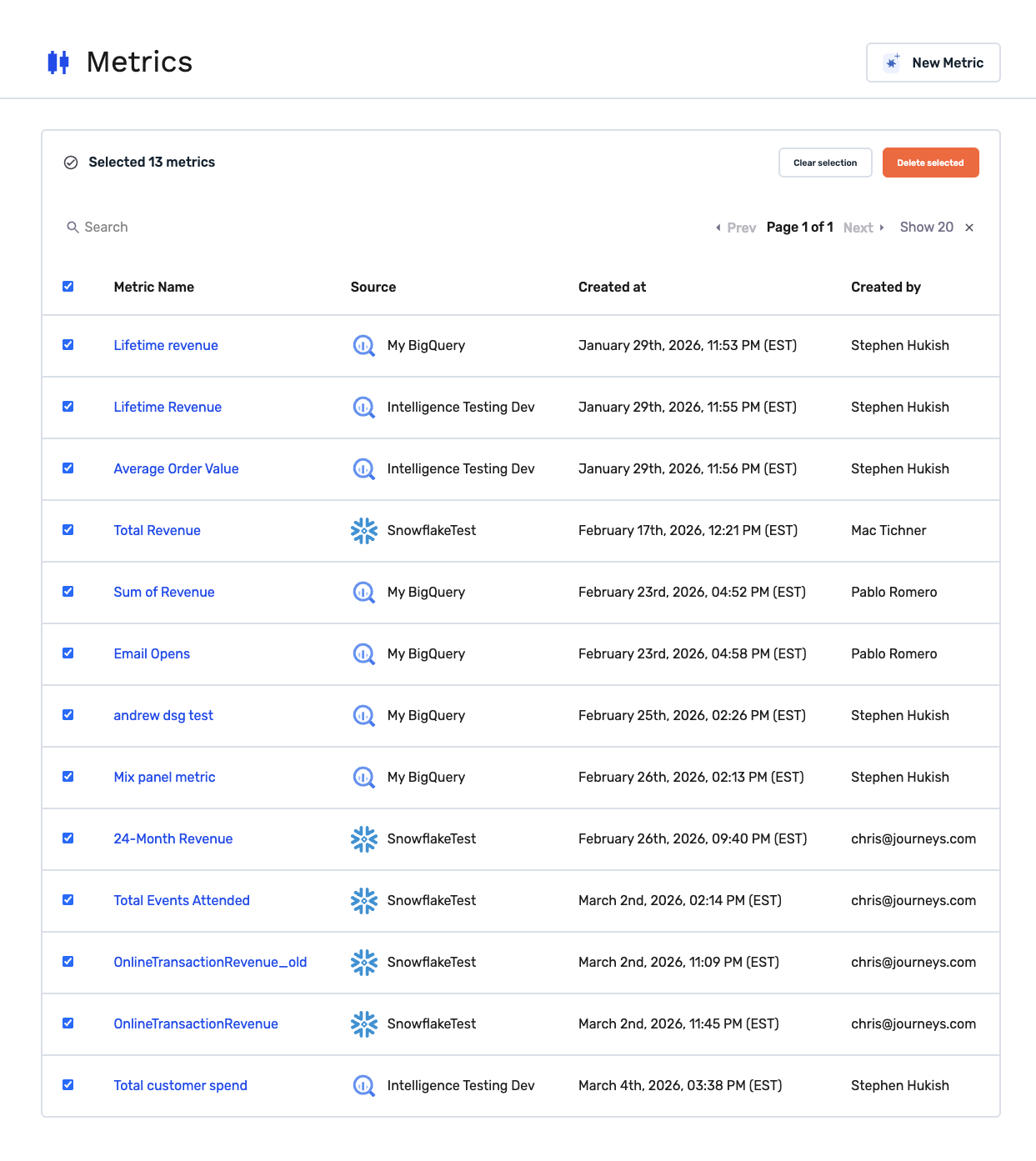
You can delete a single metric from its detail page, or select multiple metrics in the table and use the bulk delete action.
Permissions
| Role | What you can do |
|---|---|
| Owner / Admin | Create, edit, and delete metrics |
| User | View metrics only |
Frequently asked questions
Does this work with my data cloud?
Yes. Metrics work with any Source connected to GrowthLoop -- BigQuery, Snowflake, Databricks, Redshift, and SQL Server are all supported.
Does GrowthLoop copy my data?
No. Like everything else in GrowthLoop, metrics query your data in place. Nothing is moved or duplicated.
Can I create multiple metrics from the same field?
Yes. You might want both "Total Revenue" (total) and "Average Order Value" (average) from the same purchase amount column. Each metric is independent.
Need help with anything else? Reach out to [email protected].
Updated 21 days ago