
Custom Attributes for Audiences
In this article, you'll learn how to track custom attributes on your audiences for analytics and measurement.
It is often useful to add additional attributes to audiences for tracking purposes or to link them to internal concepts. Common use cases include:
- Categorizing audiences: Add a
Program Nameto your audiences to keep track of which audiences are used for each marketing program. - Linking to campaigns: If an audience is used in a campaign, you can associate the corresponding
campaign_idwith that audience. - Leveraging existing analytics assets: Add a custom attribute that serves as a join key to existing analytics tables that reference audience membership or personalization data.
- Including calculated attributes: Define attributes based on SQL logic.
- Including attributes from related datasets: Pull attributes from related datasets within the same dataset group as the audience.
For this reason, custom attributes can be defined in three different ways:
- A static text value
- A formula
- A field from a related table
Inherited Custom Attributes
If an audience is created from a Template, then all of its custom attributes (keys & definition) are also inherited by the audience. However, you can further modify or edit those inherited custom attributes.
Add Custom Attributes to an Audience
You can add custom attributes to a new audience, or an existing audience. Once you are on the Audience Canvas:
-
In the subheader menu select
Settings -
Under
Additional Custom AttributesclickAdd Custom Attribute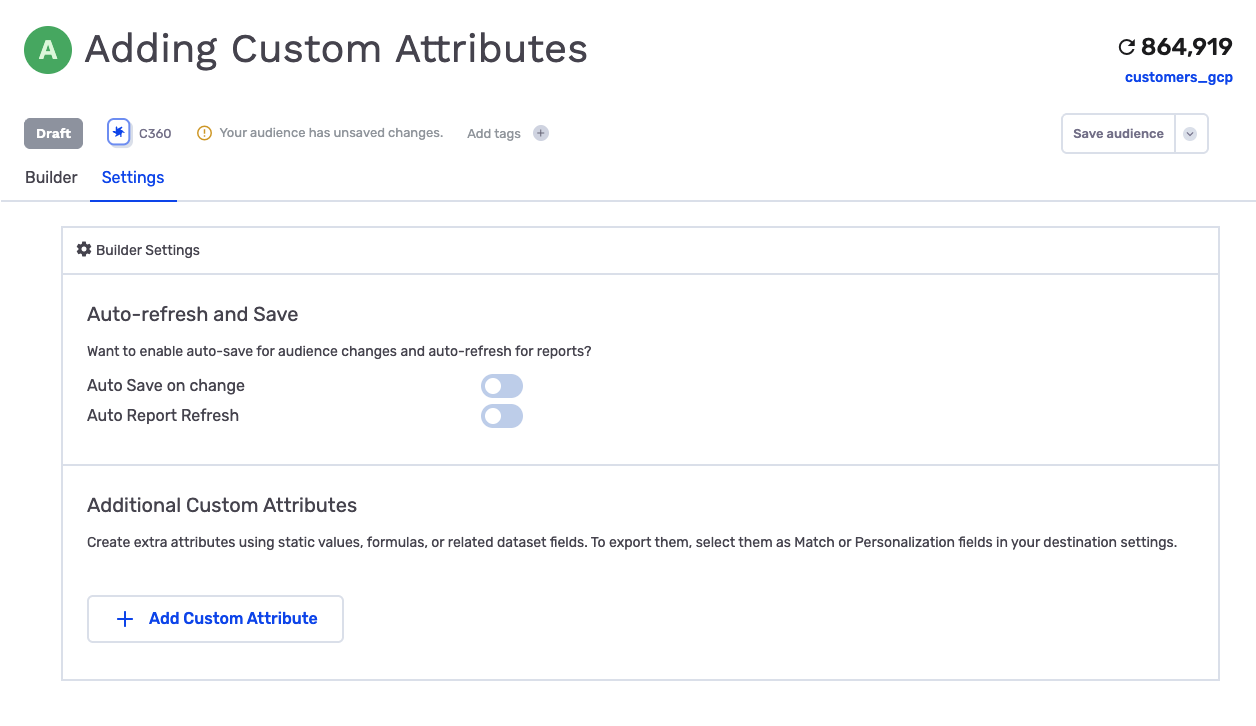
-
Add your
Label: The label is the name of the attribute. For example: "campaignid". -
Pick the type: It can be Text, Attribute Formula or Related Dataset Field
-
Add your
Value: The value changes depending on the type of custom attribute. For example: The actual campaign id you want to associate with this audience, when using a text value.
A few custom attribute examples
The following image includes a simple text attribute, an attribute formula attribute and two different related dataset attributes
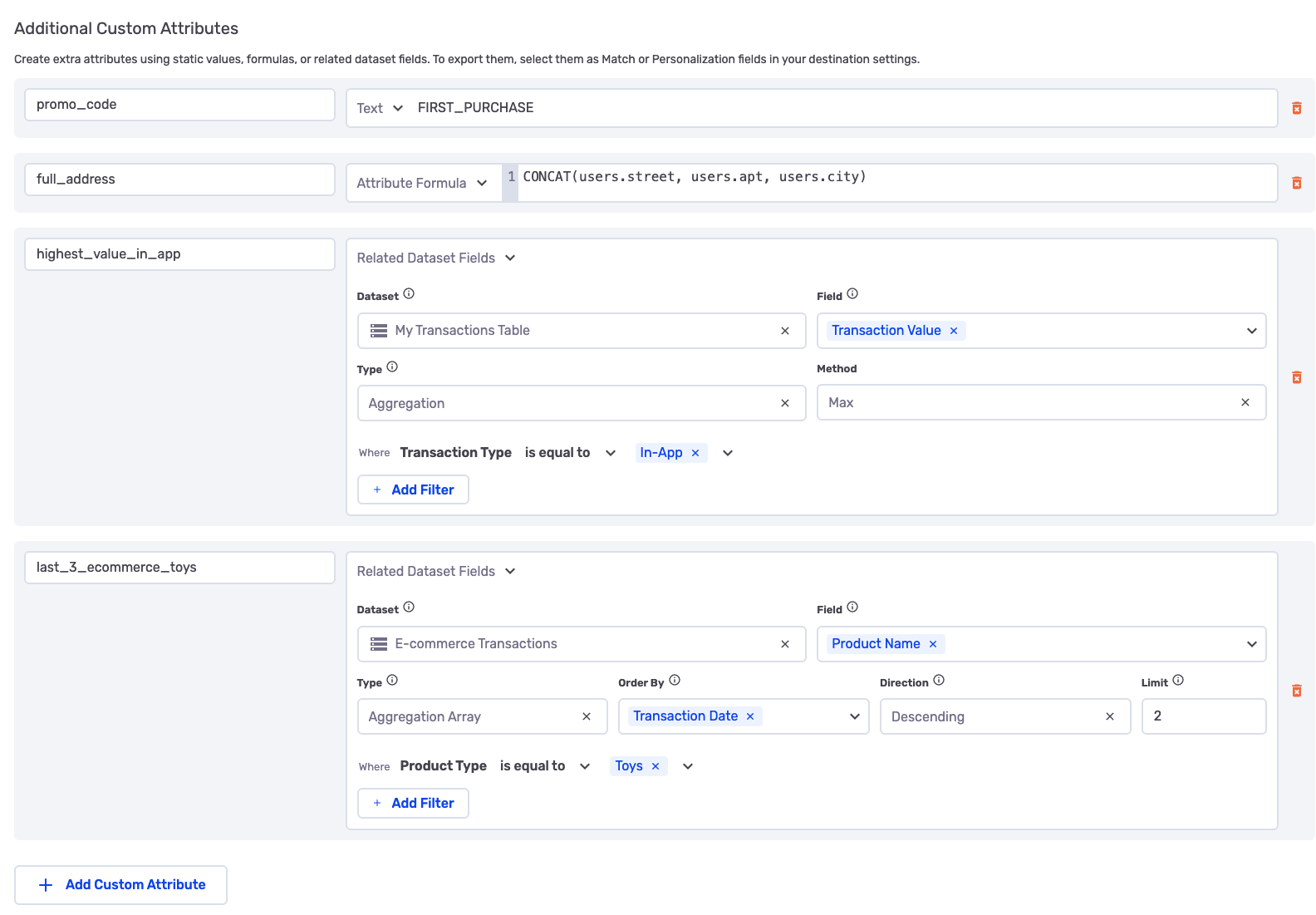
Custom attributes can also be used in Journeys. For more information on how to define formula-based custom attributes and related-dataset custom attributes, see Custom Attributes for Journeys: https://docs.growthloop.com/docs/custom-attributes-journeys
Use Custom Attributes in your Data Cloud
When you export your audience to a destination, you can select custom attributes and include them as match fields, additional fields, or consent fields.
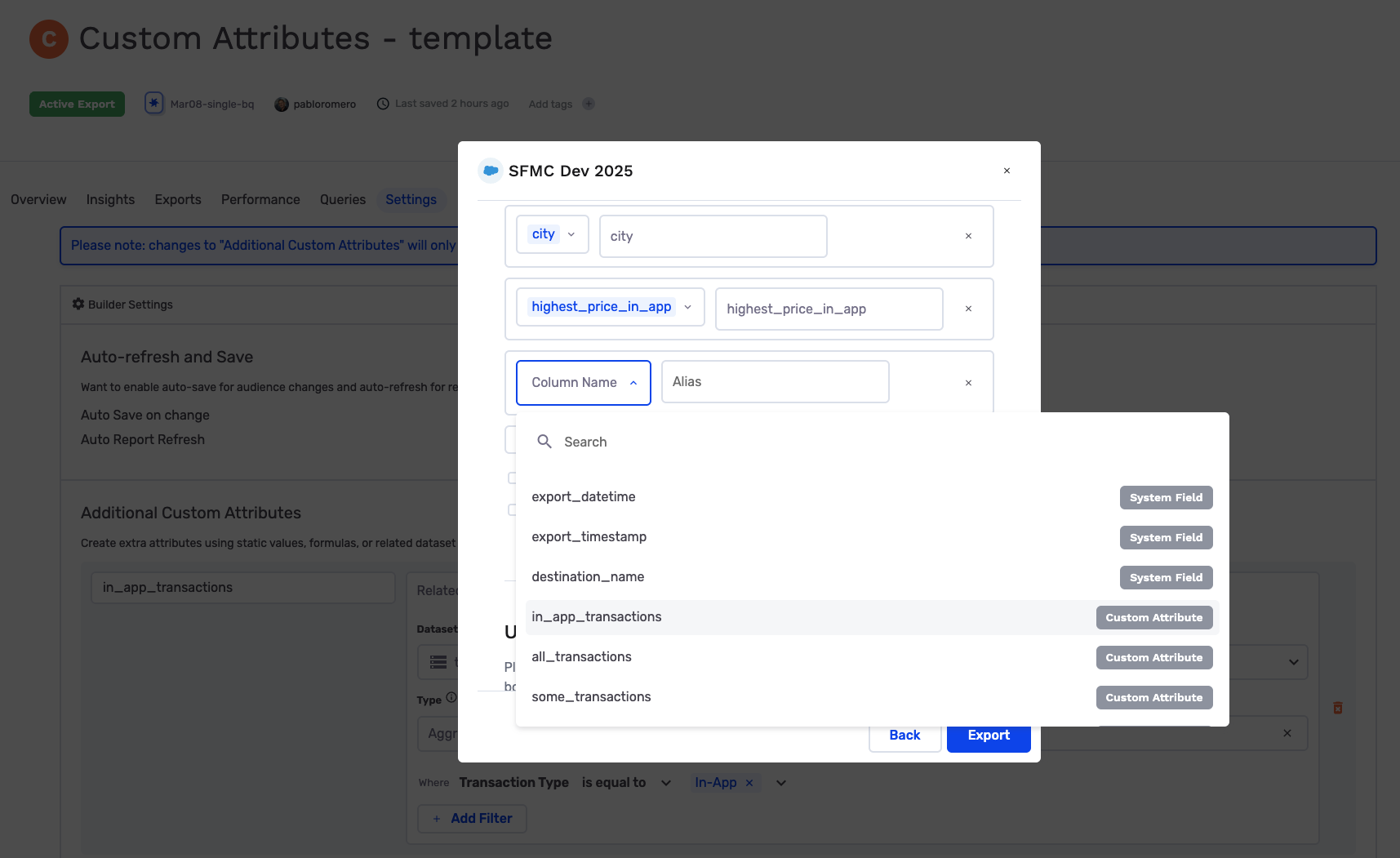
The custom attributes will be available in your destination. You can also access them directly in your data cloud:
- Within your
flywheel_systemdataset, query the snapshotting delta table for the audience where you added the custom attributes. - Each custom attribute will have its own column, where:
Column Name: Contains the label provided for the custom attribute on the audience.Value: Contains the value provided or calculated for the custom attribute on the audience.
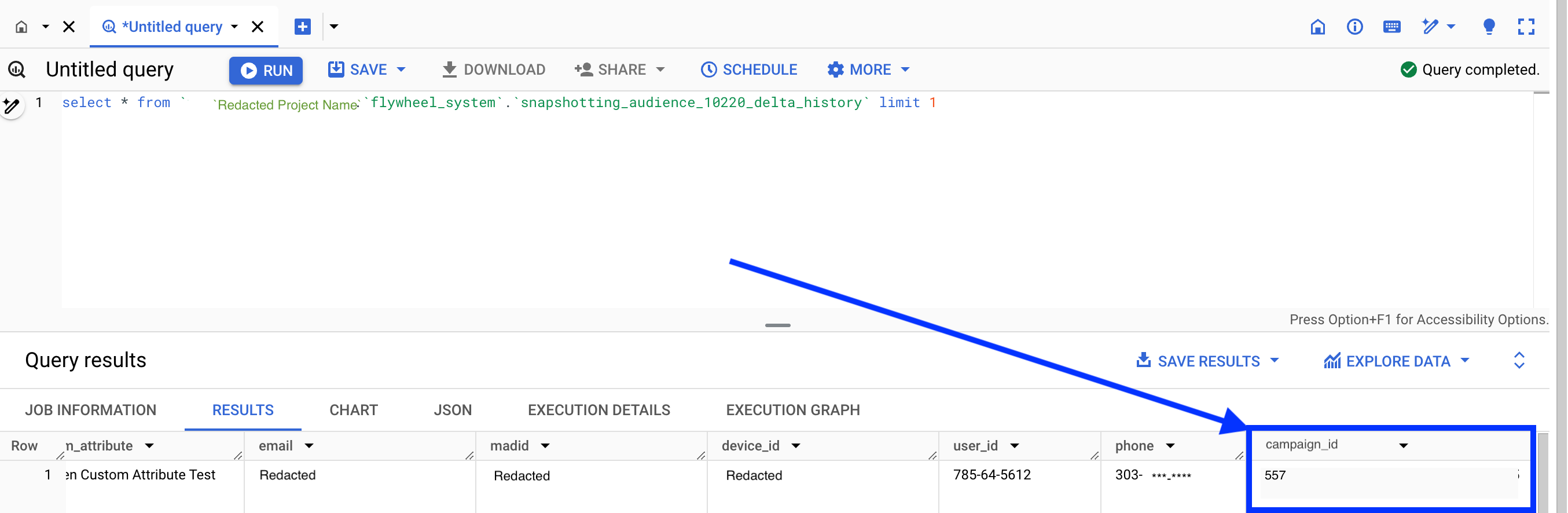
If you have any questions on how to utilize custom attributes please let us know at [email protected]
Updated 8 months ago