
HTTP Endpoint
Use GrowthLoop audiences for add and remove calls to your own HTTP APIs.
Connect this destination to export audience membership as add and remove requests to your own HTTP APIs, for use in the workflows those APIs run.
If you need GrowthLoop to design a custom destination for an internal API that is not a webhook you configure yourself, see Custom Destinations.
This destination writes to your HTTP endpoint and is a good fit when you want to:
- Have add (and optionally remove) endpoint URLs
- Shape the JSON body with Handlebars
- Set it up yourself without a destination architect
This maps to GrowthLoop Audiences:
| Use it for | Audiences |
|---|---|
| Calling your HTTP API when audience members are added or removed | ✓ |
This destination is in the Custom category. It does not appear on a journey Destination Node.
Prerequisites
Make sure you have:
- Endpoint URL(s) for the API GrowthLoop should call when adding or removing members.
- Authentication details if your API requires them. You can send custom headers and optionally link a Custom M2M OAuth destination.
- Request body templates if your API expects JSON.
Set up HTTP Endpoint as a destination
- In GrowthLoop, click the Destinations tab on the left sidebar.
- Click New Destination on the top right.
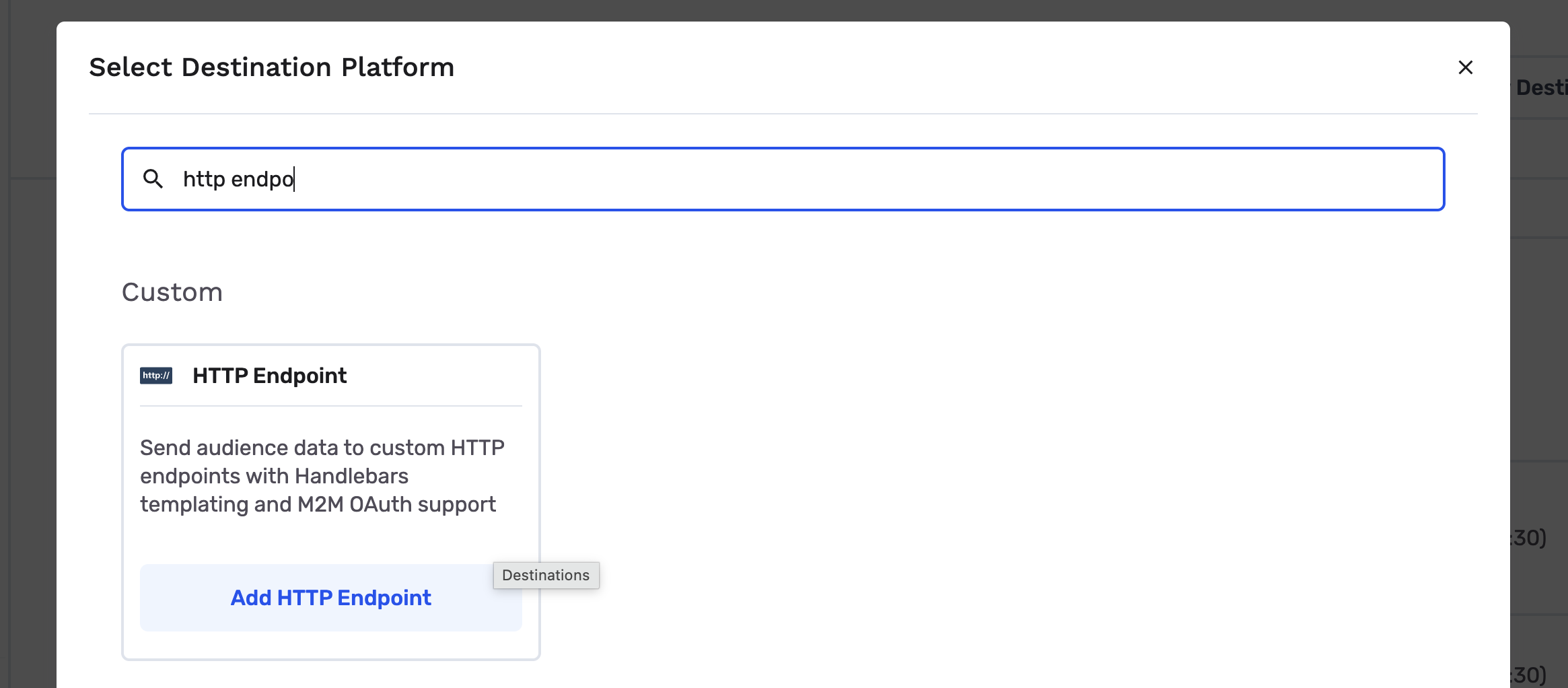
- Search for HTTP Endpoint and click Add HTTP Endpoint.
NoteDon't see HTTP Endpoint when you try to add a destination? Reach out to [email protected] and we'll enable it.
- Configure the sections below, then click Create.
| Field | Description |
|---|---|
| Destination Name | Name this destination in GrowthLoop. Use a name so your team recognizes its purpose, like "Internal Audience API". |
| Sync Frequency | Set the default export frequency (for example, daily or weekly). You can override this setting for individual exports. |
Authentication
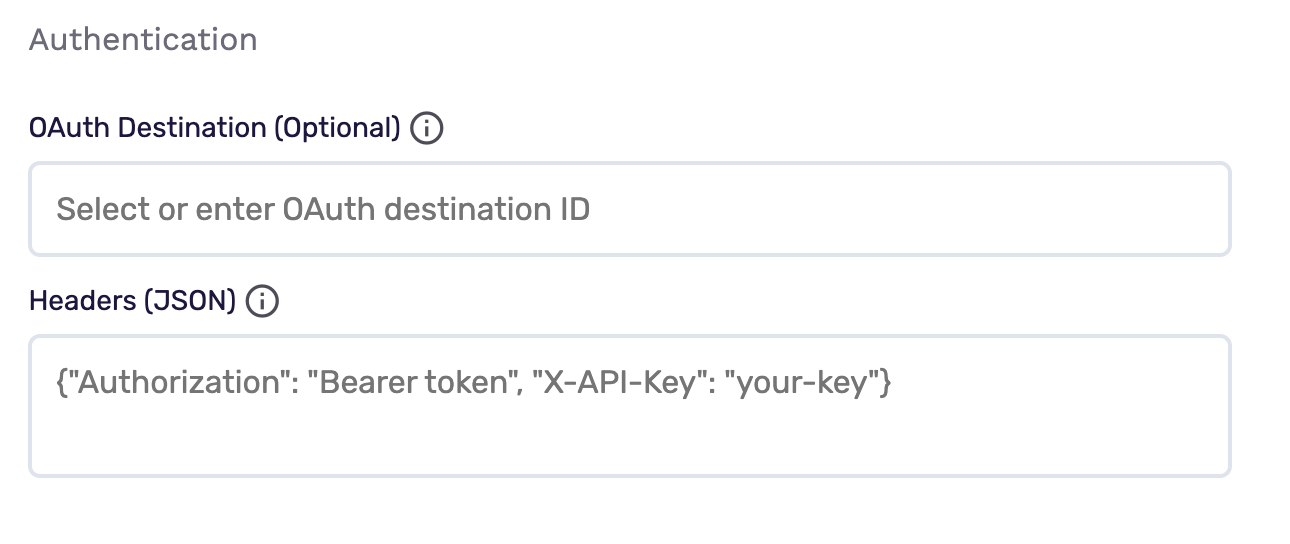
| Field | Description |
|---|---|
| OAuth Destination (optional) | ID of a Custom M2M OAuth destination. When linked, GrowthLoop fetches tokens and includes them on requests. Set up that destination first if your API uses machine-to-machine OAuth |
| Headers (JSON) (optional) | Custom headers sent on every request, including get/create audience, add, and remove. Example: {"Authorization": "Bearer token", "X-API-Key": "your-key"} |
You can use OAuth, custom headers, or both.
Error handling
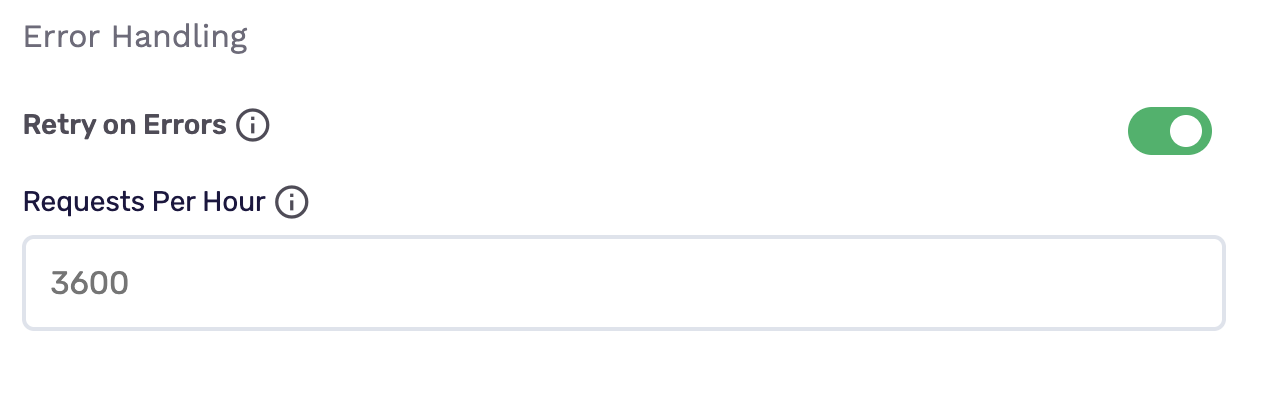
| Field | Description |
|---|---|
| Retry on Errors | When enabled, GrowthLoop retries 429 and 500–504 responses with increasing delays |
| Requests Per Hour | Maximum requests per hour. GrowthLoop staggers batches to stay under this limit. Examples: 3600 is about one request per second, 360 is about one every 10 seconds, 60 is about one per minute. Leave blank for no limit |
Output schema
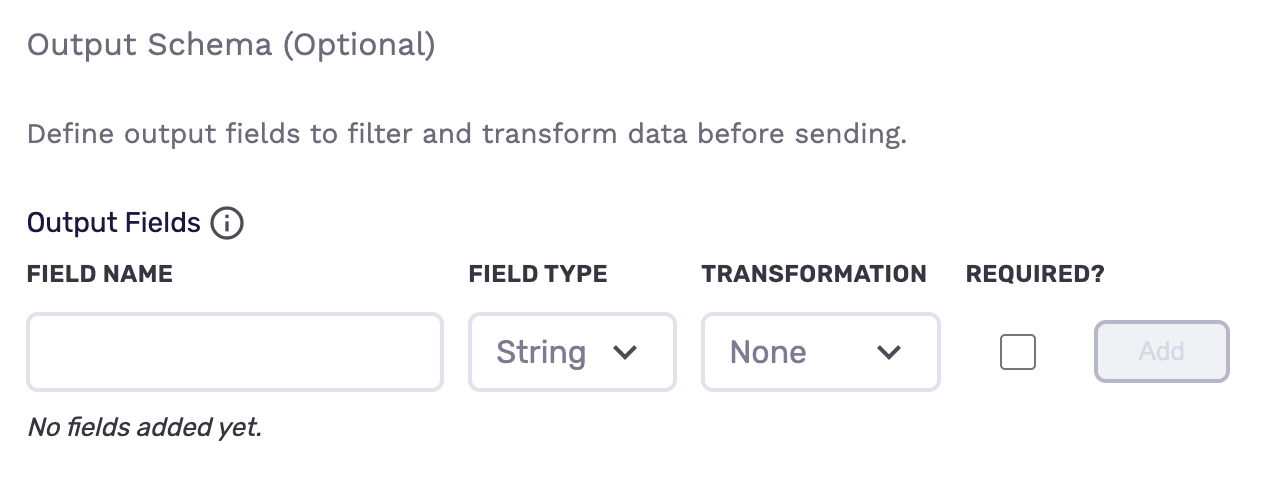
Use Output Fields to choose which exported fields are sent and how they are typed before GrowthLoop builds the payload. GrowthLoop coerces values to the types you define. For example, the string "99" can be sent as the number 99.
If you leave Output Schema blank, GrowthLoop sends the fields mapped during export.
Get or create audience
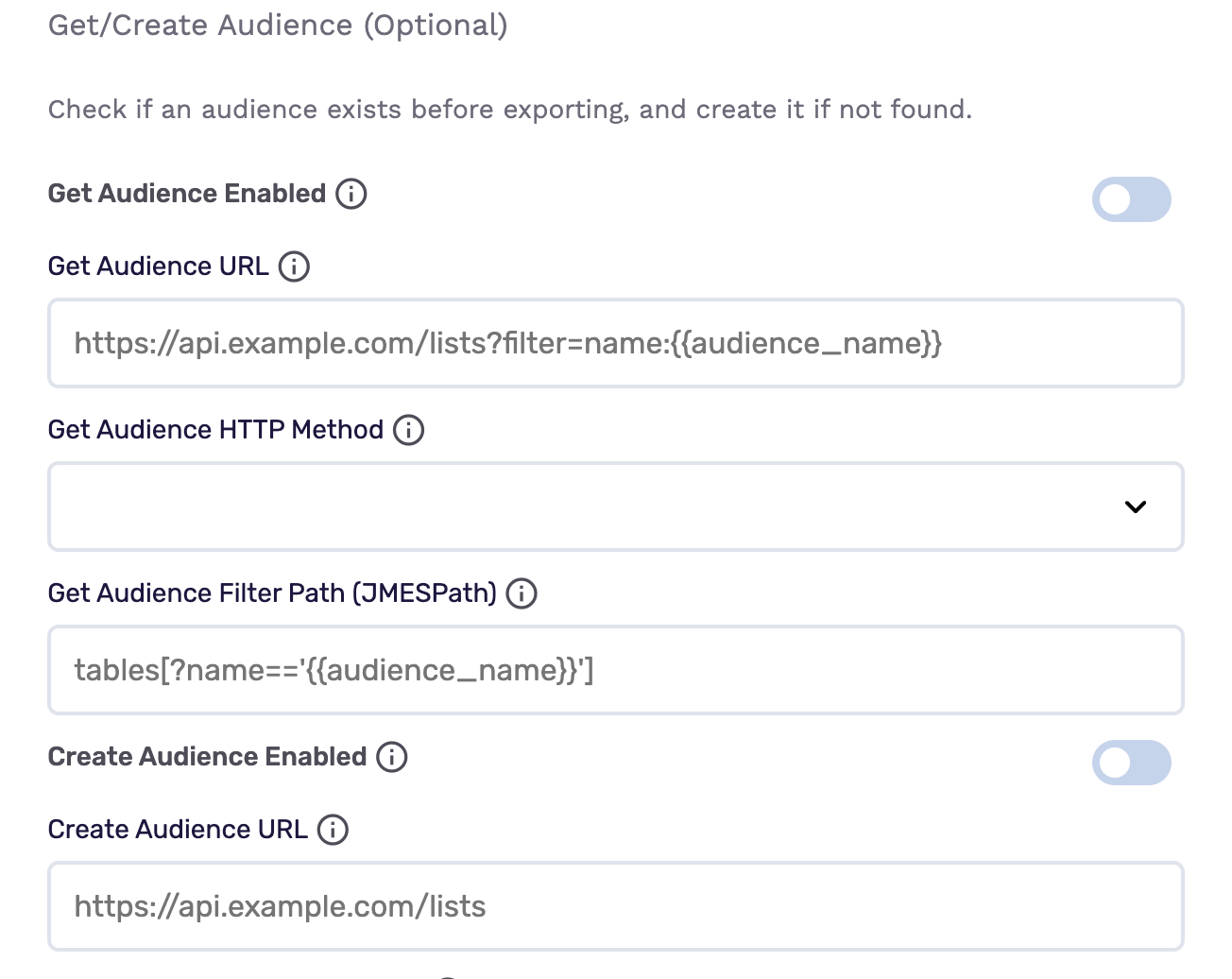
Use this section when your API has an audience, list, or segment that must exist before members can be added or removed.
| Field | Description |
|---|---|
| Get Audience Enabled | When on, GrowthLoop checks whether the audience already exists |
| Get Audience URL | Lookup URL. Supports Handlebars with {{audience_name}}, {{audience_id}}, and {{organization_name}} |
| Get Audience HTTP Method | GET or POST |
| Get Audience Filter Path (JMESPath) | Filter a collection response, for example tables[?name=='{{audience_name}}']. An empty result means the audience is missing |
| Create Audience Enabled | When on, GrowthLoop creates the audience if the get step does not find one. Requires Get Audience Enabled |
| Create Audience URL | Create URL. Supports the same Handlebars variables |
| Create Audience HTTP Method | POST or PUT |
| Create Audience Body Template | Handlebars body for the create request |
If you do not enable get/create audience, GrowthLoop skips these steps and sends add and remove requests only.
Add configuration
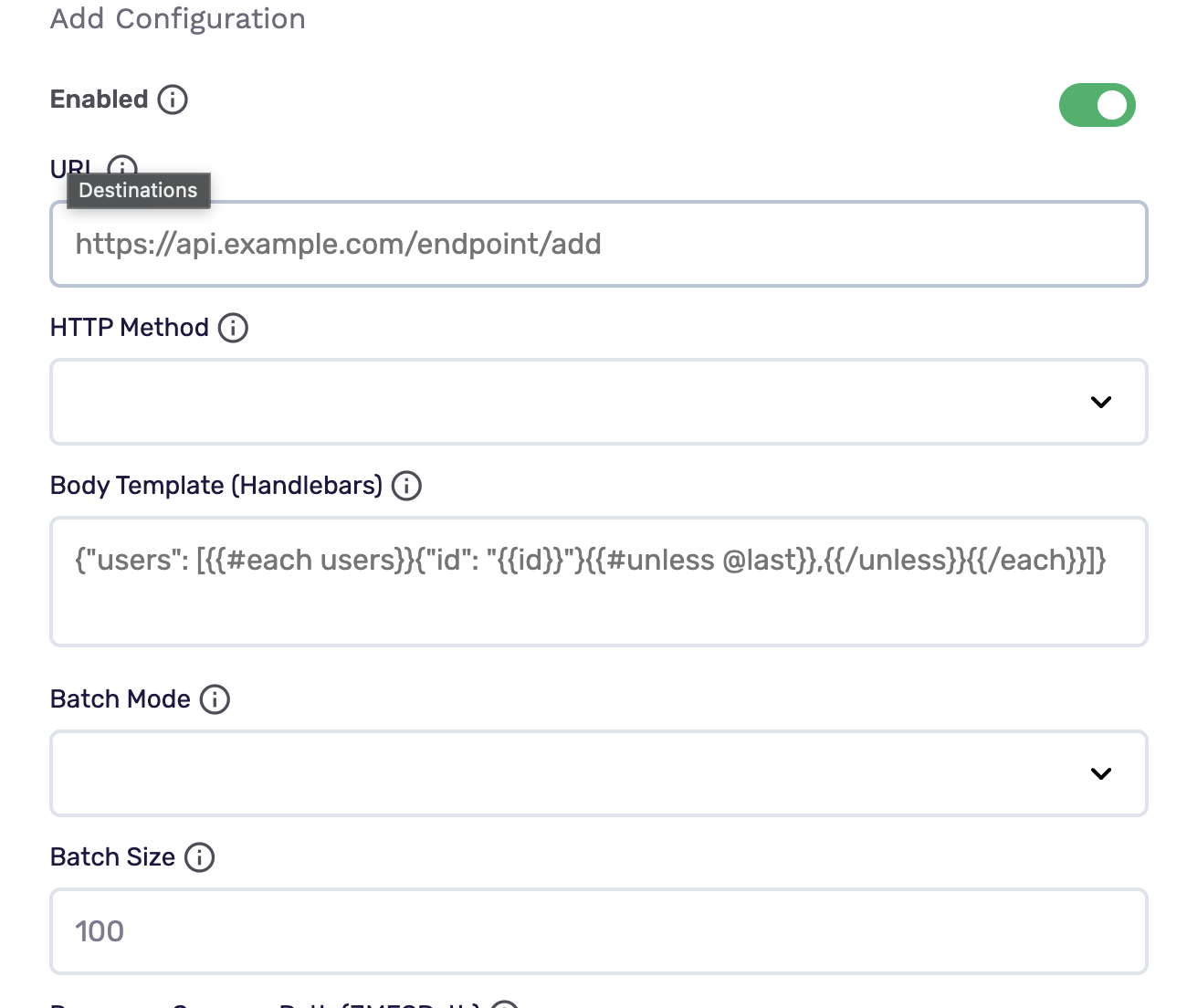
Add URL is required.
| Field | Description |
|---|---|
| Enabled | Turn off to ignore add actions. Enabled by default |
| URL | Endpoint GrowthLoop calls when members are added |
| HTTP Method | GET, POST, PUT, PATCH, or DELETE |
| Body Template (Handlebars) | Individual mode uses {USER.FIELD}. Batched mode uses {{#each users}} |
| Batch Mode | Individual sends one request per record. Batched sends multiple records in one request |
| Batch Size | Records per request when batch mode is Batched. Defaults to 100 |
| Response Success Path (JMESPath) (optional) | How many records succeeded. Examples: records, created, success, num_records_imported. If blank, HTTP 2xx means all records succeeded |
Individual example:
{"id": "{USER.ID}", "email": "{USER.EMAIL}"}Batched example:
{"users": [{{#each users}}{"id": "{{id}}"}{{#unless @last}},{{/unless}}{{/each}}]}Remove configuration
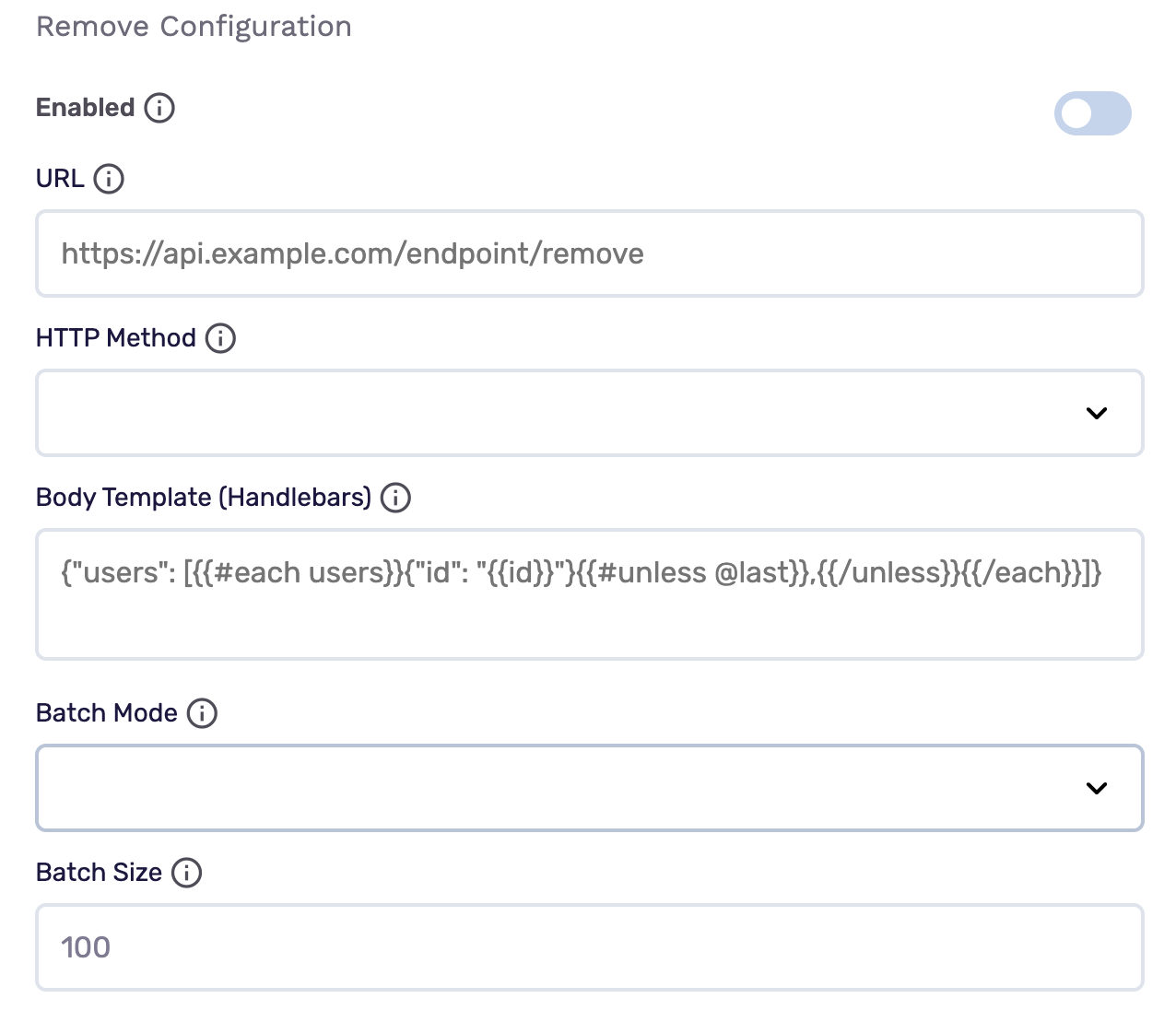
Remove is disabled by default.
| Field | Description |
|---|---|
| Enabled | Turn on to process removals |
| URL | Endpoint GrowthLoop calls when members are removed |
| HTTP Method | GET, POST, PUT, PATCH, or DELETE |
| Body Template (Handlebars) | Same patterns as add configuration |
| Batch Mode | Individual or Batched |
| Batch Size | Defaults to 100 when batched |
| Response Success Path (JMESPath) (optional) | Examples include records, deleted, and success |
Export to HTTP Endpoint
From within GrowthLoop, export from an audience. See Export an audience if you need more information on these steps.
After building or selecting an audience, click Export, then search for your HTTP Endpoint destination.
Map identifiers
Map at least one identifier your API expects.
| Match field | Description |
|---|---|
| Email address | |
| Unique Identifier | Unique ID |
| Client Customer ID | Client customer ID |
Map personalization or additional fields you reference in Handlebars templates or the output schema, including custom attributes from the audience.
Configure the export
- Export Name: GrowthLoop populates this with your audience name.
- Campaign Type: Choose a one-time export or an ongoing export.
- Export Schedule: Set the frequency, start date, and end date.
Export behavior
This is what GrowthLoop writes when you export an audience.
| Behavior | What happens |
|---|---|
| What GrowthLoop writes | HTTP requests to the add, remove, and optional get/create audience URLs you configured. Direction is GrowthLoop → your API. |
| When it runs | GrowthLoop sends the export as a batch on the next successful run. An export that starts Now runs within about 15 minutes. |
| Order | GrowthLoop runs optional get/create audience, then add and remove requests. |
| Adds | GrowthLoop calls the add URL for new members. |
| Removals | GrowthLoop calls the remove URL only when remove is enabled. |
| Success counts | If Response Success Path is blank, HTTP 2xx counts every record in the request as successful. |
| One-time exports | GrowthLoop sends current membership once. It does not call remove later. |
| Ongoing exports | GrowthLoop sends adds on each run, and removals only when remove is enabled. |
Confirm the export was successful
When the run finishes, confirm you can use the data in your API.
- Audience export: Confirm your API received the add or remove requests.
In GrowthLoop, review counts on the audience Exports tab. See Export an audience for more information.
Congrats on successfully exporting to HTTP Endpoint!
Troubleshooting
These are the issues we see most often. You can always email us at [email protected] for help.
| Problem | Cause | Resolution |
|---|---|---|
| Add requests fail | Add URL is not a full URL | Enter a full http or https URL |
| Authentication fails | Headers or OAuth are wrong | Check Headers and the linked Custom M2M OAuth destination |
| Create never runs | Get audience is off | Enable Get Audience first. Create requires get |
| Success counts look wrong | Response Success Path does not match the API response | Set Response Success Path to the field your API returns |
Updated about 1 month ago