
Audience overlap
Compare shared membership across GrowthLoop audiences to refine your targeting.
Use Audience Overlap to find audiences that share members. Review high-overlap pairs to decide whether to combine targeting, adjust audience criteria, or keep separate audiences for different campaigns.
Prerequisites
- A GrowthLoop admin must enable the Audience Overlap organization setting before you can use this feature. Contact [email protected] if the report is locked.
- Have at least two audiences in the same Dataset Group with export snapshots available for comparison.
Draft audiences without export snapshots do not appear in the report. Export an audience to create the snapshots needed for comparison. See Export an audience for instructions.
Review audience overlap
- Click Insights in the left sidebar.
- Select the Audience Overlap tile in the report catalog.
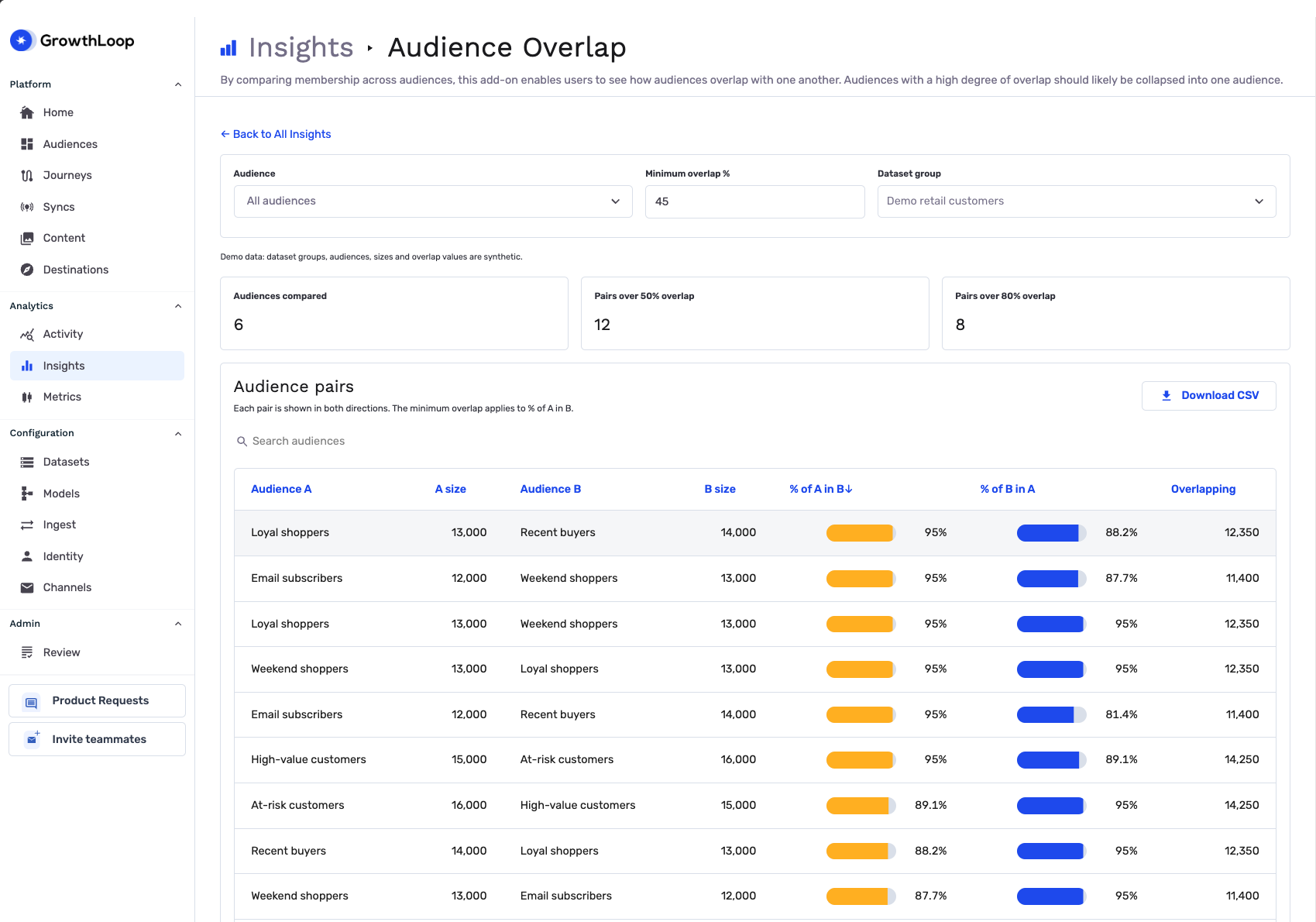
- Select a Dataset group at the top of the report. If you have only one Dataset Group, the report selects it automatically.
- Select audiences in the Audience filter, or keep All audiences. Selecting an audience includes pairs where either side is that audience.
- Set Minimum overlap %. Increase it to narrow the results to pairs with higher overlap, or decrease it to widen the results to include pairs with lower overlap. The default is
45, and the filter applies to % of A in B. - Enter an audience name in Search audiences above the table to find matching pairs.
Understand the results
The report compares membership from the latest available export snapshots within the selected Dataset Group. It includes audiences you can access and excludes archived audiences. Check Last updated above the summary cards when you interpret the results.
Audience pairs
| Column | Meaning |
|---|---|
| Audience A / Audience B | The two audiences being compared |
| A size / B size | The distinct member count for each audience in the snapshots |
| Overlapping | The distinct member count shared by both audiences |
| % of A in B | Shared members divided by A size |
| % of B in A | Shared members divided by B size |
For example, if Audience A has 1,000 members, Audience B has 200 members, and 100 members belong to both, % of A in B is 10% and % of B in A is 50%.
The table shows each pair in both directions before applying filters. With Minimum overlap % set to 45, the example appears with the smaller audience as A, because 50% of its members also belong to the larger audience. Click a column heading to sort the results, and use the table's pagination controls to review additional pairs.
Summary cards
- Audiences compared: The number of available audiences included in the comparison.
- Pairs over 50% overlap: The number of unique pairs with at least 50% overlap in either direction.
- Pairs over 80% overlap: The number of unique pairs with at least 80% overlap in either direction.
The pair cards count each pair once. Selecting audiences narrows the pairs counted in these cards; the search and minimum overlap filters narrow the table, rather than the summary counts. The Audiences compared card continues to count the available audiences in the comparison.
Download the results
- Apply your audience, overlap, and search filters.
- Click Download CSV above Audience pairs.
- Open the downloaded file to review all matching rows, including results beyond the current table page.
You're all set! Use the results to review your targeting, then compare campaign results in Audience channel performance.
Troubleshooting
These are the issues we see most often. You can always email us at [email protected] for help.
| Problem | Cause | Resolution |
|---|---|---|
| The report is locked | The organization setting, report availability, or your access does not allow the report. | Ask support to check Audience Overlap enablement and your access. |
| No audience pairs match your search and filters | The current filters exclude the available pairs. | Clear the search, select All audiences, and lower Minimum overlap %. |
| No overlapping audience pairs were found | The available snapshots contain no shared membership for the audiences being compared. | Confirm that the audiences have export snapshots in the same Dataset Group. |
| Results do not reflect a recent change | The report uses snapshots and cached results. | Check export activity and Last updated. Allow a report refresh to finish before reviewing the change. |
| The report cannot refresh or download | A report request failed. | Try again. If the problem persists, send support the Dataset Group and the error message. |
Updated about 1 hour ago