
Interacting with a Journey
Edit drafts, pause running journeys, manually run individual nodes, and adjust settings after a journey is live.
Building a marketing or sales journey is rarely a one-and-done activity. You'll iterate on drafts, validate behavior on a live journey, and tweak settings as your program evolves. This article covers everything you can do to a journey after you create it — editing drafts, pausing live journeys, manually running individual nodes, and adjusting schedule and re-entry settings.
Journey statuses
Every journey has one of the following statuses:
| Status | Description |
|---|---|
| Draft | The journey has not yet been started. You can edit it freely. |
| Running | The journey is started and processing customers according to its schedule. |
| Paused | The journey is started but is not advancing customers. You can edit it and run nodes manually. |
| Archived | The journey has been archived. |
The actions available to you depend on the journey's current status.
Edit a journey
A journey can be edited while it is in Draft or Paused status. In both cases you have the same editing capabilities:
- Settings: start time, end time, schedule type, re-entry, global exit node, and entry audience. You can only select audiences from the same dataset group.
- Nodes: add, remove, or modify any node — entry, criteria, delay, destination, experiment, or trigger.
To edit a journey:
- From the home screen, click Journeys in the left-hand menu.
- Click a journey in Draft or Paused status to open the journey canvas.
- Make your changes.
- Click Save on the right side of the journey title bar.
To edit a Running journey, click Pause in the journey header first. The status badge changes from Running to Paused and the journey is now editable. When you're done, click Resume to return the journey to Running.
Start, pause, and resume a journey
| Action | When it's available | What it does |
|---|---|---|
| Start | Draft | Starts the journey. The status moves from Draft to Running. |
| Pause | Running | Stops the journey from advancing customers automatically and makes it editable. |
| Resume | Paused | Returns the journey to Running so the schedule continues advancing customers. |
When a running journey is paused:
- The schedule stops advancing customers automatically.
- Customers already in the journey remain at their current node.
- You can edit the graph and settings.
- You can manually run individual nodes from the journey canvas.
- Resuming the journey returns it to Running and the schedule takes over again.
Real-time journeys
For real-time journeys, pausing behaves differently from scheduled batch journeys:
- Pausing stops new events from advancing through the journey. Users already mid-path — including those pending at a Wait For node, or a Delay Node — keep their state.
- Events are not lost while paused, as long as this journey is the only active subscriber on that source connection.
- Resuming re-activates consumption immediately. No manual replay step is required.
Note
Pausing a real-time journey is safe for in-flight users, but if you share a source connection across multiple journeys, coordinate pauses carefully — events may be handled by other active journeys while this one is paused.
Manually run nodes
You can manually run individual nodes on a journey that is in Draft or Paused status. Every entry, criteria, experiment, and destination node on the canvas exposes three options:
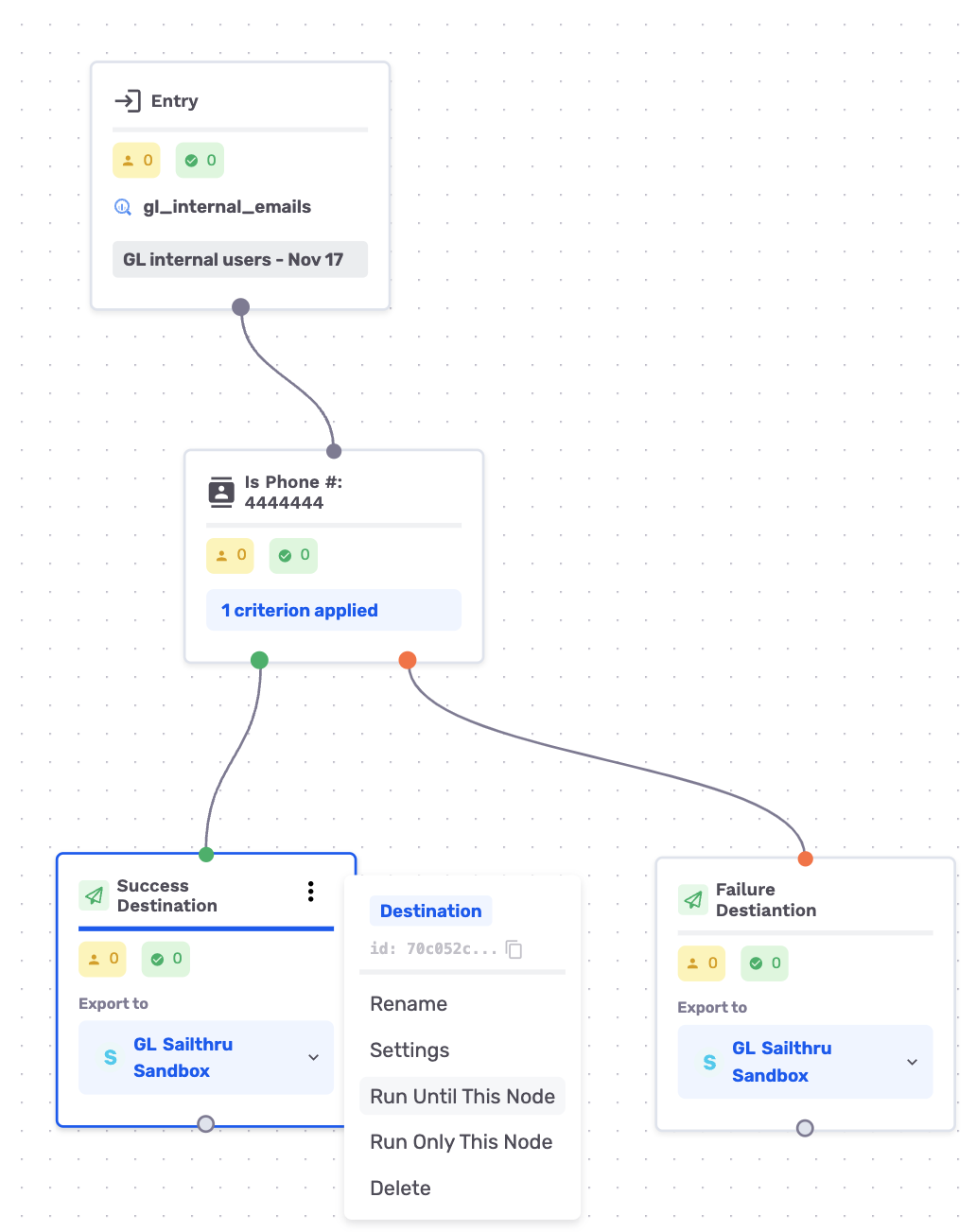
- Run until this node
- Run only this node
- Run from this node
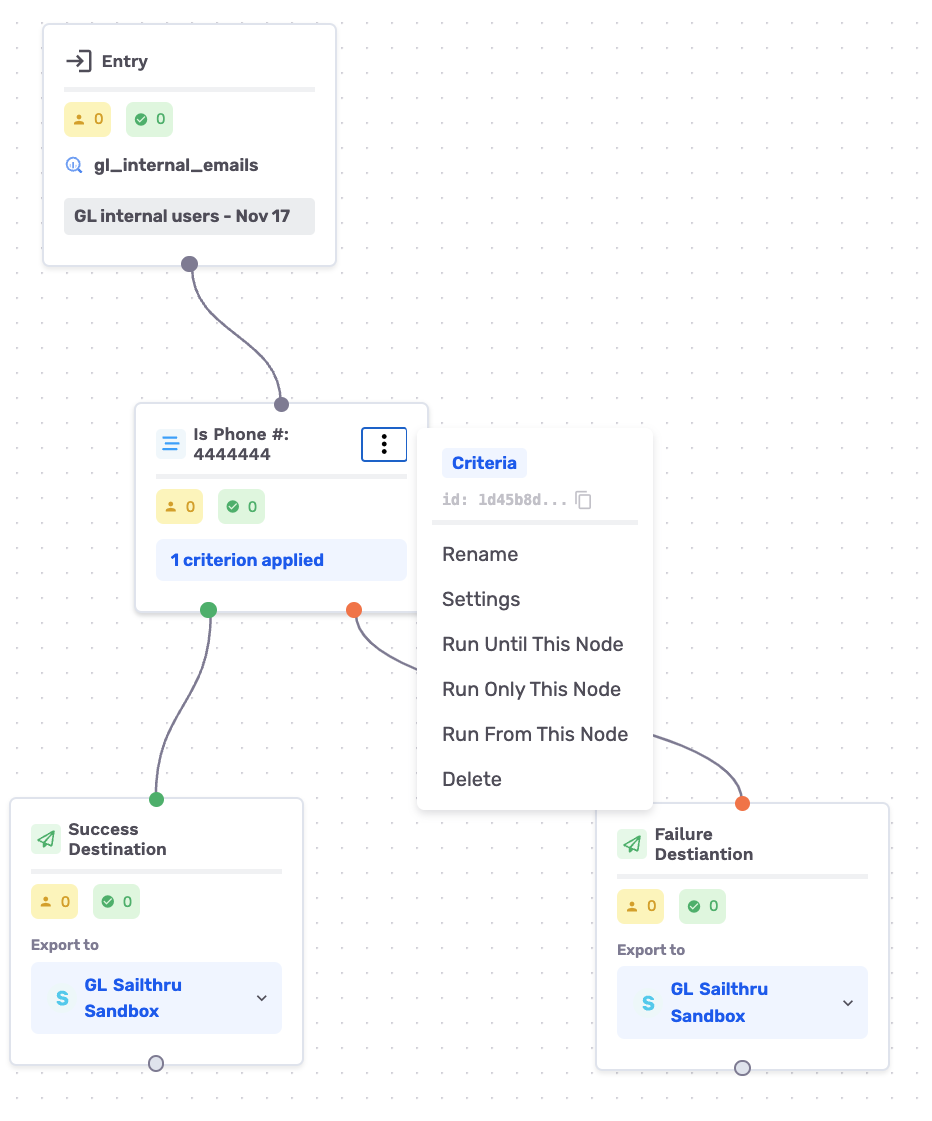
Run until this node
Starts the journey and executes every node up to and including the selected node, then stops. Only paths that can lead to the selected node are processed.
Run only this node
Processes only the customers currently waiting at the selected node.
Run from this node
Executes the selected node and every downstream sub-branch. Only paths leading out of the selected node are processed.
These options are available on the following node types:
- Entry node
- Criteria node
- Experiment node
- Destination node
Walkthrough
-
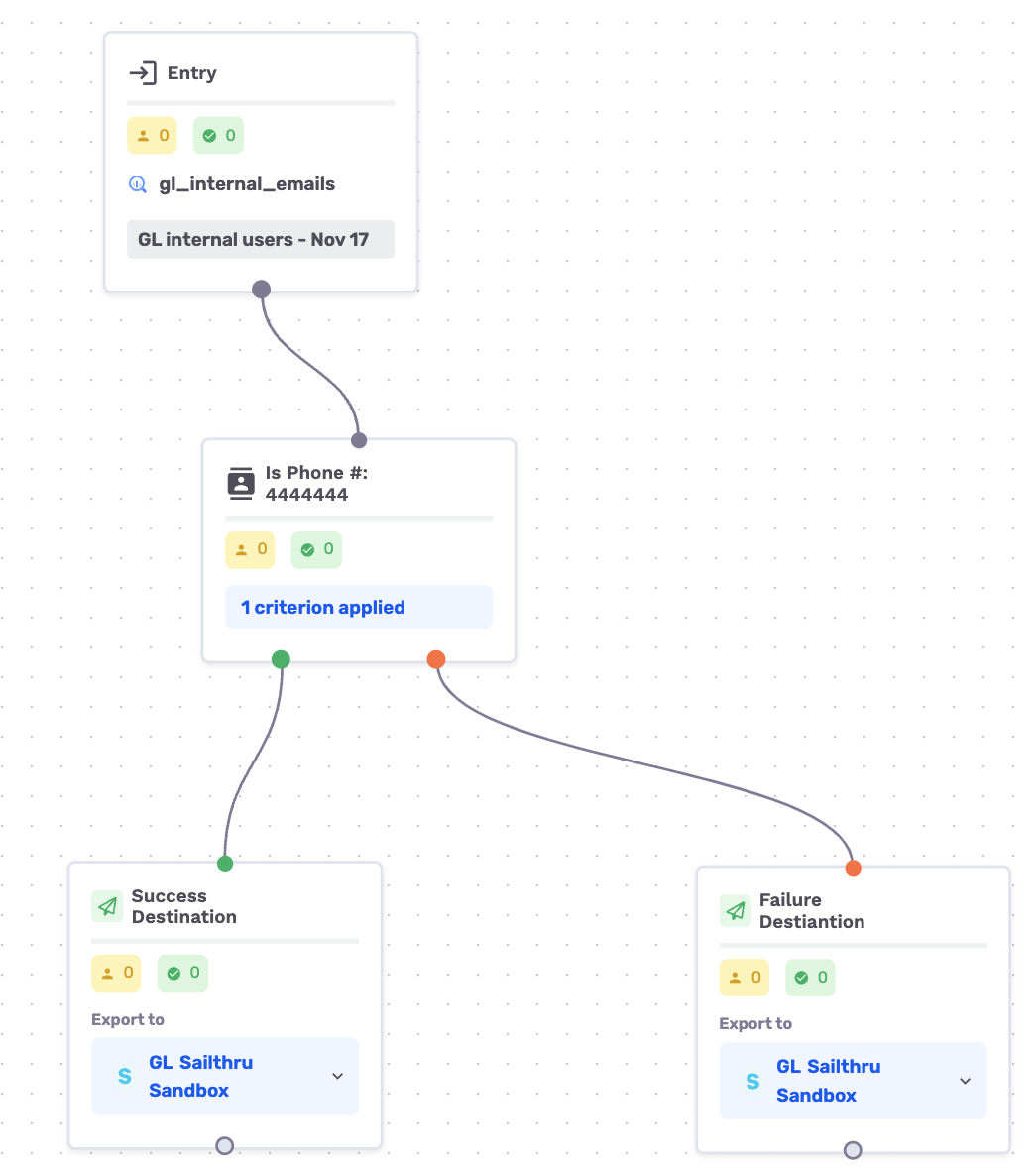
Imagine a simple journey that checks customers for a specific phone number.
-
Pause the journey, then choose Run until this node on the success destination node.
-
Notice that all the numbers are 0 in both the pending (yellow) and processed (green) boxes.
-
-
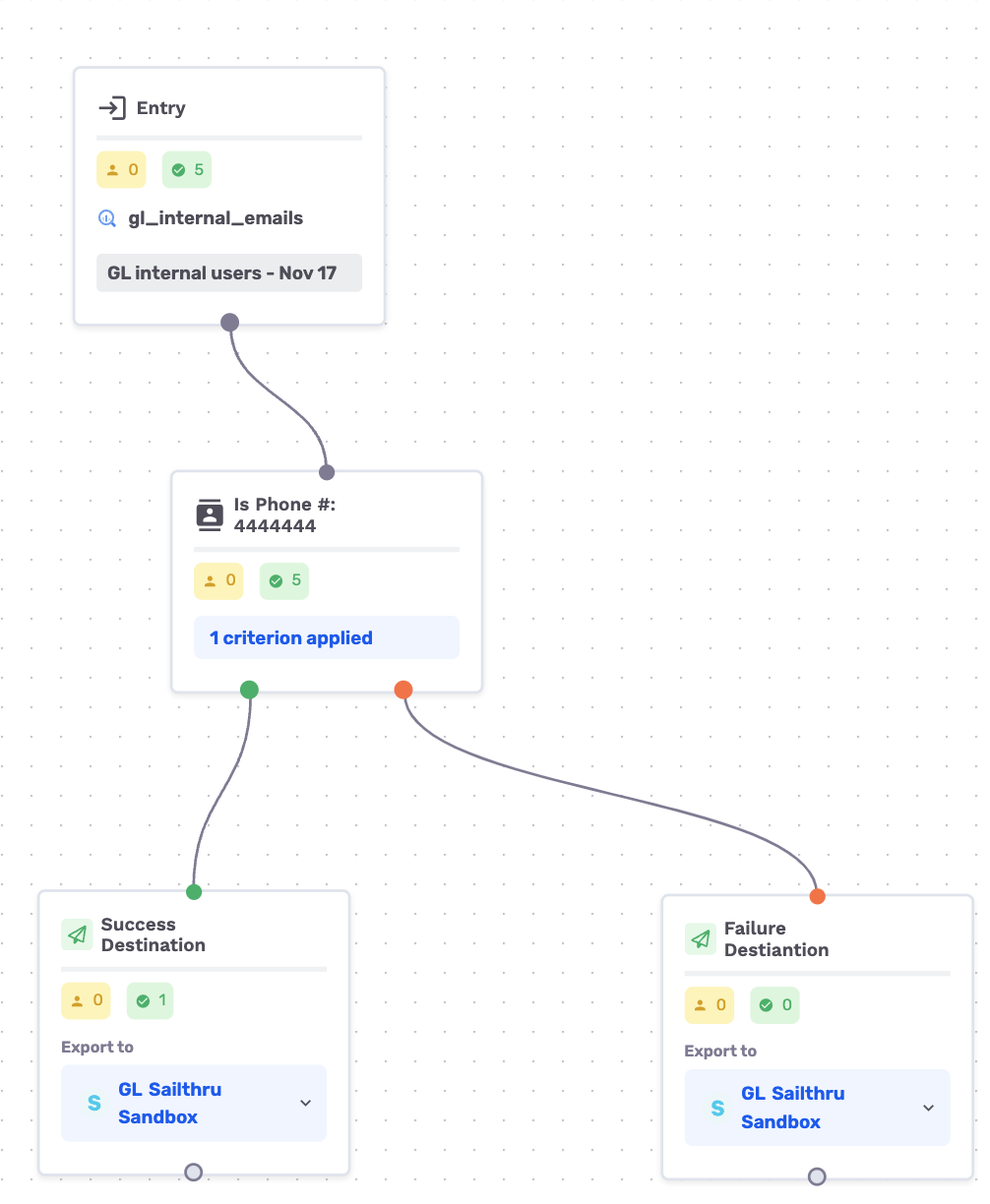
The journey runs for a minute or two. Refresh the page to see updated counts.
-
The results show:
- One customer landed on the success destination node and was exported.
- No customers were sent to the Failure destination node, because only the leading path to the node you ran up to is processed.
-
Now run the journey only up to the criteria node to see how the distribution differs.
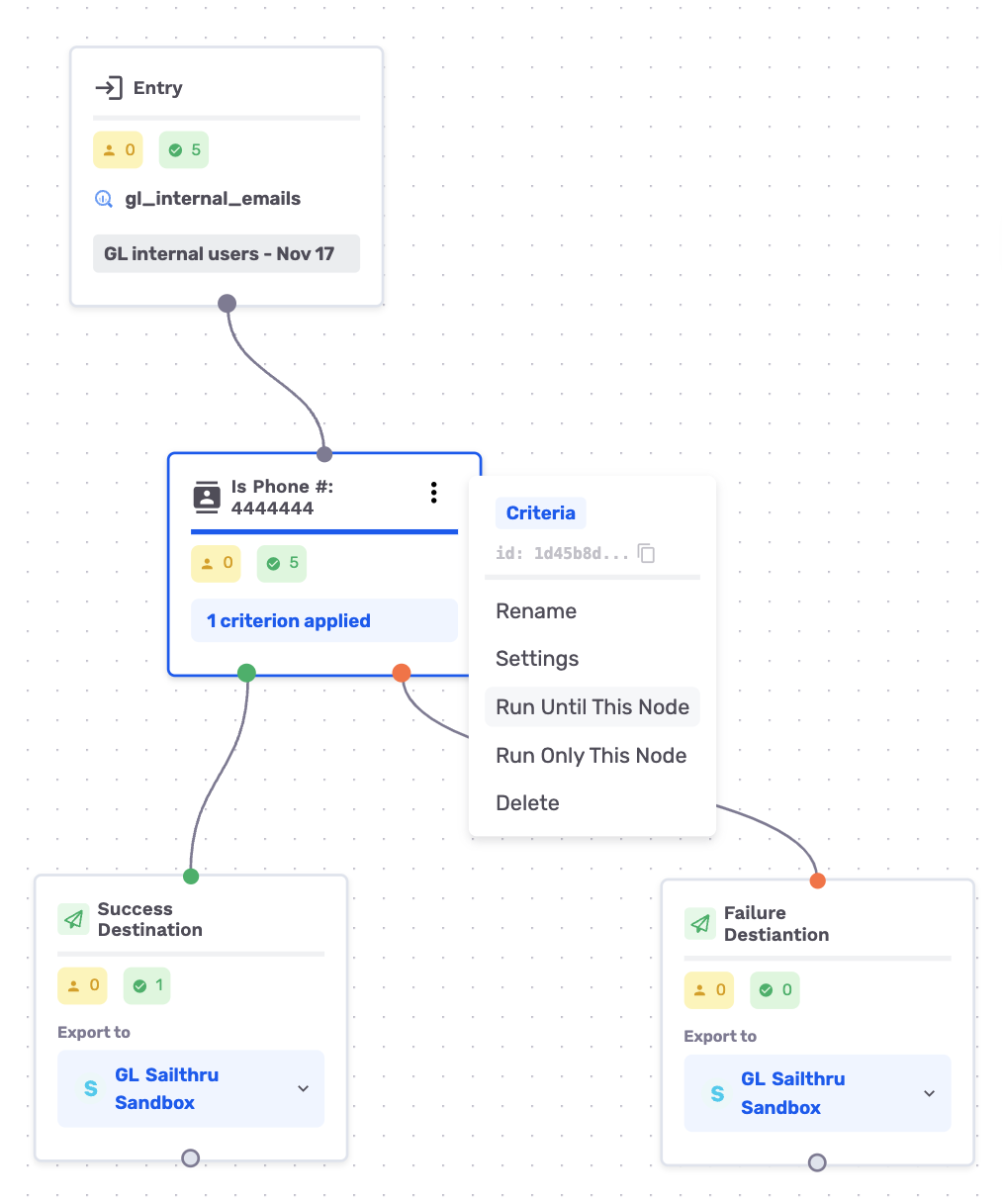
-
In the journey settings, allow customers to re-enter at every run — this is recommended while iterating with pausing.
-
This re-runs the entire journey as if it were the first run.
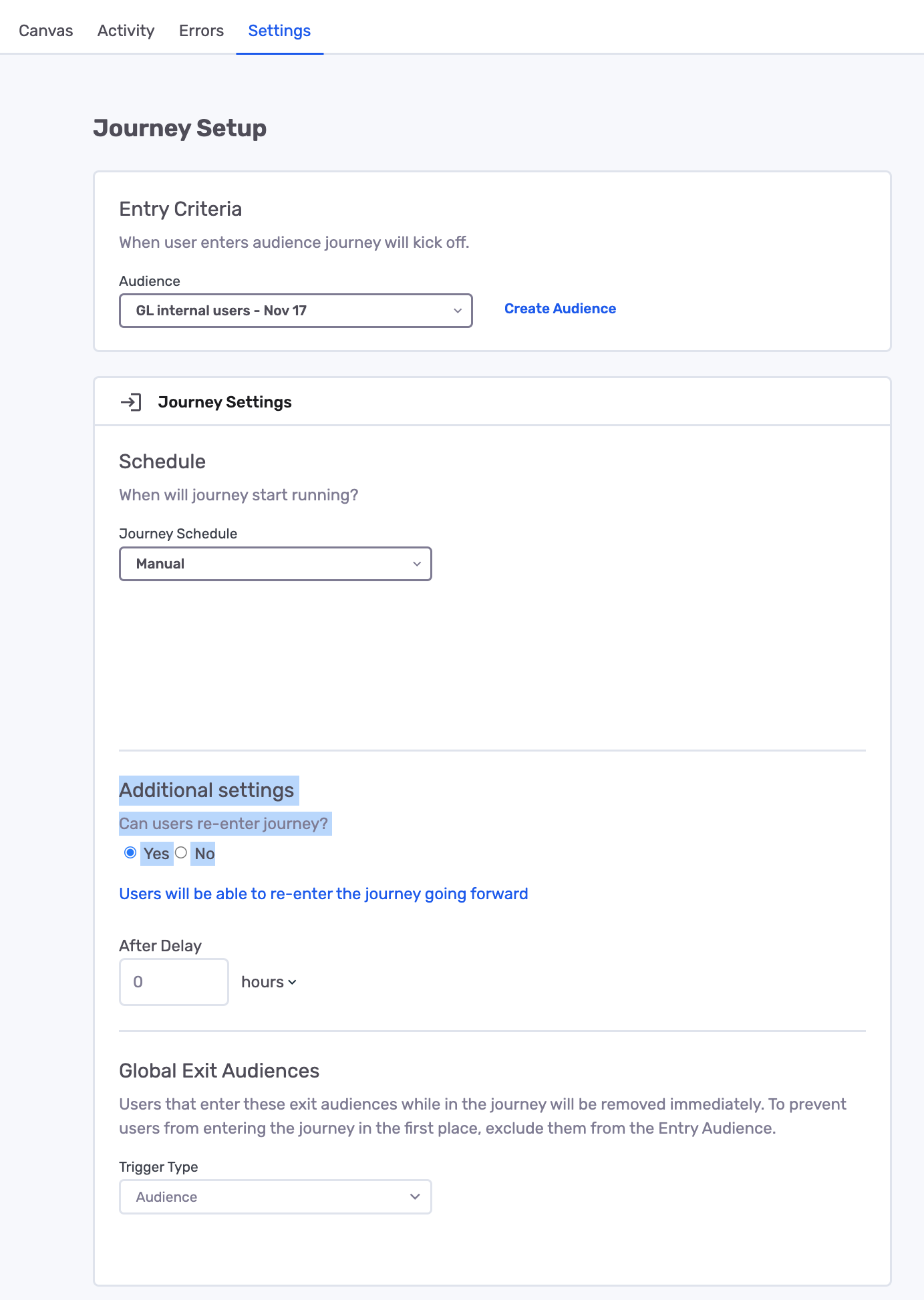
-
Run the journey until the criteria node.
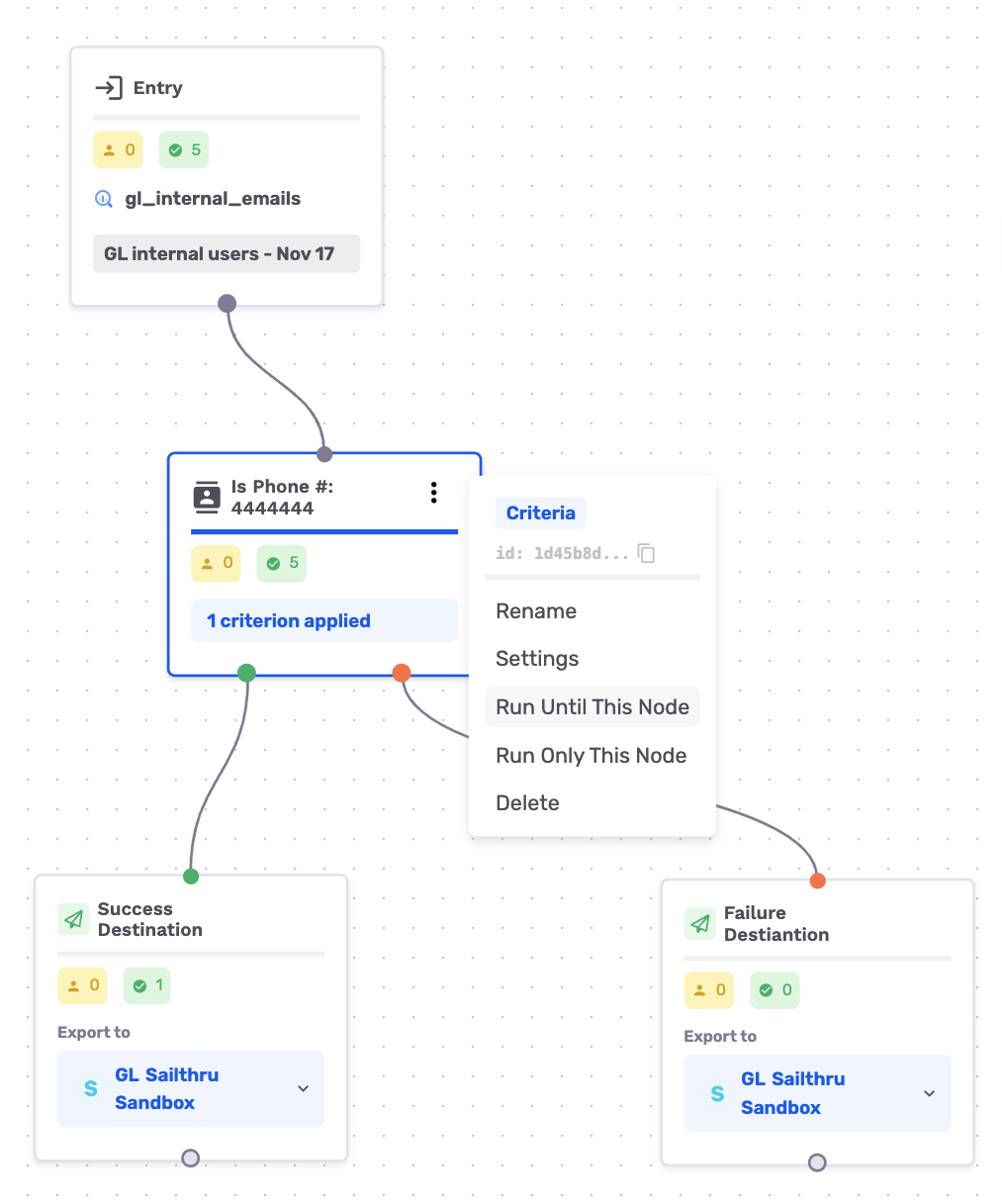
-
-
Both destination nodes now show customers in their pending (yellow) box. The run stops after the criteria node has distributed the customers.
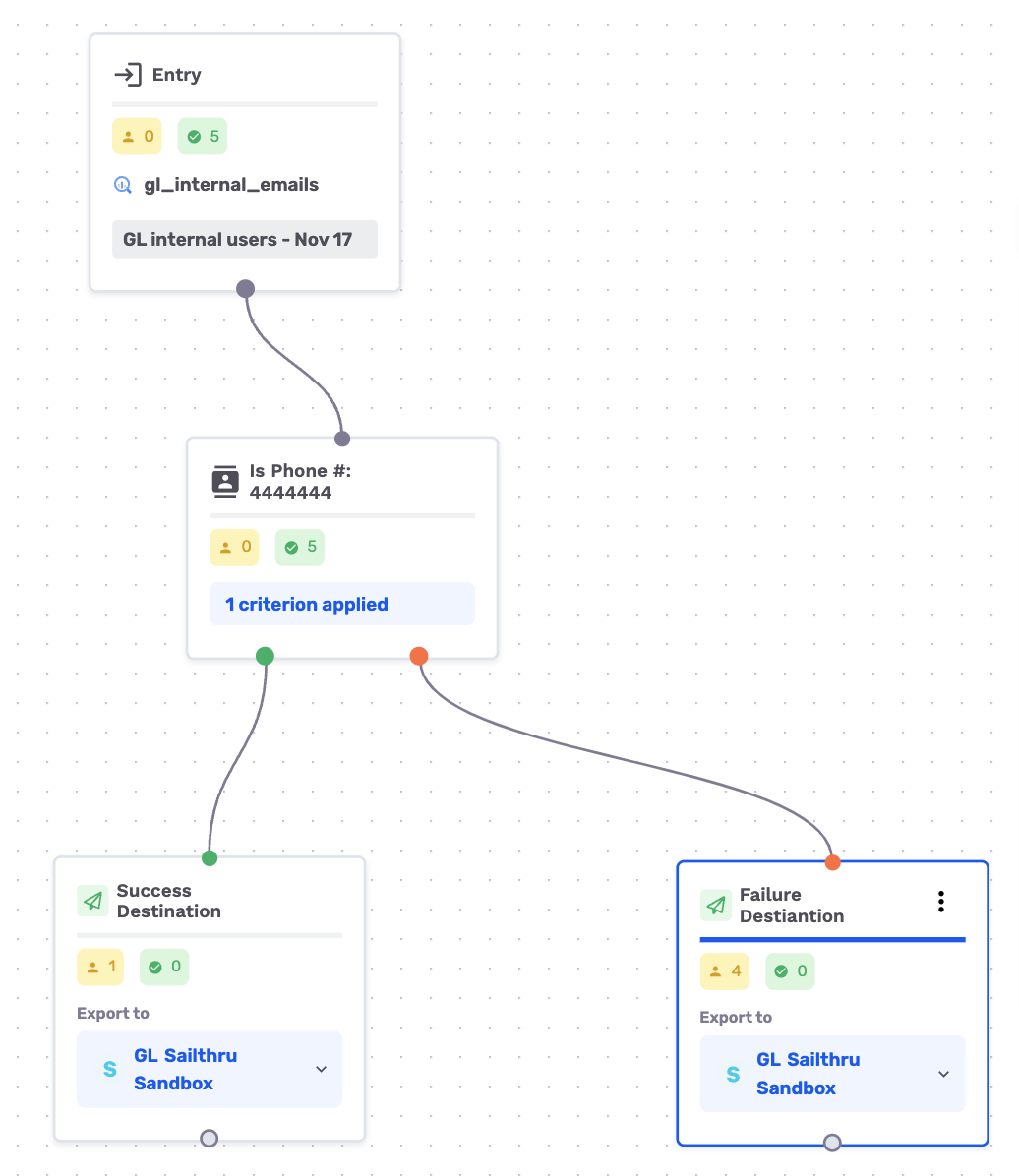
- From here, run each destination node individually with Run only this node to export its customers.
Hard Reset a journey
Sometimes you want to wipe the slate clean and re-run a journey from scratch — for example, after iterating on a node and wanting to see how all customers flow through the updated journey from the entry node again.
Hard Reset is available on a journey in Paused status. Click the actions menu in the journey header and choose Hard Reset.
When you confirm:
- All customers currently in the journey are returned to the entry node.
- All records of previous node executions are cleared, so node counts on the canvas reset to zero.
- Any data already exported to destinations is not undone — those exports have already been delivered.
Resume the journey, or use Run until / only / from this node to walk through the journey again from a clean state.
WarningHard Reset is destructive and cannot be undone. Customers who had already completed the journey will be eligible to flow through it again as soon as you resume it.
Use cases
- Validate a criteria node. Use Run until this node on a criteria node to see how many customers meet the criteria when they reach it.
- Inspect an experiment. Use Run until this node on an experiment node to verify the customer distribution across variants.
- Walk through a journey step by step. Use Run only this node as you traverse the journey to see the impact of each node in isolation.
- Iterate on a live journey. Pause a running journey, edit a node, manually re-run the affected branch, then resume — without rebuilding the journey from scratch.
Common settings changes
Change the schedule
You can change the schedule on a journey — for example, to turn a successful One-time test into an Always-on program.
- Open the journey and click the Settings tab in the journey top menu.
- In the Journey Settings card, open the Journey Schedule dropdown and pick a new schedule type:
- Always-on
- One-time
- Recurring scheduled
- Click Save and confirm the change.
Adjust re-entry settings
Re-entry controls whether customers who exit the journey can enter it again later, and how long they must wait.
Prevent re-entry
- Open the journey and click the Settings tab.
- Navigate to the Additional Settings card.
- Under Can users re-enter journey?, click No.
- Click Save and confirm the change.
Customers who have completed the journey will no longer be able to re-enter, even if they qualify under the entry criteria.
Allow re-entry
- Open the journey and click the Settings tab.
- Navigate to the Additional Settings card.
- Under Can users re-enter journey?, click Yes.
- Specify the Re-Entry Delay — the time a customer must wait between exiting and re-entering. Choose a unit (minutes, hours, days, weeks) and enter a whole number.
- Optionally set the Entry limit — the maximum number of times a customer can enter the journey, including the first entry. Leave this blank for unlimited entries.
- Click Save and confirm the change.
NoteIf a customer qualifies to re-enter but the Re-Entry Delay has not yet elapsed, they will not enter the journey. They must continue to qualify after the delay has passed.
An Entry limit controls the total number of times a customer can enter the journey. For example, a limit of 1 prevents re-entry after the initial entry.
Change the entry audience
You can change the entry audience on a paused journey. Because journeys often depend heavily on dataset fields, swapping the entry audience can introduce errors:
- Criteria that reference a field that no longer exists
- Match or additional fields on destination nodes that are now invalid
- Custom attribute formulas referencing missing fields
GrowthLoop surfaces these issues in the Error Panel:
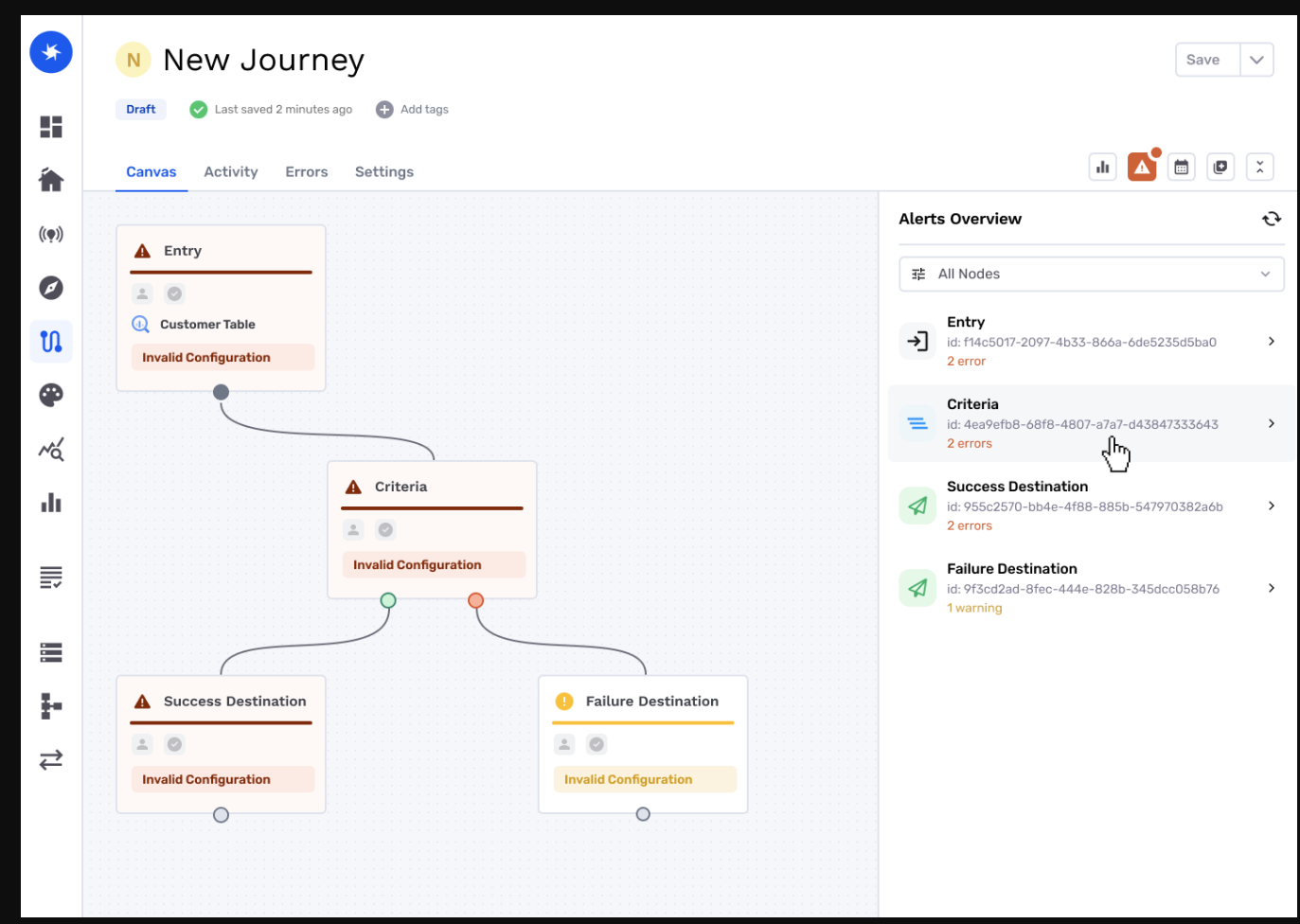
The right-hand panel lets you refresh errors and click into each one to see the dependent fields that need fixing — so you can swap entry audiences without cloning the journey.
Have any questions about interacting with your journeys? Reach out to us at [email protected].
Updated about 2 months ago