
Adobe Audience Manager
Use GrowthLoop audiences for Adobe Audience Manager onboarding.
Connect this destination to export audience membership as onboarding files in the S3 bucket Adobe provisioned for you, for use in Adobe Audience Manager.
This destination writes to your Adobe Audience Manager account and is a good fit when you want to:
- Have Adobe Audience Manager onboard first-party data from files
- Send exactly one supported device or user identifier per export
This maps to GrowthLoop Audiences and Journeys:
| Use it for | Audiences | Journeys |
|---|---|---|
| Sending onboarding files to Adobe Audience Manager | ✓ | ✓ |
If you activate audiences in Adobe Experience Platform, use Adobe Experience Platform. If you only need a generic S3 file drop, use Amazon S3.
Prerequisites
Make sure you have:
- An Adobe Audience Manager account with onboarding configured for S3 delivery.
- Your Adobe Partner Name.
- An Adobe-provisioned S3 bucket, AWS Region, AWS Role ARN, and Adobe Provisioned Role ARN.
- An AWS Access Key and AWS Access Secret with permission to write to the bucket.
- A warehouse column that maps to one supported AAM global ID type.
Set up Adobe Audience Manager as a destination
- In GrowthLoop, click the Destinations tab on the left sidebar.
- Click New Destination in the upper right corner.
- Search for Adobe Audience Manager and click Add Adobe Audience Manager.
NoteDon't see Adobe Audience Manager when you try to add a destination? Reach out to [email protected] and we'll enable it.
- Enter the required information, then click Create.
| Field | Description |
|---|---|
| Destination Name | Name this destination in GrowthLoop. Use a name so your team recognizes its purpose, like "Adobe Audience Manager Onboarding". |
| Sync Frequency | Set the default export frequency (for example, daily or weekly). You can override this setting for individual exports. |
| Partner Name | Your Adobe Audience Manager partner name. |
| Bucket | The Adobe-provisioned S3 bucket name. |
| AWS Region | The AWS region for that bucket. |
| AWS Role ARN | The IAM role GrowthLoop assumes to write files. |
| Adobe Provisioned Role ARN | The Adobe-provided role for onboarding. |
| AWS Access Key | Access key with write access to the bucket. |
| AWS Access Secret | Secret for that access key. |
GrowthLoop validates the S3 connection. Adobe Audience Manager then appears in your list of connected destinations.
Export to Adobe Audience Manager
From within GrowthLoop, export from an audience or from a journey Destination Node. See Export an audience or Build a journey if you need more information on these steps.
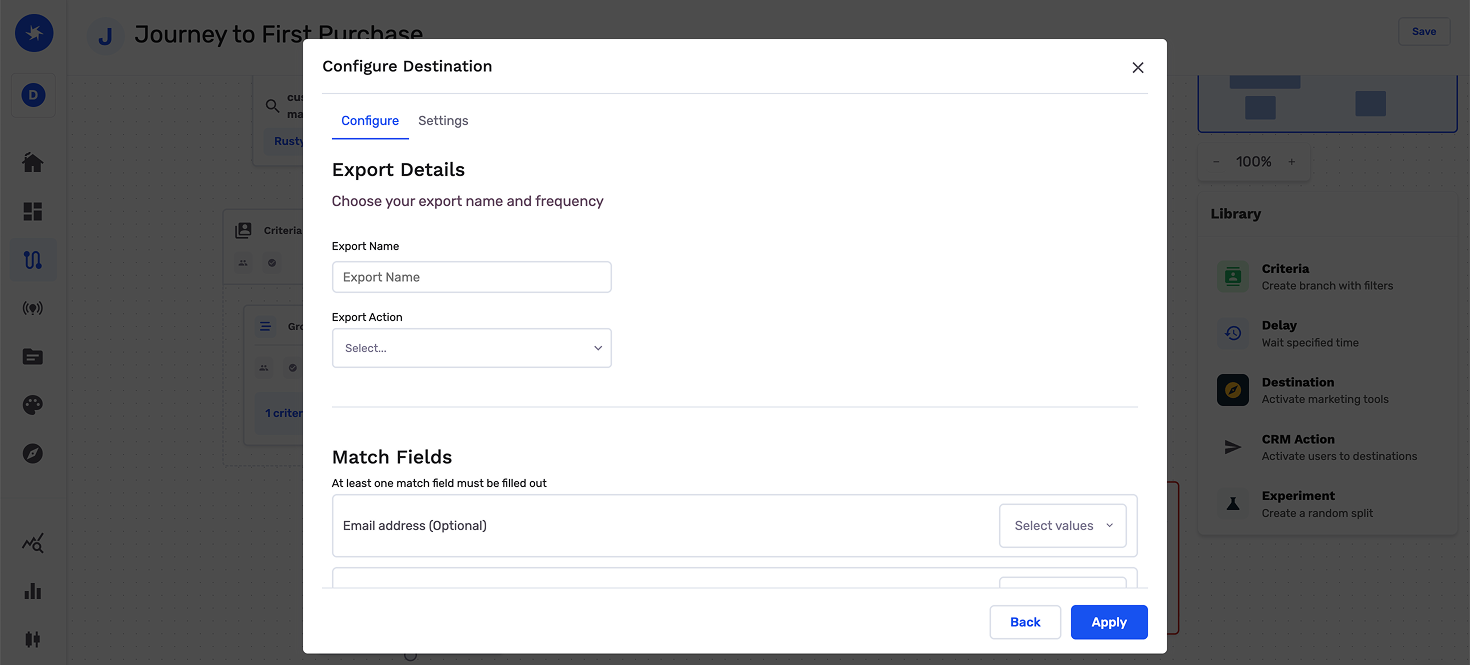
After building or selecting an audience, click Export, then search for Adobe Audience Manager. In a journey, add a Destination Node under Ads and select Adobe Audience Manager.
Map identifiers
Map exactly one match field. Choose the identifier type Adobe used when it onboarded your data source.
| Match field | Description |
|---|---|
| Unique User ID (UUID) | Adobe Audience Manager UUID |
| Android ID (GAID) | Android advertising ID |
| iOS ID (IDFA) | iOS advertising ID |
| Roku ID (RIDA) | Roku device ID |
| Microsoft ID (MAID) | Microsoft advertising ID |
| Samsung Tizen ID (TIFA) | Samsung Tizen ID |
| LG webOS TV ID (LGUDID) | LG webOS TV ID |
| Vizio ID (IFA) | Vizio advertising ID |
| Amazon Fire TV ID | Amazon Fire TV ID |
Configure the export
This is where you set the campaign type and schedule for audience exports. On a journey Destination Node, you set timing on the journey canvas.
| Setting | Audience export | Journey Destination Node |
|---|---|---|
| Export Name | Defaults to the audience name. | Required. Enter a name so you can find the export in GrowthLoop. |
| Campaign type | Choose a one-time or ongoing export. | The journey schedule controls when the journey runs and contacts are sent to Adobe Audience Manager. |
| Schedule | Set frequency, start date, and end date. | Users reach this node when the journey runs. Add a Delay Node or set Criteria Evaluation to control timing. |
Export behavior
This is what GrowthLoop writes when you export an audience.
| Behavior | What happens |
|---|---|
| What GrowthLoop writes | Onboarding files in the Adobe-provisioned S3 bucket. Direction is GrowthLoop → Adobe Audience Manager. |
| When it runs | GrowthLoop sends the export as a batch on the next successful run. An export that starts Now runs within about 15 minutes. Journeys send exports on demand when users reach the Destination Node. |
| File drop | GrowthLoop writes onboarding files to the Adobe-provisioned S3 bucket. |
| Ingestion | Adobe picks up new files on its normal onboarding schedule. |
| Match fields | Each export supports exactly one identifier type. |
| One-time exports | GrowthLoop writes the current membership file once. |
| Ongoing exports | GrowthLoop writes a new file on each scheduled run. |
Confirm the export was successful
When the run finishes, confirm you can use the data in Adobe Audience Manager.
- Audience export: Open the onboarding or data source area configured for your S3 delivery and look up the latest GrowthLoop file.
- Journey Destination Node: Open the onboarding or data source area configured for your S3 delivery and look up the latest file for that export.
In GrowthLoop, review counts on the audience Exports tab, or open the Activity tab on the journey Destination Node. See Export an audience or Monitor a journey for more information.
Congrats on successfully exporting to Adobe Audience Manager!
Troubleshooting
These are the issues we see most often. You can always email us at [email protected] for help.
| Problem | Cause | Resolution |
|---|---|---|
| Connection fails to validate | The bucket or role ARNs are not the Adobe-provisioned onboarding values | Use the Adobe-provisioned bucket and both role ARNs, not a generic S3 destination |
| Rows fail to match | More than one match field is mapped, or the identifier type does not match the data source | Map exactly one match field that matches how Adobe onboarded the data source |
| Membership is missing in Audience Manager | Adobe has not ingested the latest file yet | Wait for Adobe's ingestion schedule, then refresh the data source |
Updated about 1 month ago