
Edit an Audience
Learn how to edit an audience, save versions, and compare queries in the Queries tab.
You can edit an audience after it has been exported or used in a published journey. Review saved audience versions in the Queries tab to see what changed and which version powered each export or journey.
How audience versions work
The first time you export an audience or use it in a published journey, GrowthLoop saves the audience state as the first version. You can find saved versions under Version History in the Queries tab.
After that, GrowthLoop saves a new version each time you manually save edits to the audience. Each version captures changes to the audience configuration, including filters, limits, sorting, and other audience builder settings. In the Queries tab, you can view a saved version's query or compare it with the previous version.
When you use an audience as the entry criteria for a journey, GrowthLoop records the audience version associated with journey changes in Organization > Audit Logs. Updates to the entry audience automatically update the journey to use the latest saved version.
NoteBefore an audience is exported or used in a published journey, Audience Builder can auto-save as you make changes. After an audience has versions, auto-save is turned off for edits and you must click Save to create a new version.
Edit an audience
- Navigate to Audiences under Platform in the GrowthLoop app.
- Select the audience you want to edit from the Central Audience Hub.
- Click Edit in the upper right corner of the audience.
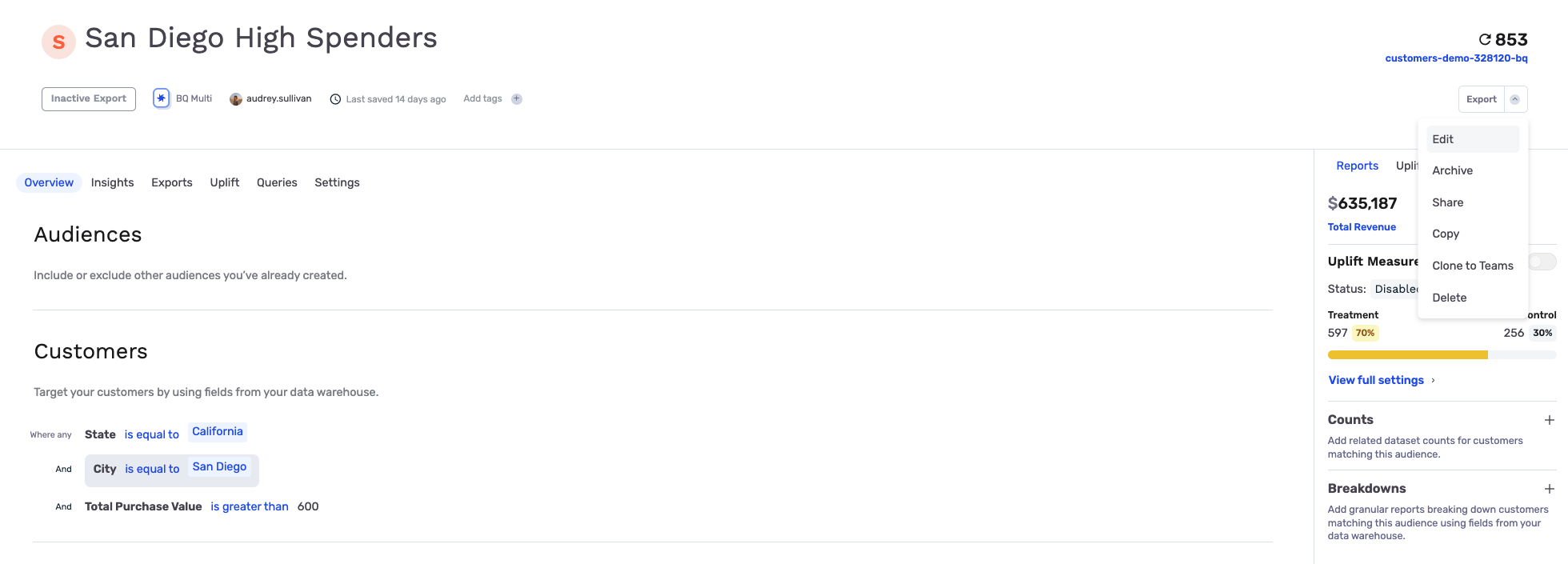
- Update the audience configuration. You can adjust filters, inclusions, exclusions, limits, sorting, or other settings available in Audience Builder.
- Click Save when your changes are ready.
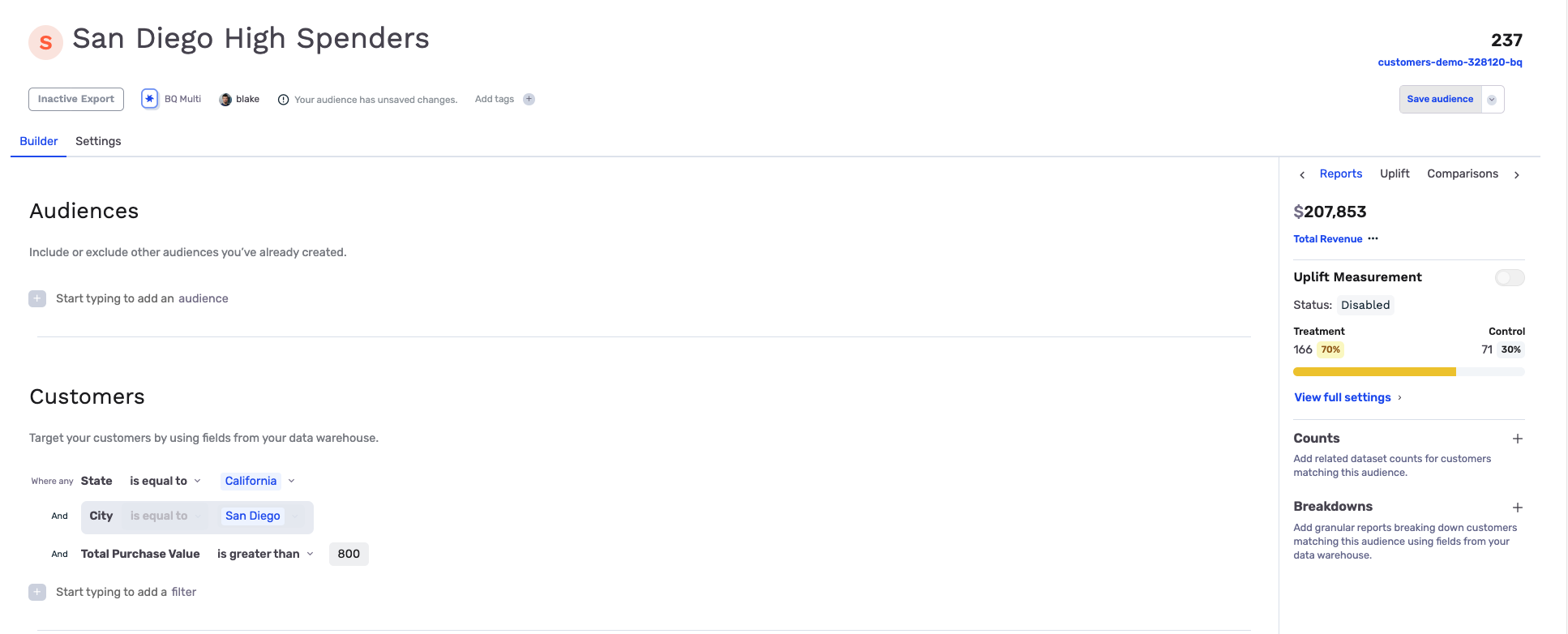
After you save, GrowthLoop creates a new audience version. The latest version becomes the version used by exports and journeys.
Review audience versions
- Open the audience you want to review.
- Click the Queries tab.
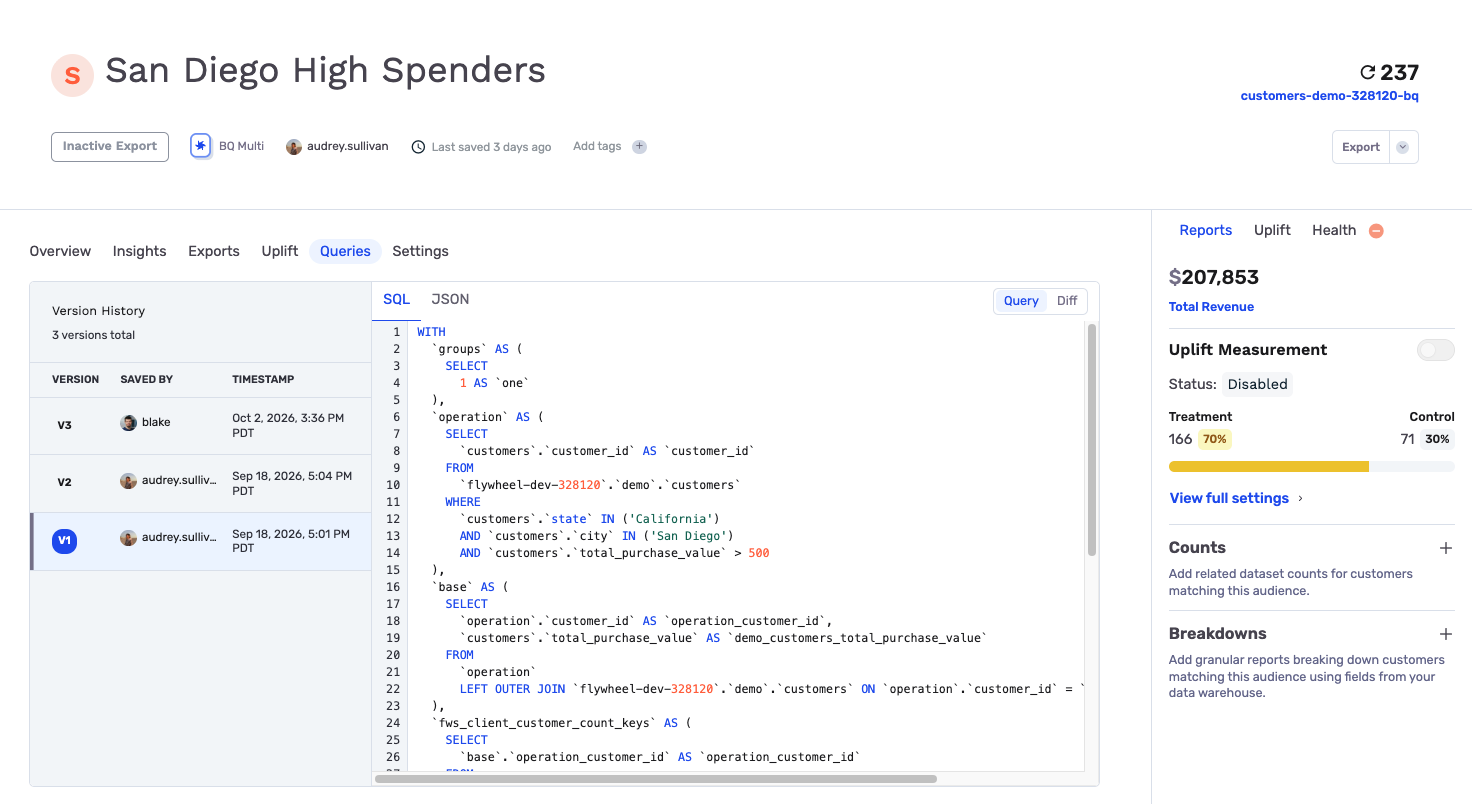
- Select a version from Version History on the left. Each entry shows the version number, who saved it, and the timestamp.
- Select SQL or JSON above the query pane to choose the definition you want to review.
- Click Query in the upper right of the pane to view the selected version's full definition.
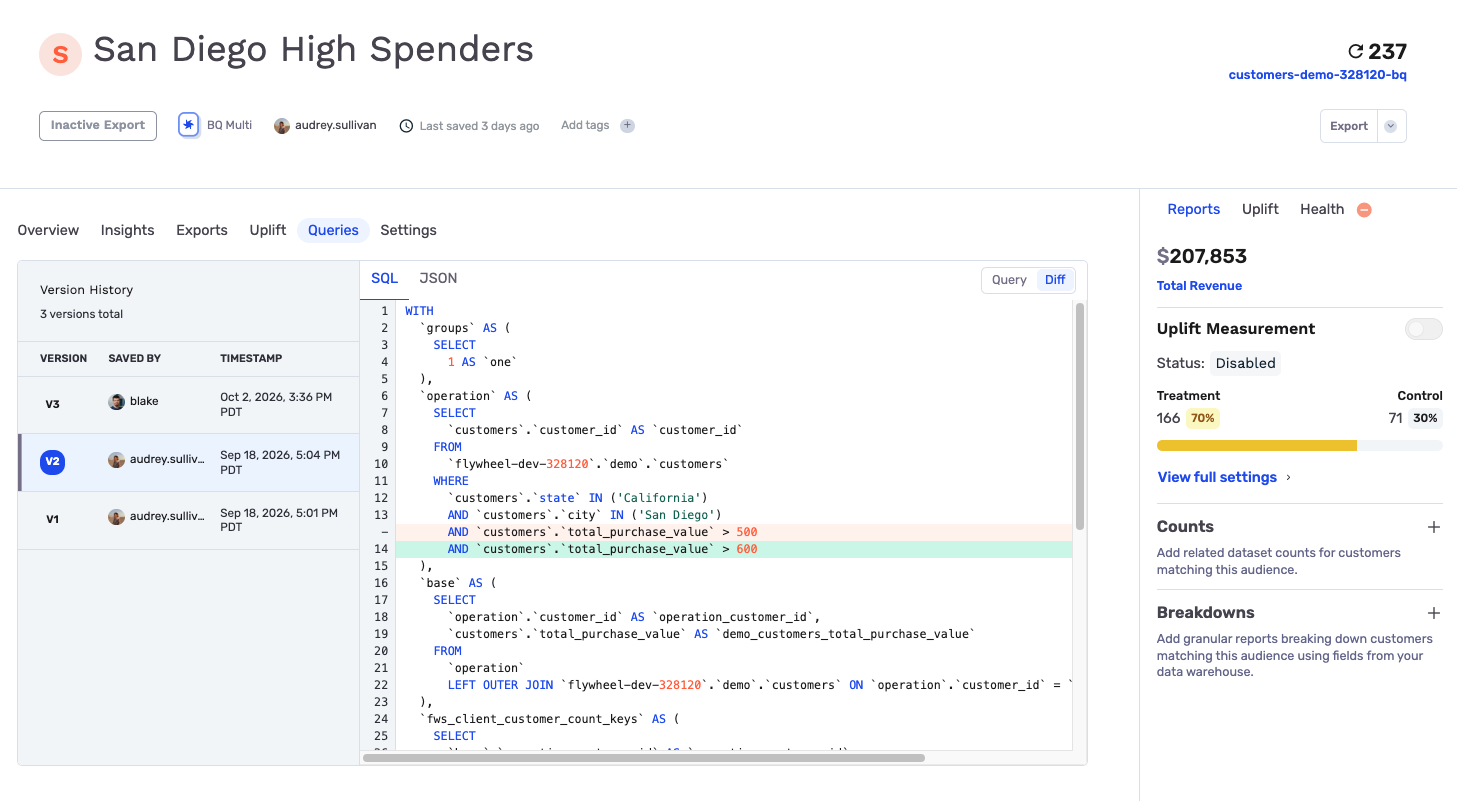
- Click Diff to compare the selected version with the previous version. Added lines are highlighted in green, and removed lines are highlighted in red, so you can see how the audience definition changed.
Use the Queries tab when you want to answer questions like:
- Which filters changed before the latest export?
- Did the audience limit or sorting change?
- Which query definition was used for a past activation?
- Which audience version was active when a journey was published?
Track versions in exports
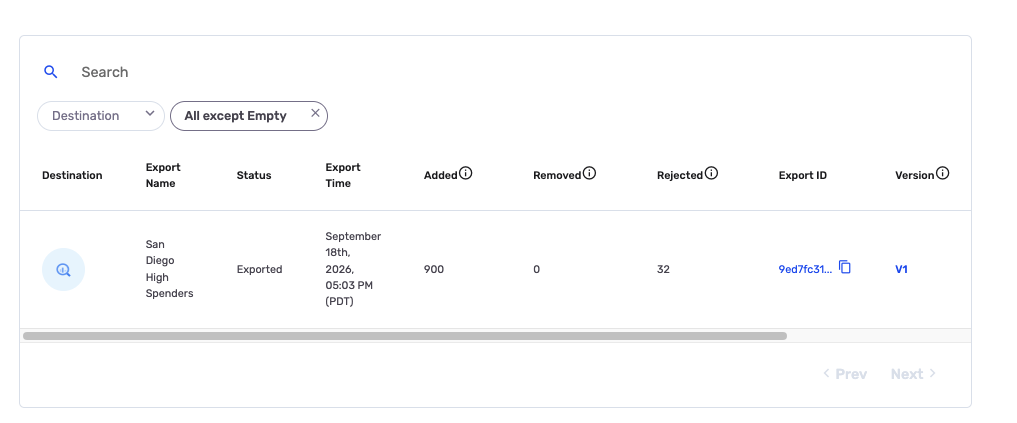
When you export an audience, GrowthLoop shows the audience version in the export activity table. The version links back to the saved audience version used for that export.
New exports always use the latest saved version of the audience. If you edit an audience and save a new version, GrowthLoop uses that latest version for future exports.
Track versions in journeys
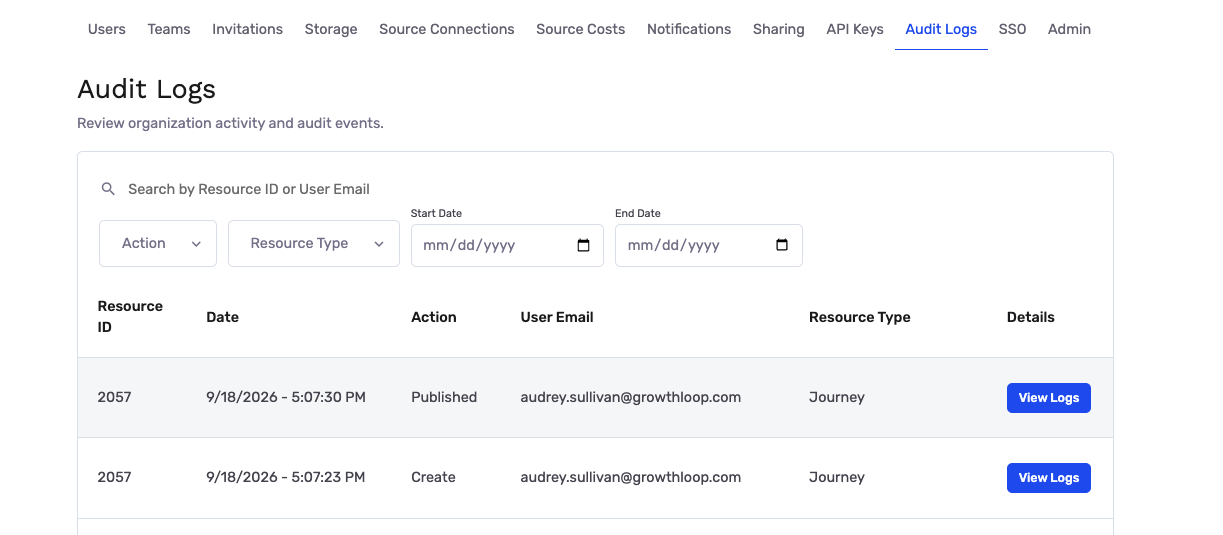
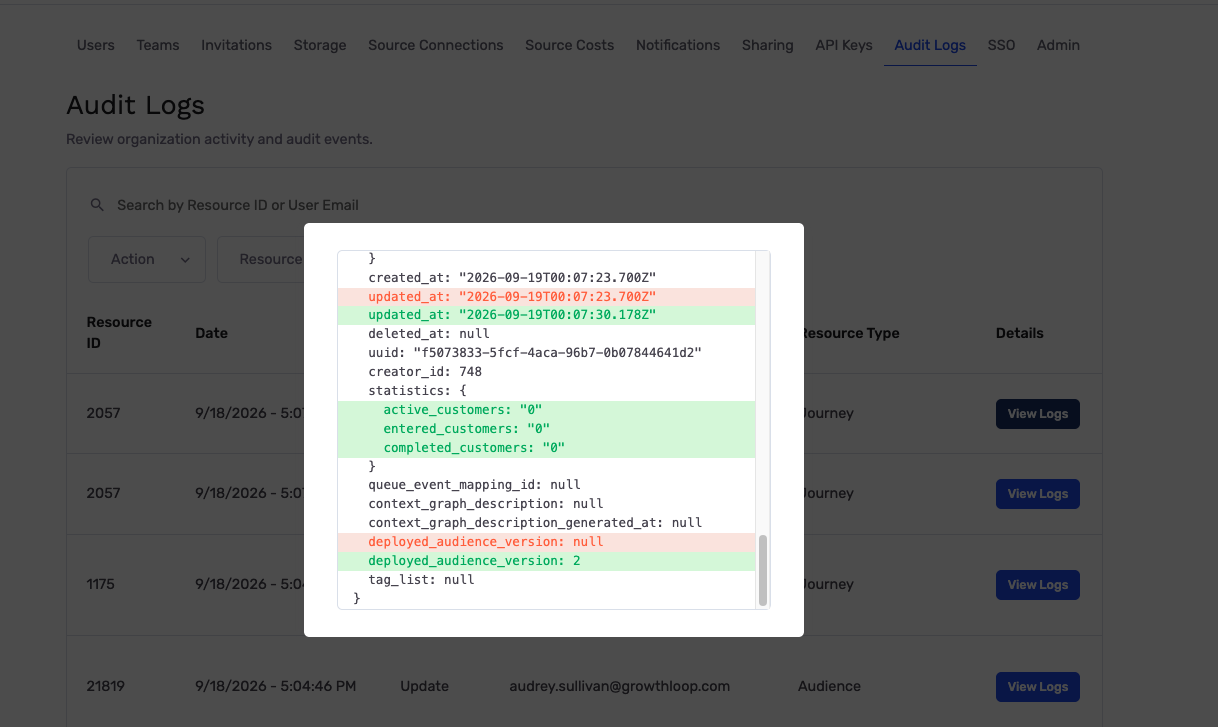
When you create, update, or publish a journey that uses the audience as its entry criteria, GrowthLoop records the audience version associated with that journey change in Organization > Audit Logs.
Updates to the entry audience automatically update the journey to use the latest saved version. To trace a journey back to the audience version it used, open the relevant audit log entry and review the recorded version.
Verify your changes
After you save an edited audience, confirm that everything looks right:
- Open the Queries tab and confirm that a new version appears under Version History.
- Select the new version and click Query to review its definition, then click Diff to check the changes from the previous version.
- If the audience has active exports, open the export activity table after your next export and confirm that the version links to the saved audience version.
- If the audience is used in a published journey, open Organization > Audit Logs and review the relevant journey entry to confirm the audience version.
Congratulations! You’ve edited your audience and created a versioned record of the changes.
NoteExperiencing any issues editing an audience or reviewing versions? Reach out to us at [email protected] and we'll help resolve the matter.
Updated 24 days ago