
Use snippets
Create reusable snippets in Content Studio and insert them into email templates.
Snippets are small, reusable blocks of email HTML saved in your content library. You embed them in email templates rather than send them as standalone messages. Use them for content your team repeats across campaigns, such as disclaimers, offer modules, seasonal banners, or loyalty messaging.
Prerequisites
- Access to Content Studio
- An email template where you want to use the snippet
Create a snippet
- Navigate to Content Studio in the left sidebar.
- Open the Snippets tab.
- Click New snippet.
- Enter a clear snippet name.
- Build the reusable content block.
- Click Save.
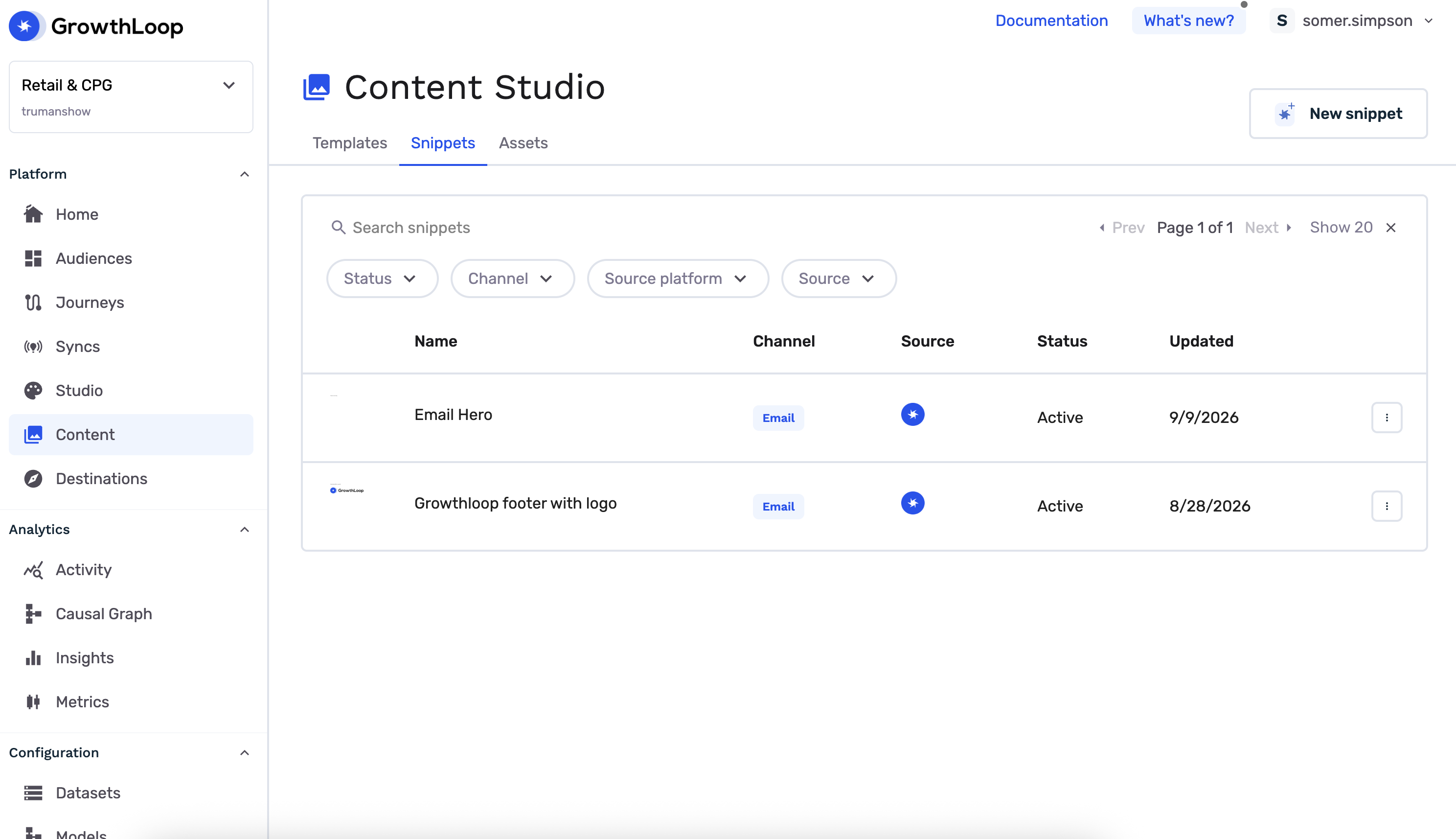
[Screenshot: Content Studio Snippets tab with a saved snippet]
Insert a static snippet
With a static snippet, your template points to one specific saved snippet. Every recipient of that template sees the same snippet content. Use static snippets for shared headers, footers, legal copy, or logos.
- Open an email template in Content Studio.
- Click Personalization.
- Select Content snippet.
- Choose the saved snippet.
- Click Insert.
- Click Save.
Add a dynamic snippet slot
A dynamic snippet slot leaves a named placeholder in your template instead of selecting a specific snippet. When you configure a journey email Destination Node, you choose which snippet fills each slot. This lets you reuse one template with different snippet content across destination nodes.
- Open an email template in Content Studio.
- Click Personalization.
- Select Dynamic snippet slot.
- Enter a slot name using letters, numbers, and underscores.
- Click Insert.
- Click Save.
Choose snippets for different audiencesTo show different snippets based on recipient attributes, split your journey into branches that lead to separate email Destination Nodes. Select the same template on each node and choose a different snippet for the slot. A single destination node does not select snippets per recipient based on their attributes.
Preview snippet bindings
- Open Preview for the template.
- Review the Content snippets section.
- Select snippet values for any available bindings.
- Click Save customization if you want to store those values for the template or variant.
TipUse descriptive snippet and slot names, such as
holiday_offer_bannerorlegal_disclaimer, so your team can recognize them when previewing or configuring variants.
Congrats - your reusable snippets are ready!
Next, generate AI variants from templates that include customization fields.
Updated 4 days ago