
Set up Bring Your Own AI
Connect your own AI provider to use with AI Studio.
Bring Your Own AI lets you connect an AI provider that your organization manages to AI Studio. Configure the provider on the warehouse Source Connection that AI Studio uses.
Prerequisites
Before you start:
- Your organization has AI Studio enabled.
- You have permission to edit the warehouse Source Connection.
- You have the provider credential your organization has approved for AI Studio.
- You are configuring a warehouse source, not a real-time source.
NoteDon't see LLM Settings on the source connection? AI Studio may not be enabled for your organization. Contact [email protected] and we'll help.
Choose your AI provider
Select the provider that your organization wants AI Studio to use.
| Provider | What you provide |
|---|---|
| OpenAI | An OpenAI API key. |
| Vertex AI | A Google Cloud service account key JSON file. |
| Cortex AI | A JSON file with Snowflake connection credentials. |
In LLM Settings, the Vertex AI option appears as Gemini Enterprise Agent Platform (formerly Vertex AI).
OpenAI API key
Enter an OpenAI API key directly in LLM Settings. Do not upload an OpenAI credentials file.
Vertex AI service account JSON
Upload the original JSON key file for the Google Cloud service account that your organization uses with Vertex AI. Create and download the key from Google Cloud. Do not create the file by hand or upload a file from another Google Cloud project.
The JSON file contains the service account identity and private key, including fields such as type, project_id, private_key, client_email, and token_uri.
WarningA service account key is sensitive. Store it securely, share it only with people who need it, and do not add it to source control or send it in email or chat.
Cortex AI credentials JSON
Upload a JSON object with the Snowflake connection information AI Studio needs to use Cortex AI:
{
  "snowflake_account": "your-organization-your-account",
  "snowflake_username": "your-service-user",
  "snowflake_password": "your-password",
  "snowflake_database": "your_database",
  "snowflake_schema": "your_schema",
  "snowflake_warehouse": "your_warehouse",
  "snowflake_role": "your_role"
}
snowflake_role is optional. The remaining fields are required. Use the Snowflake account identifier for snowflake_account, not a Snowflake URL. Do not include the .snowflakecomputing.com suffix.
Ask your Snowflake administrator for an approved service user, password, role, database, schema, and warehouse. Do not wrap these values in a credentials object or add a default_llm_gateway field. GrowthLoop adds that information when it saves the configuration.
Set up Bring Your Own AI
- In GrowthLoop, click Settings in the left sidebar, then open Organization.
- Open Source Connections.
- Select the warehouse Source Connection that you use with AI Studio.
- Open LLM Settings.
- Select OpenAI, Gemini Enterprise Agent Platform (formerly Vertex AI), or Cortex AI.
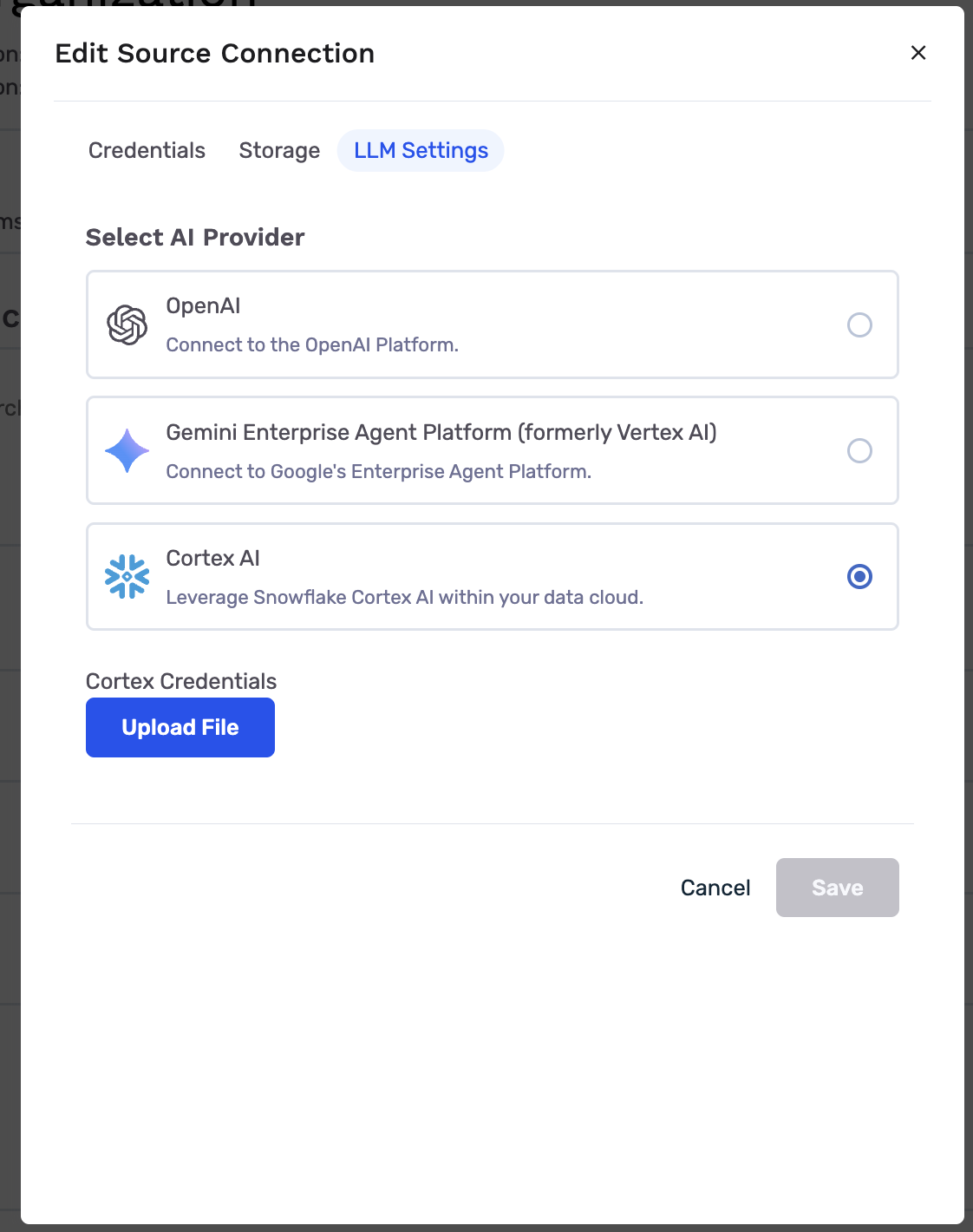
- Add the credential for your selected provider:
- For OpenAI, enter the API key.
- For Vertex AI, click Upload File and select the approved Google Cloud service account JSON key.
- For Cortex AI, click Upload File and select the Snowflake credentials JSON file described above.
- Click Save Settings.
GrowthLoop stores the credential securely and shows the selected provider for the source connection. The credential is not shown again after you save it.
Confirm the setup
Return to LLM Settings and select the provider you configured. GrowthLoop shows API key is configured for OpenAI or Credentials are configured for Vertex AI and Cortex AI.
Then open Studio, select a dataset group that uses the configured source connection, and start a conversation. This confirms that AI Studio can use the selected provider. Review AI Studio output before you use it to create or update an audience.
Update your provider or credential
To change the provider or replace its credential, return to LLM Settings, select the new provider, add its credential, and click Save Settings. You can use the same steps to replace an OpenAI API key or upload a new JSON credentials file.
Troubleshooting
| Issue | What to do |
|---|---|
| LLM Settings is missing | Confirm AI Studio is enabled for your organization and that you can edit the source connection. Contact [email protected] if you still do not see the tab. |
| Your source is real-time | Select a warehouse source connection. Bring Your Own AI is not available for real-time source connections. |
| The credentials file cannot be selected | Select a JSON file for Vertex AI or Cortex AI. Ask your cloud or data warehouse administrator for the approved credential file. |
| Credentials are configured, but Studio cannot use the provider | Confirm that you selected the source connection used by the dataset group and that the credential values are complete and current. For Vertex AI, upload the original service account key JSON. For Cortex AI, confirm every required Snowflake field is present. |
| AI Studio does not have a dataset group to use | Complete Set up AI Studio for a dataset group that uses the configured source connection. |
You're all set! Continue to Context Manager to add business context before your first AI Studio session.
Updated about 1 month ago