
Manage templates and variants
Manage Content Studio template lifecycle statuses, editable copies, variant sets, saved customizations, archives, and deletes.
Use Content Studio lifecycle and variant controls to keep active creative easy to find while preserving work your team may need later. You can filter templates by status, make editable copies of supported external content, review variants in Preview, and decide whether to archive or delete content.
Prerequisites
- Access to Content Studio
- At least one email or SMS template
- For variant management, at least one template with generated variants
Understand lifecycle statuses
Content Studio supports these lifecycle statuses:
| Status | What it means |
|---|---|
| Draft | The content is still being prepared. |
| Approved | The content has been reviewed and approved for use. |
| Active | The content is available in active template lists and journey pickers. |
| Archived | The content is hidden from active lists but remains available for reference or restoration. |
Use the lifecycle filter on the Templates tab to switch between active, draft, approved, and archived content.
Manage template actions
- Navigate to Content Studio in the left sidebar.
- Open the Templates tab.
- Find the template you want to manage.
- Open the template actions menu.
- Choose the action you need:
- Preview - Render the template with temporary test data
- Edit - Open supported GrowthLoop or editable copied content
- Create variant - Generate AI variants from customization fields
- Make editable - Create a GrowthLoop-owned editable copy of supported external content
- Archive or Unarchive - Move content in or out of the active template list
- Delete - Permanently remove content when deletion is available
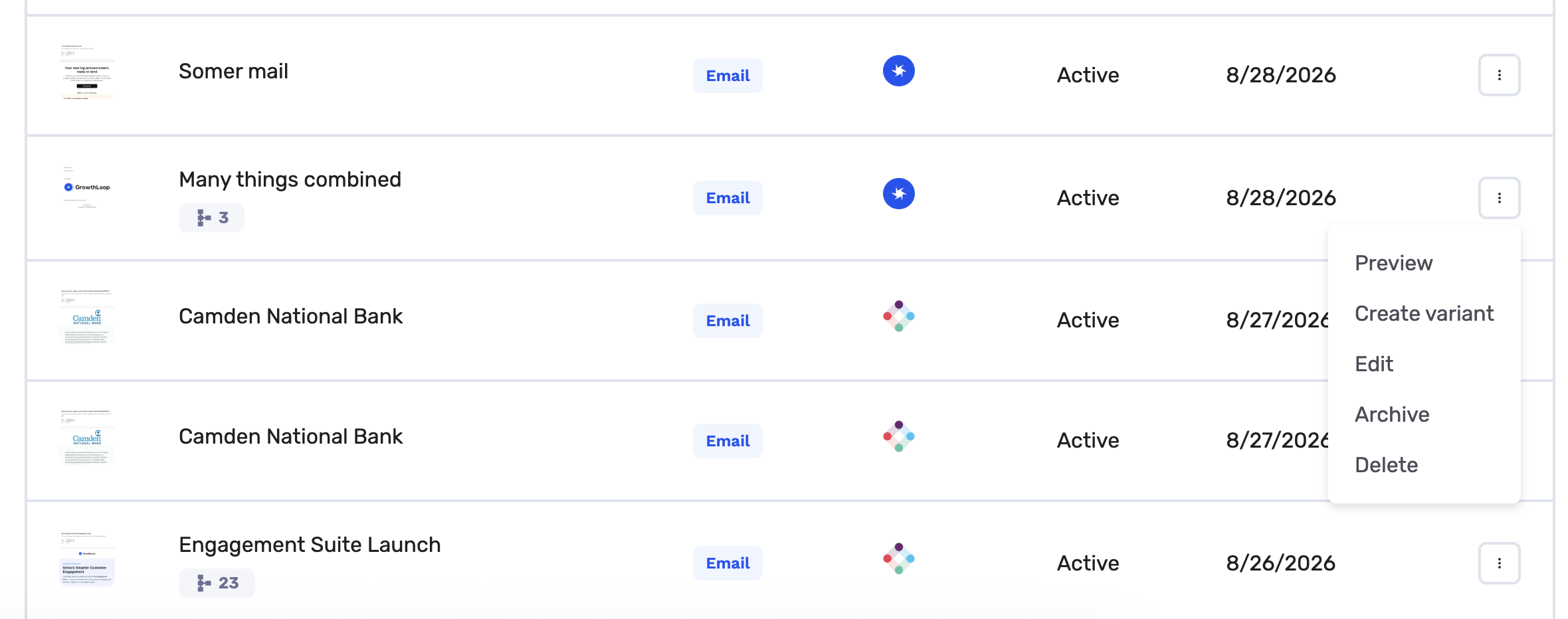
[Screenshot: Template actions menu with Preview, Edit, Create variant, and Make editable]
Make an editable copy
Use Make editable when you want to customize supported external content in GrowthLoop without changing the original source template.
- Open the external template's actions menu.
- Click Make editable.
- Enter a New template name.
- Click Create editable copy.
GrowthLoop creates a new editable template in Content Studio. The original external template remains unchanged.
NoteEditing is available for content created in Content Studio and for supported editable copies. Some external content can be previewed and used in journeys but cannot be edited directly.
Review variants
Variants stay linked to the parent template they were generated from.
- Open the parent template's actions menu.
- Click Preview.
- Review the root content in the preview panel.
- Use the variant selector in the top menu to switch between variants.
Variants appear with a Variant badge so you can tell generated variants apart from parent templates.
Save customizations
Use Save customization when you preview a template or variant and want to store the current customization values.
- Open Preview for a template or variant.
- Enter temporary test data, customization values, or snippet bindings.
- Click Save customization.
- Confirm the update.
Saving customization values updates the selected template or variant. It does not change the source template in an external platform.
Archive, unarchive, or delete content
Use archive when you want to remove content from active use without losing the record. Use delete only when you are ready to permanently remove content.
| Action | Use it when | Result |
|---|---|---|
| Archive | You want to hide a template or variant from active lists. | The content moves to the archived lifecycle status. |
| Unarchive | You want to restore archived content. | The content returns to active lists. |
| Delete | You no longer need the content. | The content is permanently removed when deletion is available. |
WarningDeleting content is permanent. Archive content when you may need to reference or restore it later.
Choose archive or delete
Archive content when:
- A campaign ended but your team may reuse the creative later
- You want to remove old variants from active pickers
- You need to keep a record for review
Delete content when:
- The template or variant was created by mistake
- The content should not be reused
- Your team has confirmed it is no longer needed
You're all set!
Next, generate AI variants or return to Content Studio overview.
Updated about 1 month ago