
Audience sizing
Track historical audience sizes and membership changes from the Exports tab.
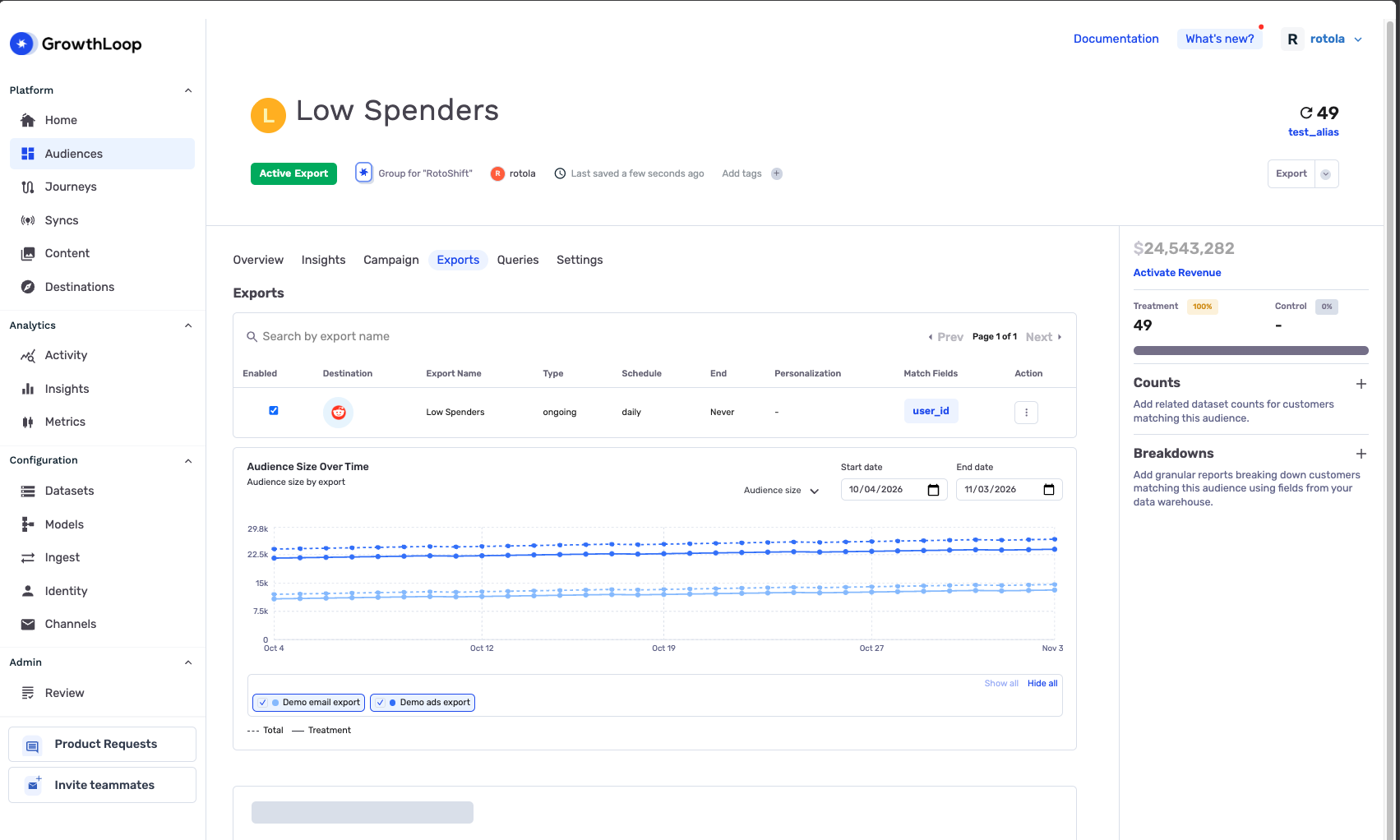
Use the Audience Size Over Time chart in an audience's Exports tab to review how membership changes across export snapshots. Compare exports, review treatment size, and track additions and removals over time.
Prerequisites
- A GrowthLoop admin must enable the Audience Sizing organization setting before you can use this feature. Contact [email protected] if the chart is missing.
- Use an account with access to the audience and its Exports tab.
- Have an audience with export snapshot history. Ongoing exports provide repeated snapshots for reviewing trends. See Export an audience for setup instructions.
Review audience sizing
- Click Audiences in the left sidebar and open the audience you want to review.
- Select the audience's Exports tab.
- Scroll below the export table to Audience Size Over Time.
- Set Start date and End date to choose a custom date range. The default covers the last 30 days. The chart remembers your selected range for this audience in your browser.
- Select Audience size to compare total and treatment sizes, or Adds/removes to review membership changes.
- Click export names in the chart legend to show or hide their series, then hover over a point to review its values.
Understand the chart
The chart groups distinct members by day and export using historical snapshots. It reflects membership recorded during exports, rather than continuously recalculating the audience's current size. If multiple snapshots occur on the same day for an export, the daily count includes distinct members across those snapshots.
| Metric | Meaning |
|---|---|
| Total audience size | Distinct members recorded in the snapshots, including treatment and control members |
| Treatment audience size | Distinct members recorded outside the control group |
| Added | Distinct treatment members marked as added in export change history |
| Removed | Distinct treatment members marked as removed in export change history |
The total audience size and removed-member series use dashed lines. Export names identify the series; destination context is added when export names are repeated.
NoteThese counts describe export snapshot membership. They do not confirm that a destination accepted or matched each member. Review export status and rejected records in the Exports table when checking delivery.
Verify a membership change
- Select Audience size to review size trends for an export.
- Select Adds/removes to review membership changes over the same dates.
- Review the corresponding export runs in the Exports table for status and delivery details.
The chart can use cached results, so a recent export may not appear immediately.
You're all set! Continue to Export an audience to manage the exports behind these trends.
Troubleshooting
These are the issues we see most often. You can always email us at [email protected] for help.
| Problem | Cause | Resolution |
|---|---|---|
| The chart is missing | Audience Sizing is not enabled or the chart is not available for your organization. | Ask support to check the Audience Sizing organization setting and chart availability. |
| No chart data appears | The audience has no export snapshots in the selected date range. | Adjust Start date and End date to include an export, and confirm export activity in the Exports table. |
| A new export does not appear immediately | Snapshot history or the cached report is still updating. | Confirm the export ran and allow the chart to finish loading before checking again. |
| The chart differs from the current audience size | Historical daily snapshots and the current audience calculation cover different points in time. | Compare the same export and dates, and account for the treatment/control split. |
| The chart differs from destination counts | Snapshot membership does not measure destination acceptance or matching. | Review rejected records and destination results alongside the Exports table. |
| Audience size chart is unavailable | GrowthLoop could not load the chart. | Try again. If the problem persists, send support the audience and error message. |
Updated about 1 hour ago