
OneSignal
Use GrowthLoop journeys to trigger OneSignal push templates.
Connect this destination to trigger a OneSignal push template from a journey Destination Node, for use when someone reaches that node.
This destination writes to your OneSignal account and is a good fit when you want to:
- Have a OneSignal push template ready to send
- Match contacts on a subscription ID
This maps to GrowthLoop Journeys:
| Use it for | Journeys |
|---|---|
| Triggering a OneSignal push template | ✓ |
This destination triggers push from journeys. It does not write OneSignal segments from an audience export.
Prerequisites
Make sure you have:
- A OneSignal account and app. See OneSignal if you need to create one.
- Your App ID and App API Key. In OneSignal, open Settings > Keys & IDs.
- At least one push template in that app.
- A field that stores a valid OneSignal Subscription ID.
Set up OneSignal as a destination
- In GrowthLoop, click the Destinations tab on the left sidebar.
- Click New Destination in the top right corner.
- Search for OneSignal and click Add OneSignal.
- Enter the required information, then click Create.
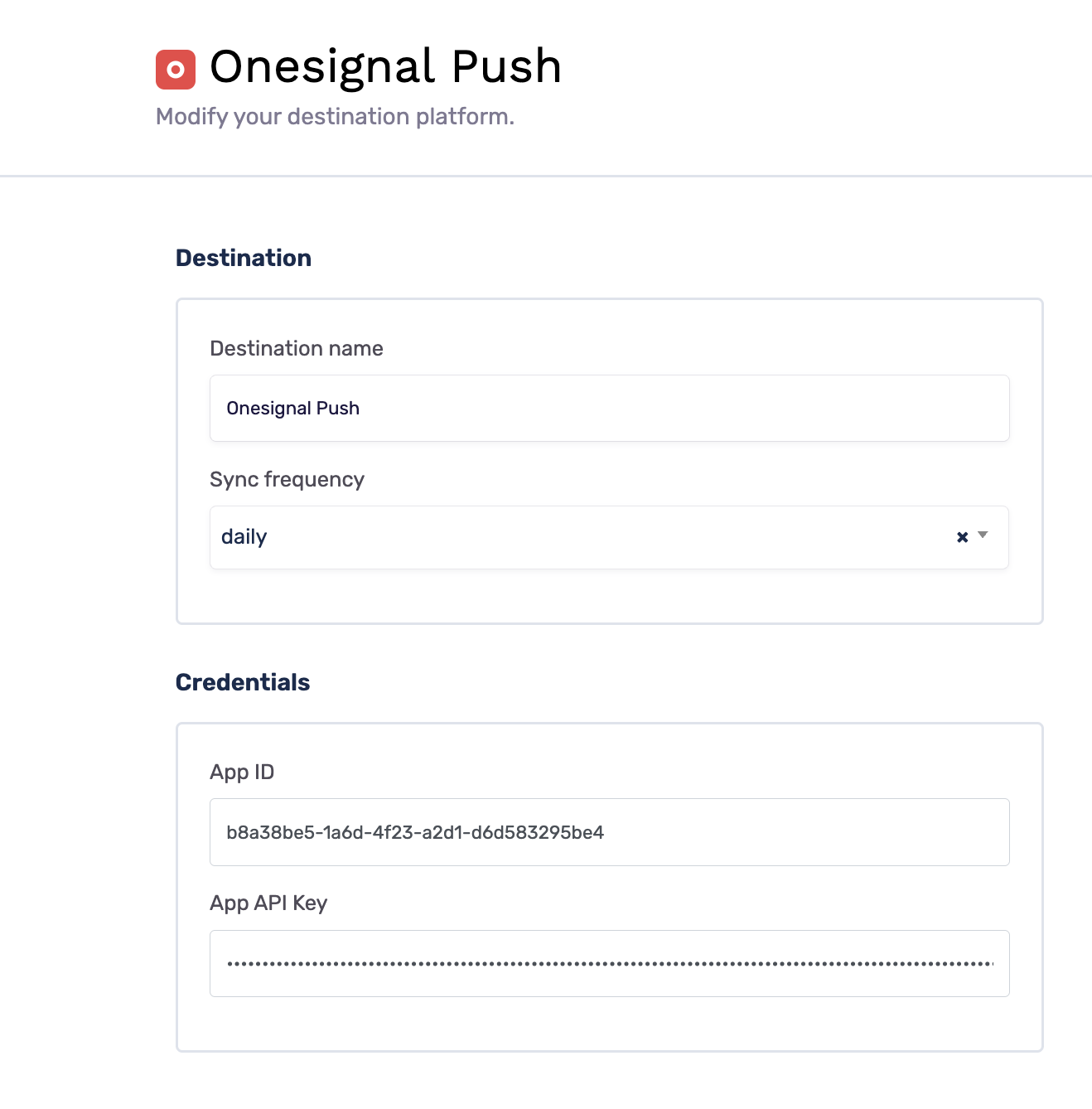
| Field | Description |
|---|---|
| Destination Name | Name this destination in GrowthLoop. Use a name so your team recognizes its purpose, like "OneSignal Push". |
| Sync Frequency | Set the default export frequency (for example, daily or weekly). You can override this setting for individual journeys. |
| App ID | OneSignal App ID from Settings > Keys & IDs. |
| App API Key | OneSignal App API Key from Settings > Keys & IDs. |
GrowthLoop validates the connection by loading templates for that app. OneSignal then appears in your list of connected destinations.
Export to OneSignal
From within GrowthLoop, export from a journey Destination Node. See Build a journey if you need more information on these steps.
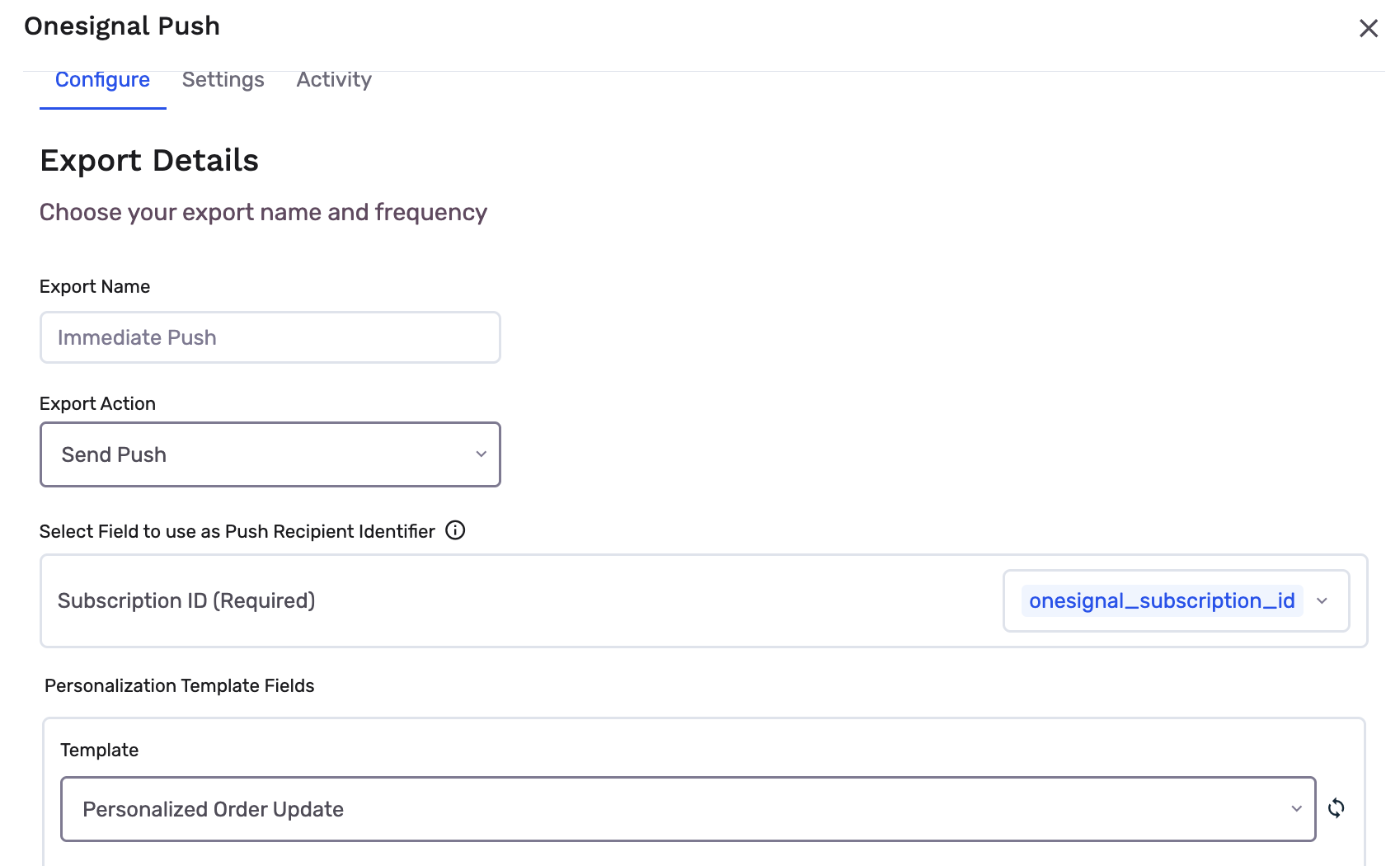
Add a Destination Node under Push and select OneSignal. Choose Send Push.
Map identifiers
Map Subscription ID. This field is required.
Configure the export
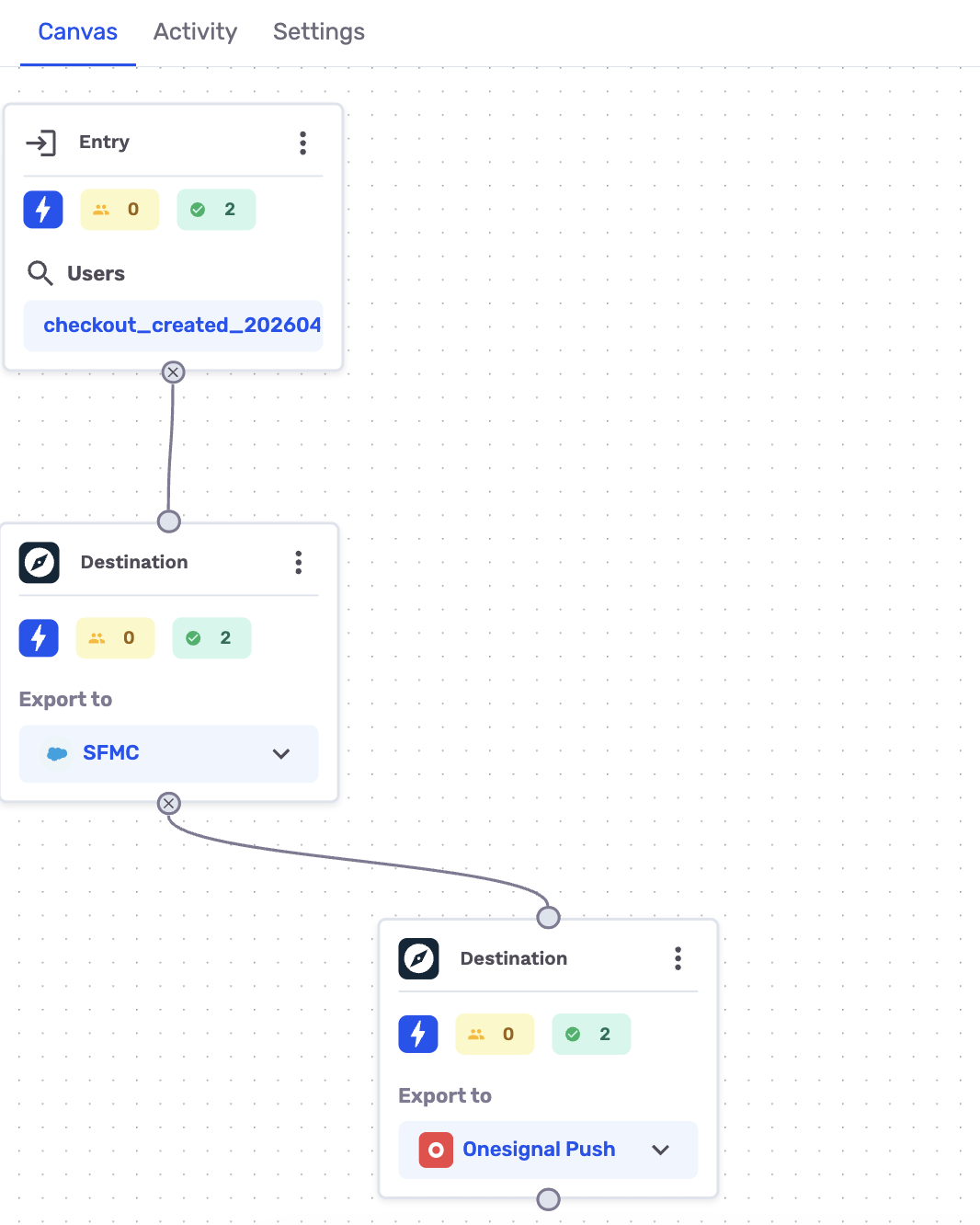
On a journey Destination Node, you set timing on the journey canvas.
| Setting | Journey Destination Node |
|---|---|
| Export action | Send Push. |
| Subscription ID | Field that holds the OneSignal subscription ID. |
| Push Template | OneSignal template to trigger. |
| Template Variables | Optional. Map GrowthLoop fields to variables from message.custom_data on the template. |
| Send Test Push | Optional. Enter a test Subscription ID and send a test notification before you publish. |
| Campaign type | The journey schedule controls when the journey runs and contacts are sent to OneSignal. |
| Schedule | Users reach this node when the journey runs. Add a Delay Node or set Criteria Evaluation to control timing. |
Export behavior
This is what GrowthLoop writes when users reach the Destination Node.
| Behavior | What happens |
|---|---|
| What GrowthLoop writes | A OneSignal push send for the selected template. Direction is GrowthLoop → OneSignal. |
| When it runs | Journeys send exports on demand when users reach the Destination Node. |
| Match field | Subscription ID. |
| Template | GrowthLoop triggers the template you selected. Mapped template variables go to OneSignal as custom data. |
| Audience membership | GrowthLoop does not create or update a OneSignal segment. |
| Deletes | GrowthLoop does not delete OneSignal subscriptions. |
Confirm the export was successful
When the run finishes, confirm you can use the data in OneSignal.
- Journey Destination Node: Open the message or delivery log for the template and look up the send. Confirm the push arrives on a device for a contact who reached the node.
In GrowthLoop, open the Activity tab on the journey Destination Node. See Monitor a journey for more information.
Congrats on successfully exporting to OneSignal!
Troubleshooting
These are the issues we see most often. You can always email us at [email protected] for help.
| Problem | Cause | Resolution |
|---|---|---|
| Connection fails to validate | App ID or App API Key is wrong | Copy both values from OneSignal Settings > Keys & IDs |
| Push Template is empty | The app has no templates, or the key cannot list them | Create a push template in that OneSignal app and reconnect |
| The push does not arrive | Subscription ID is missing or does not match a device | Map a valid Subscription ID and send a test push to that ID |
| An audience export fails | This destination only supports journey Send Push | Add a Destination Node under Push and choose Send Push |
Updated 21 days ago