
Simulate a journey
Test your journey's paths with an isolated dry run before activating external actions.
Use Simulate to test how customers move through your journey. A dry run processes your journey in isolation and lets you inspect the results on the canvas without exporting to destinations, sending trigger webhooks, or performing CRM actions.
Enable journey simulationReach out to your GrowthLoop representative or [email protected] to enable journey simulation for your organization. Once enabled, Simulate appears in the journey actions menu.
Prerequisites
- Save the journey you want to test. You can simulate a draft before starting it.
- Configure an entry audience for a warehouse journey, or a registered entry event for a real-time journey.
- For a real-time journey, prepare a sample JSON event that matches your registered event schema and customer identifier mapping. If the journey uses warehouse enrichment, use a test customer ID that exists in the mapped dataset.
Learn more about building a journey and registering real-time events.
Open the simulation dialog
- Open your journey from Journeys in the left sidebar.
- Click the journey actions dropdown beside Save in the upper-right corner.
- Select Simulate.
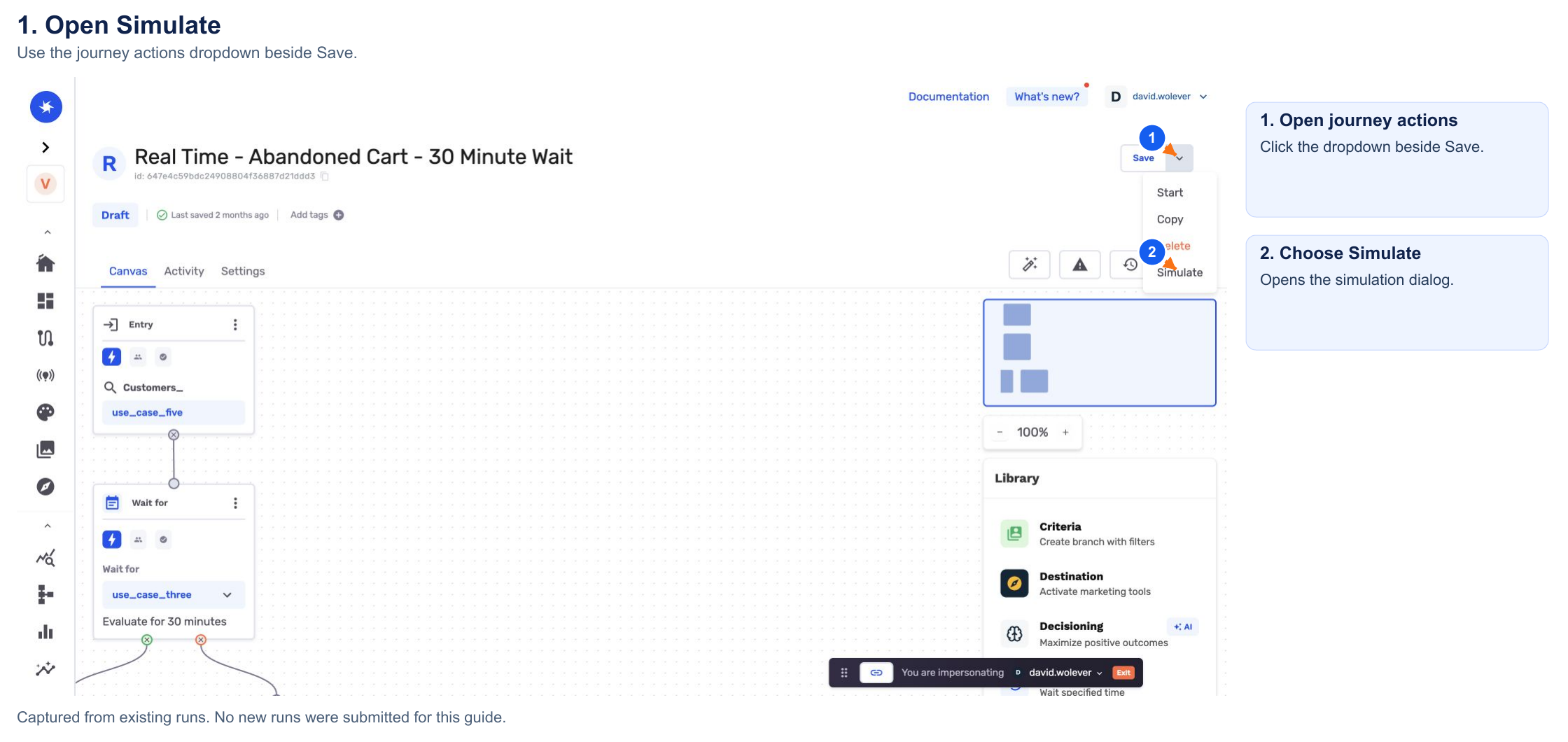
The dialog depends on the journey type:
| Journey type | Input | What you test |
|---|---|---|
| Warehouse | Full entry audience | How customers in the audience move through your journey's nodes and branches. |
| Real-time | Sample JSON events | How an event enters the journey and how later events continue it through Wait For nodes. |
Simulate a real-time journey
Submit the entry event
- Select New dry run from the Dry run dropdown.
- Paste your entry event into Sample event (JSON).
- Click Simulate event.
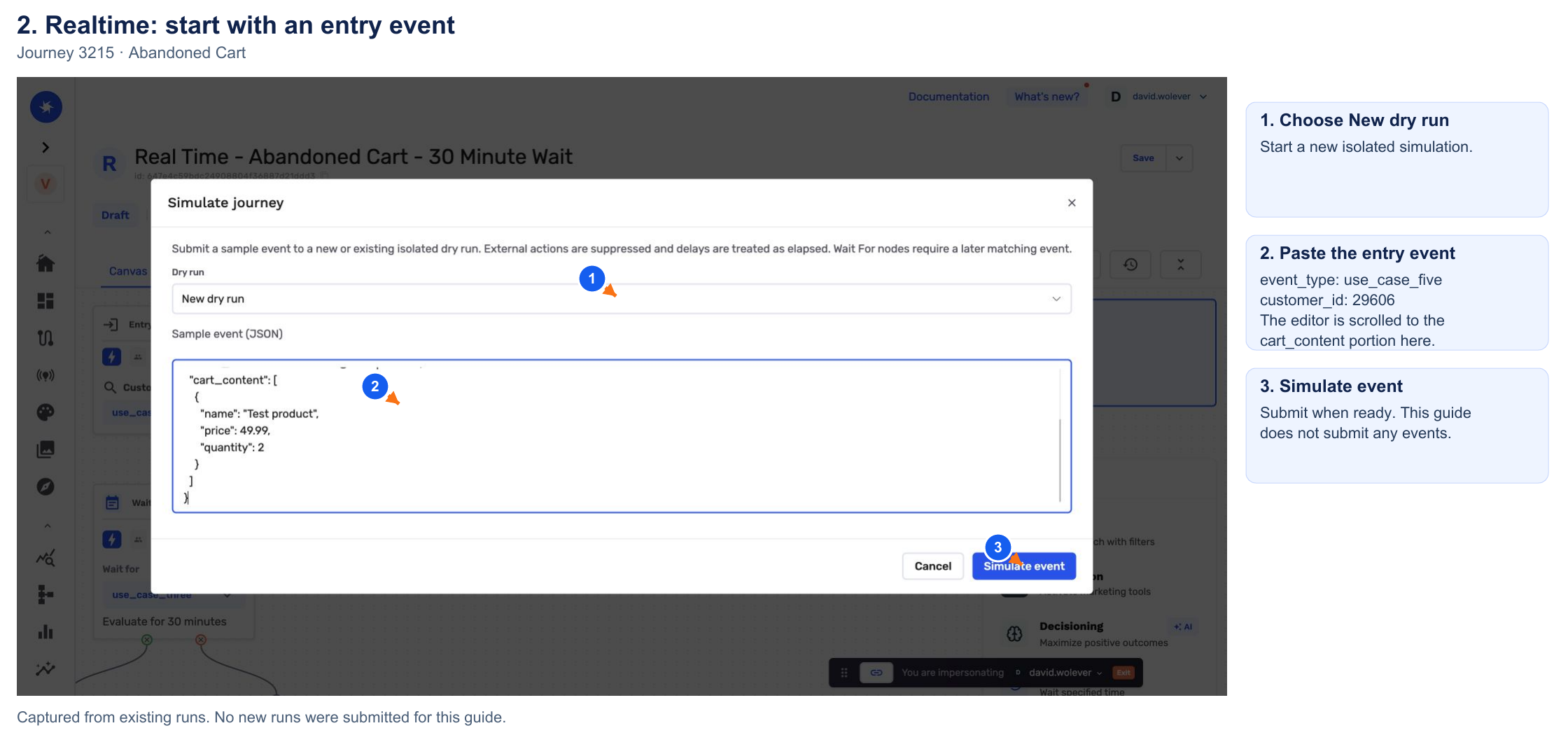
For example, the abandoned-cart journey in the screenshots enters on use_case_five:
{
  "event_type": "use_case_five",
  "customer_id": 29606,
  "first_name": "Simulation",
  "email_address": "[email protected]",
  "cart_content": [
    {
      "name": "Test product",
      "price": 49.99,
      "quantity": 2
    }
  ]
}
Use your own registered event type, fields, and test customer ID. This example's schema expects customer_id to be a number, so it is not enclosed in quotation marks. Match the field types in your own event schema.
Continue through a Wait For node
A Wait For node needs a later matching event. Keep both events in the same dry run so the second event can continue the customer who entered with the first.
- Reopen Simulate from the journey actions menu.
- Select Continue dry run for the run you started, such as Continue dry run 1.
- Paste the event expected by the Wait For node. Use the same customer identifier as the entry event.
- Click Simulate event.
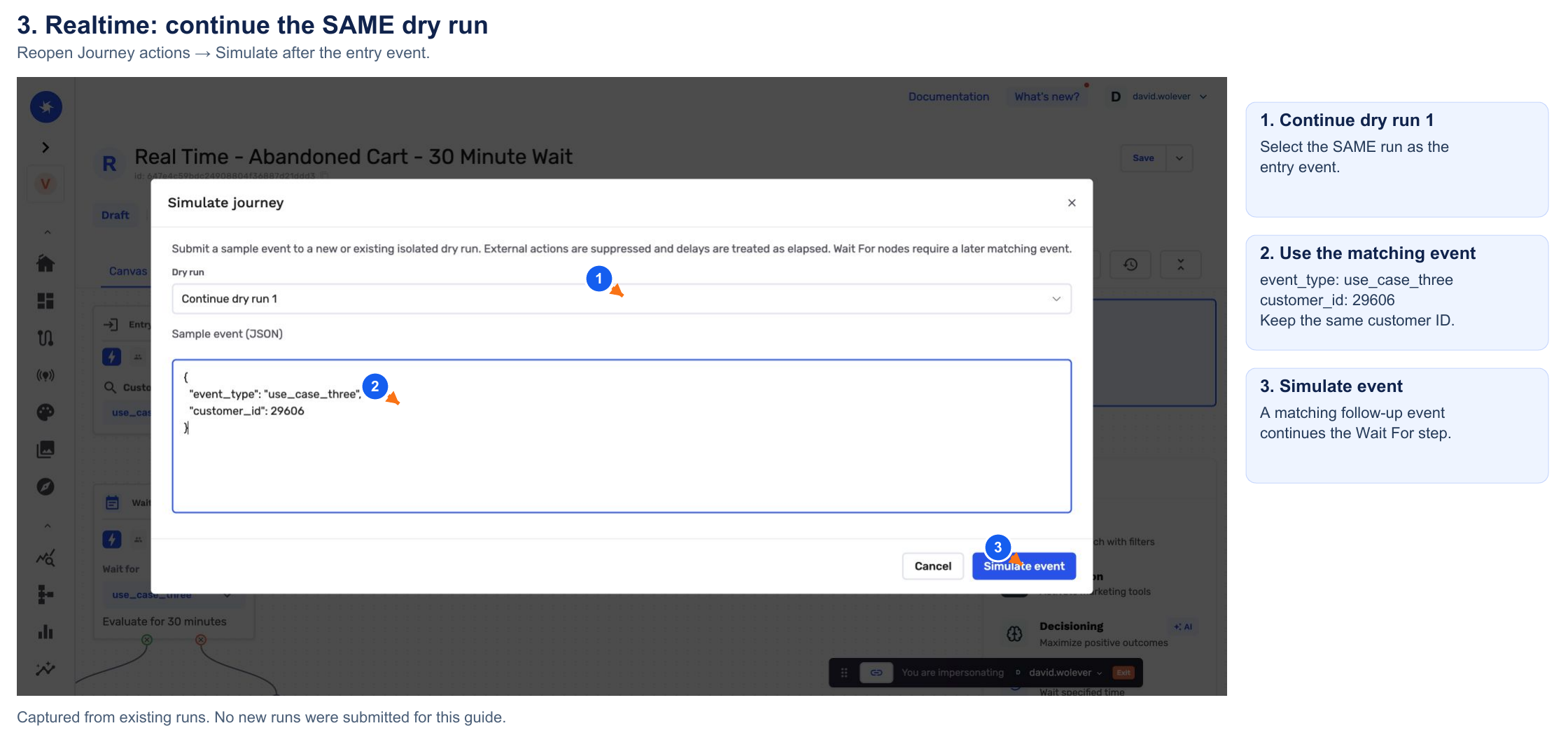
The example journey waits for use_case_three. Its follow-up event is:
{
  "event_type": "use_case_three",
  "customer_id": 29606
}
TipSelecting New dry run for the follow-up event starts a separate simulation. Select Continue dry run to test the existing customer's next step.
Inspect the result
- Click Runs, the clock icon above the canvas.
- Select your dry run to overlay its counts on the journey nodes.
- Check the event count, outcome, and node badges to confirm the expected path.
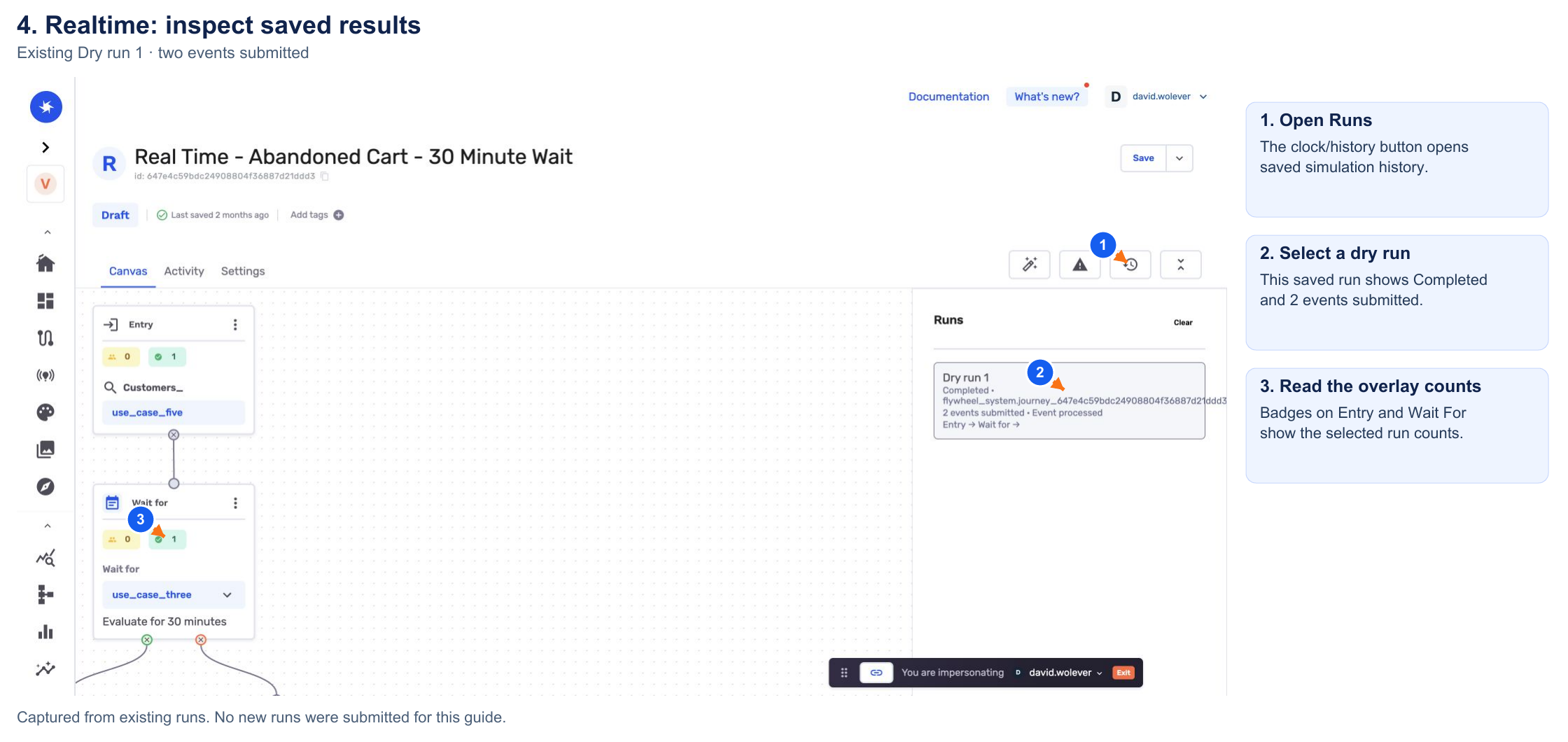
The saved example shows 2 events submitted and a completed pass through the Entry and Wait For nodes. A dry run can finish processing an event while a customer remains at a Wait For node. Submit a matching follow-up event to continue that customer.
Simulate a warehouse journey
- Open Simulate from the journey actions menu.
- Click Dry run full audience. You do not need to enter JSON.
- Wait for the dry run to finish.
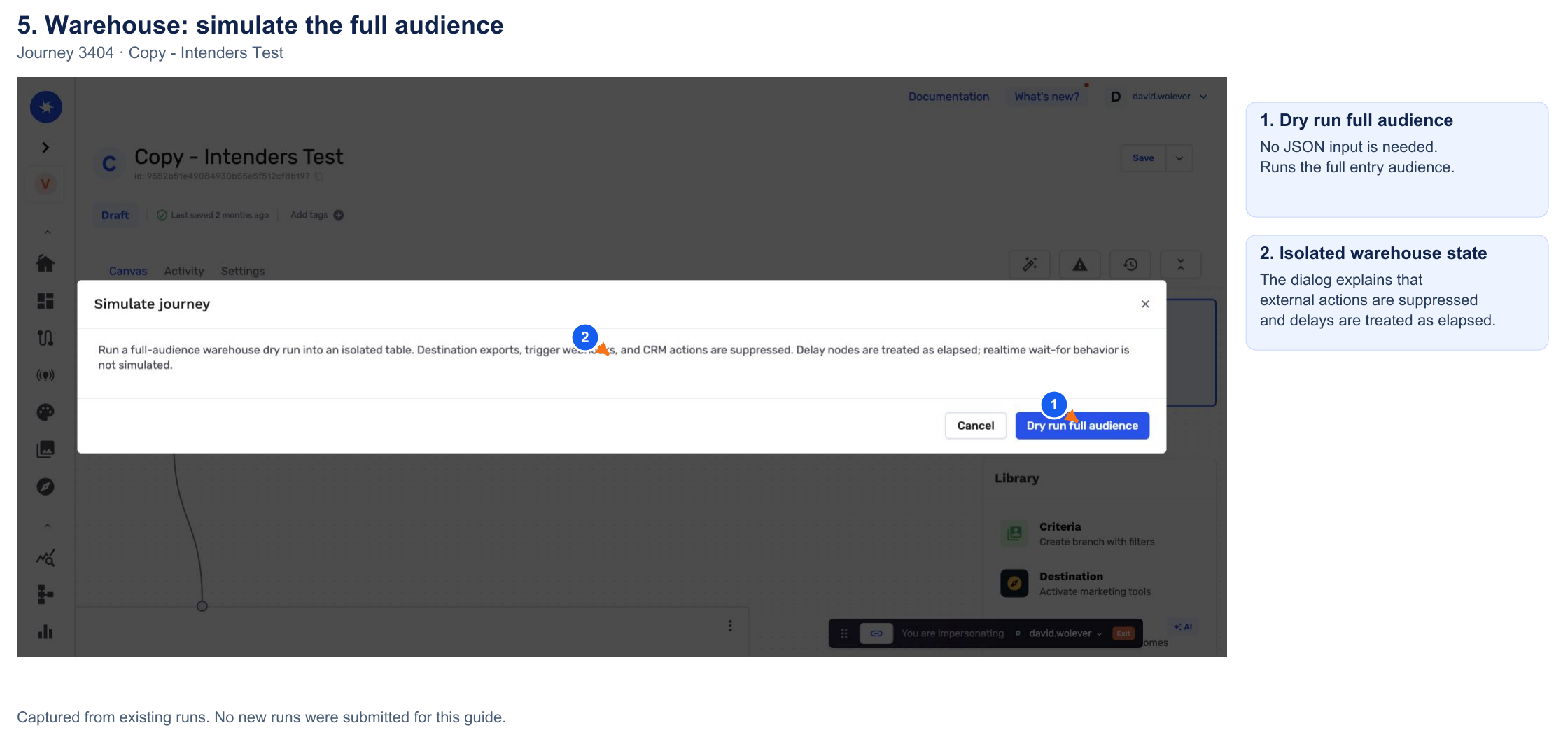
The dry run processes the full entry audience and writes its state to an isolated warehouse table.
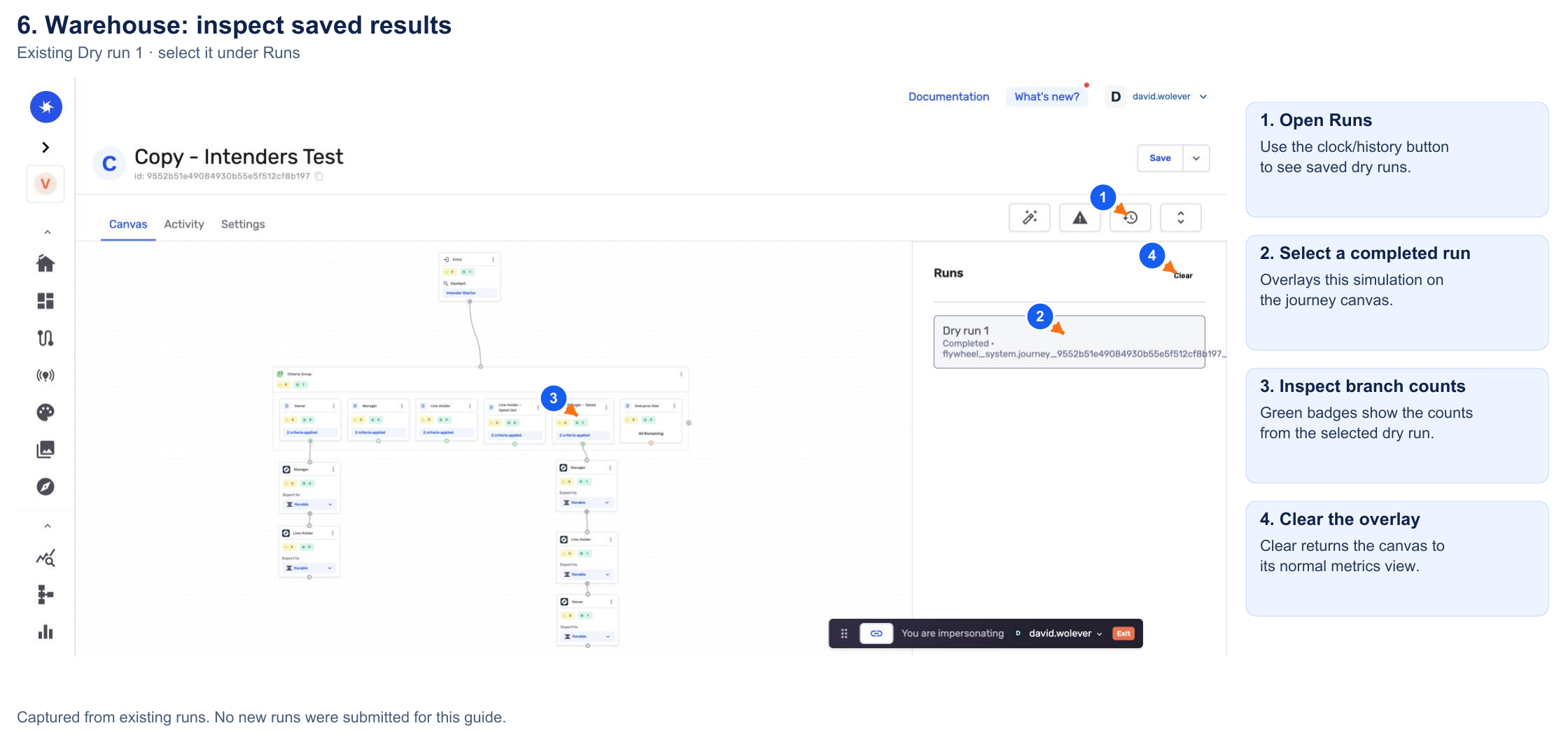
- Click Runs above the canvas and select the completed dry run.
- Inspect the counts across your criteria branches and downstream nodes.
- Click Clear in the Runs panel to remove the simulation overlay.
Understand simulation results
The canvas badges show counts from the selected dry run. Yellow indicates customers waiting at a step, green indicates customers who passed through it, and an exit badge appears when the exit count is nonzero. Click Clear in Runs to return to the normal canvas view.
| Behavior | During simulation |
|---|---|
| Destination exports, trigger webhooks, and CRM actions | External actions are suppressed. Reaching a destination node does not confirm delivery to that platform. |
| Delay nodes | Delays are treated as elapsed so you can inspect the downstream path. |
| Wait For nodes in real-time journeys | A later matching event is needed to continue the customer. |
| Warehouse state | Dry-run state is written to an isolated table. |
Troubleshooting
These are the issues we see most often. You can always email us at [email protected] for help.
| Problem | Cause | Resolution |
|---|---|---|
| Simulate is missing | Journey simulation is not enabled for your organization. | Contact GrowthLoop to enable journey simulation for your organization. |
| The entry event does not match | The submitted event does not match the registered event type, schema, or configured entry filters. | Check the registered event type, JSON field types, and entry filters, then update your sample event. |
| The customer stays at Wait For | A matching follow-up event has not continued the customer in the selected dry run. | Select the same dry run and submit the event expected by the node with the same mapped customer identifier. |
| The dry run fails | A configuration, event, or processing error stopped the run. | Review the error shown for the run. Check the journey configuration and sample event, then contact GrowthLoop if you need help. |
You're all set to test your journey's paths! Continue to Monitor a Journey when you're ready to inspect live journey activity.
Updated about 19 hours ago